15 iPhone Duo settings to change first (plus what's coming in iOS 27.3)
Out of the box, the iPhone Duo acts like a phone that can't fold. 15 settings fix that: Touch ID, volume buttons, lock on close, Smart Take flash and more.
Disclosure: This article may contain affiliate links. If you buy through them we may earn a small commission at no extra cost to you. It never influences our editorial opinion. As an Amazon Associate, GeekyGoo earns from qualifying purchases.
The iPhone Duo folds in half, but out of the box a lot of it is still set up like a phone that can’t. The volume buttons don’t follow the way you hold it. Touch ID wants a press after it has already read your finger. And closing it doesn’t lock it.
Here are the 15 settings worth changing in your first ten minutes, grouped so you can do them in one pass. Everything below works on the current iOS 27.2. At the end there’s a short list of what the iOS 27.3 update adds (it’s in public beta now), plus a few tricks that don’t have a switch at all.
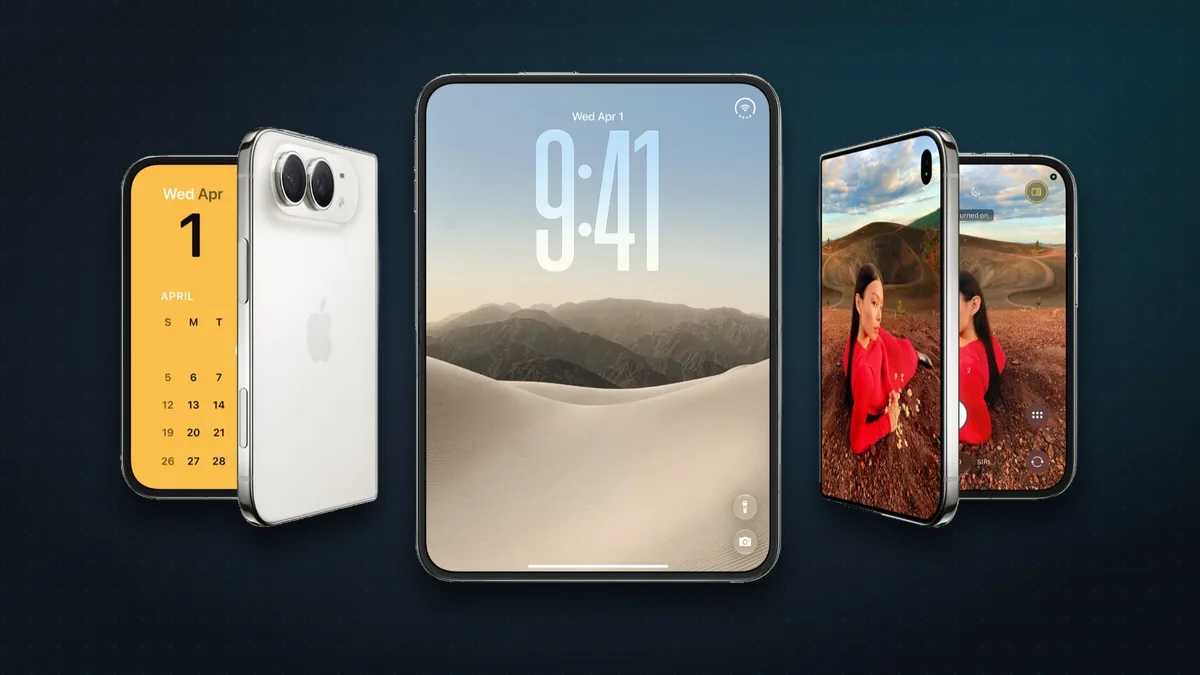
The quick list:
| # | Setting | Where | Change it to |
|---|---|---|---|
| 1 | Rest Finger to Open | Accessibility › Side Button | On |
| 2 | More fingerprints | Touch ID & Passcode › Add a Fingerprint | Fingers from both hands |
| 3 | Unlock with Apple Watch | Touch ID & Passcode › Apple Watch | On, if you wear one |
| 4 | Lock when you close it | Shortcuts automation (Close to Lock in iOS 27.3) | Set it up |
| 5 | Stolen Device Protection | Touch ID & Passcode | Check it’s on |
| 6 | Fixed Position Volume Controls | Sounds & Haptics | Off |
| 7 | Silent Mode control | Control Center | Add it |
| 8 | Back Tap | Accessibility › Touch › Back Tap | Pick a shortcut |
| 9 | Orientation Lock | Control Center (per screen) | Use it per screen |
| 10 | Shift Left Edge | Display & Brightness | On, with some cases |
| 11 | Battery Percentage | Battery | On |
| 12 | Flash During Capture | Camera | Off |
| 13 | StandBy positions + Only While Charging | StandBy | Your call |
| 14 | Charge Limit | Battery › Charging | 80–95% if you like |
| 15 | Text Size | Appearance | To taste |
Unlocking and security
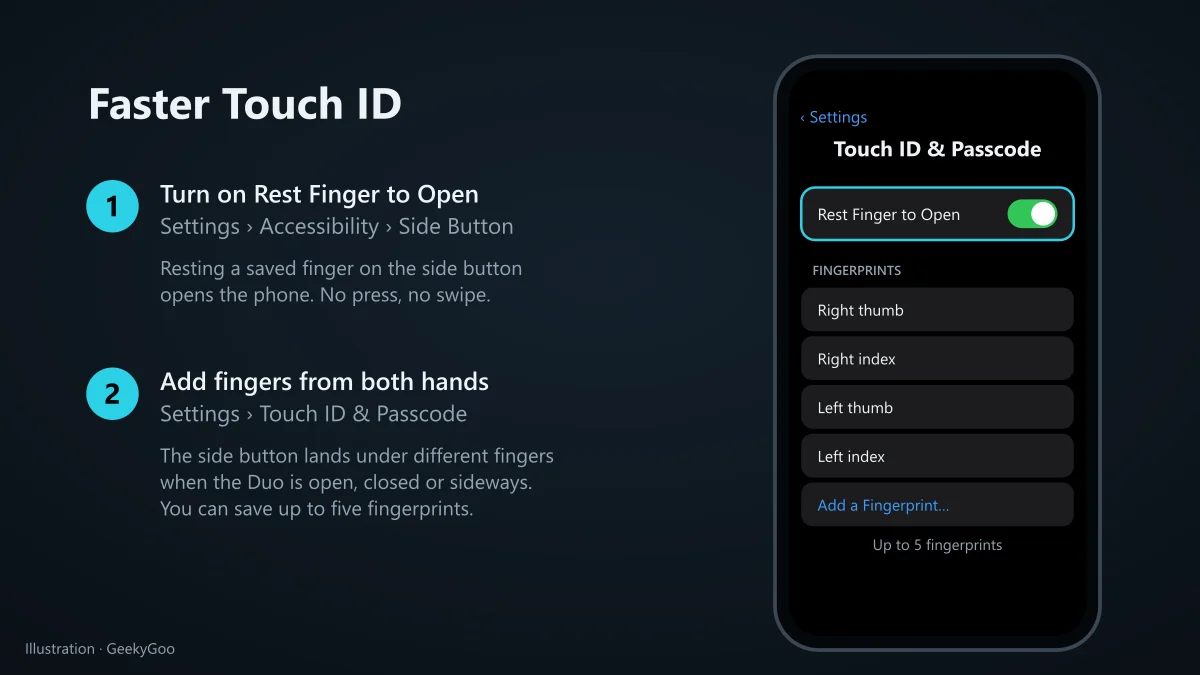
1. Turn on Rest Finger to Open
The Duo has no Face ID. Its fingerprint sensor is built into the side button, and by default Touch ID reading your finger isn’t the end of it: you still press or swipe to get past the Lock Screen.
Go to Settings › Accessibility › Side Button and turn on Rest Finger to Open. (The same switch also shows up in Settings › Touch ID & Passcode.) Now, with the screen awake, resting a saved finger on the side button takes you straight in. Some owners have found it already on, so check rather than assume.
If you like reading notifications on the Lock Screen before you unlock, you may prefer to leave it off.
2. Add fingerprints from both hands
Because the Duo opens like a book, the side button ends up under different fingers when it’s open, closed, upright or sideways. Apple’s advice is to register each finger while holding the phone the way you normally would.
Go to Settings › Touch ID & Passcode, enter your passcode, and tap Add a Fingerprint. You can save up to five. A good set: thumb and index finger on your main hand, the same two on the other hand, and one spare.
3. Unlock with your Apple Watch
If you wear a recent Apple Watch, it can unlock the Duo for you, which is handy with gloves, wet hands or a case that gets in the way of the button.
Go to Settings › Touch ID & Passcode, scroll down to Unlock with Nearby Devices, and turn on your Apple Watch. Apple lists Apple Watch Series 9 or later, Ultra 2 or later, and SE 3. The watch needs a passcode, and it has to be unlocked, on your wrist and close by. Then wake the Duo (or just open it) and swipe up.
4. Make closing the Duo lock it
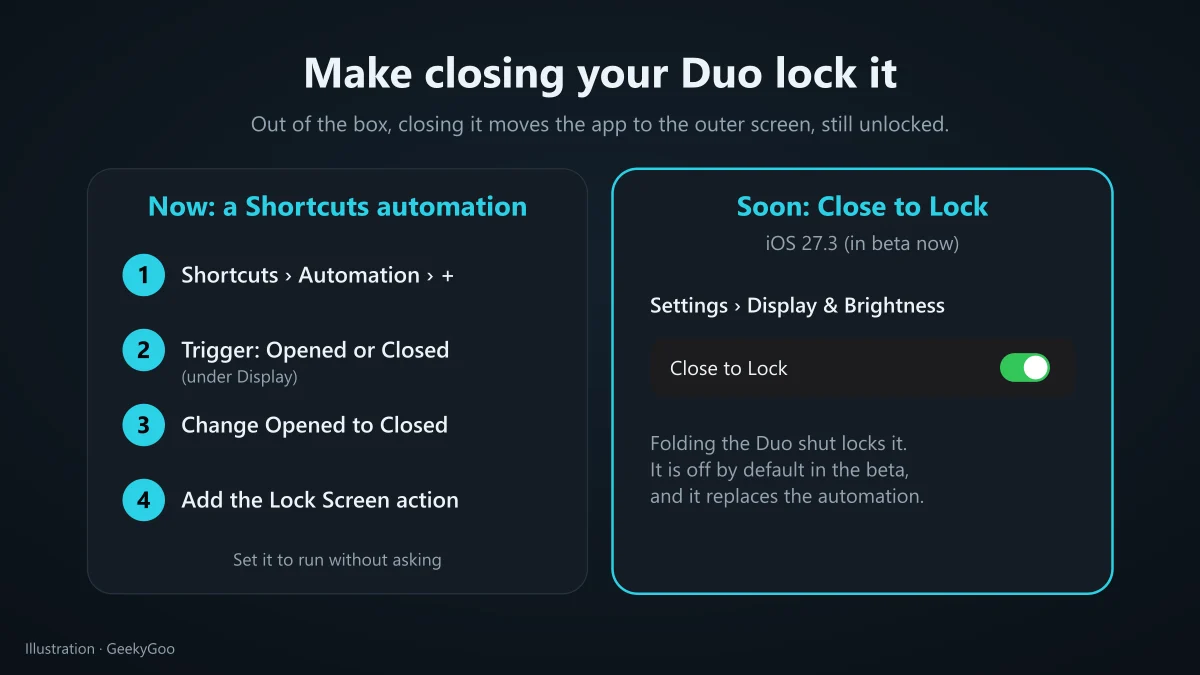
This one surprises most new owners. When you fold the Duo shut, it doesn’t lock: whatever was on the inner screen carries on on the outer screen, still unlocked. Apple designed it that way so the phone feels continuous, but it isn’t what you expect if you’re used to locking your phone by putting it away.
There’s no switch for it in iOS 27.2, but you can build one with a Shortcuts automation:
- Open Shortcuts, go to Automation, and tap +.
- Find the trigger called Opened or Closed (it’s under Display).
- Change Opened to Closed.
- Add the Lock Screen action, and make sure the automation runs without asking you first.
Now folding the phone locks it.
iOS 27.3 adds a real setting for this. It’s called Close to Lock, in Settings › Display & Brightness. In the beta it’s off by default, so you turn it on. Once you’re on 27.3, switch it on and delete your automation so the two don’t overlap.
5. Check Stolen Device Protection is on
A $2,000 foldable is an obvious target. Stolen Device Protection makes a thief who knows your passcode wait: important changes need your fingerprint, and some, like changing your Apple Account password, add an hour’s delay when you’re away from familiar places.
Go to Settings › Touch ID & Passcode, enter your passcode, and tap Stolen Device Protection. Apple says it “might be turned on by default”, so just check. Our iPhone security settings guide covers the other four worth turning on.
Buttons and screens
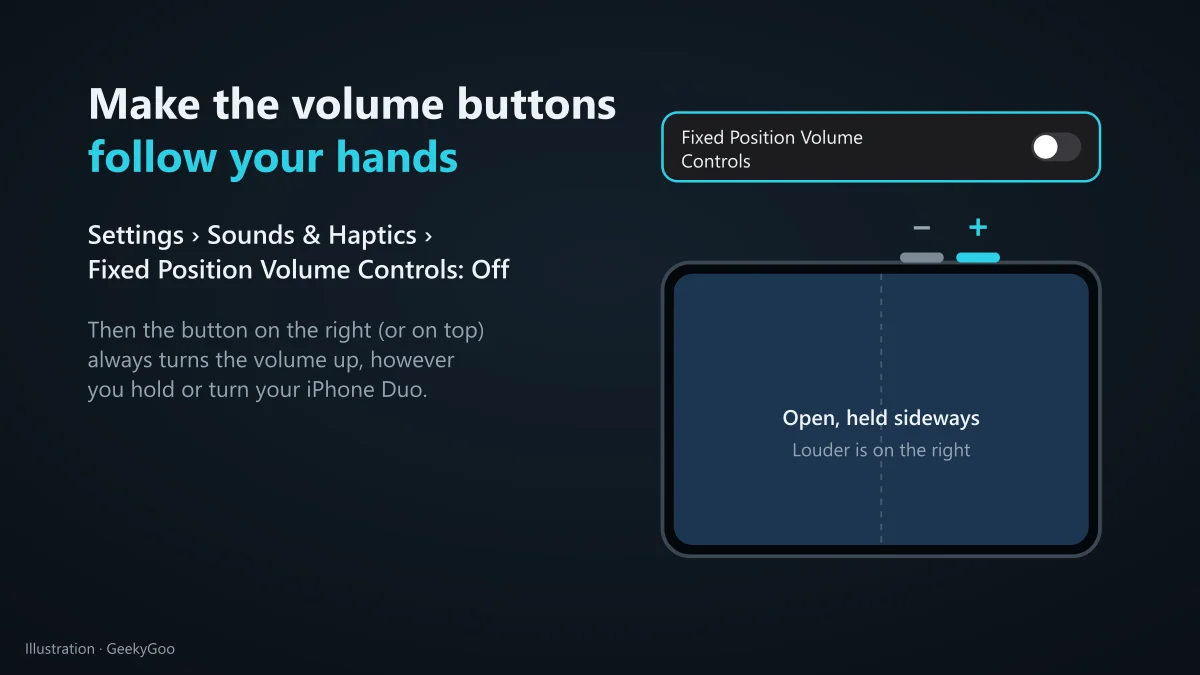
6. Turn off Fixed Position Volume Controls
Unfold the Duo, turn it sideways to watch something, reach for the volume, and there’s a good chance you’ll make it quieter. By default each volume button keeps the same job however you hold the phone, so “louder” can end up on the wrong side.
Go to Settings › Sounds & Haptics and turn off Fixed Position Volume Controls. Apple’s description: the buttons “adjust automatically as you rotate your iPhone Duo. So you increase volume with the button on the right or top.” (If you’ve locked the rotation, they follow the locked orientation.)
Leave it on if you mostly use the Duo closed and like the old muscle memory.
7. Add Silent Mode to Control Center
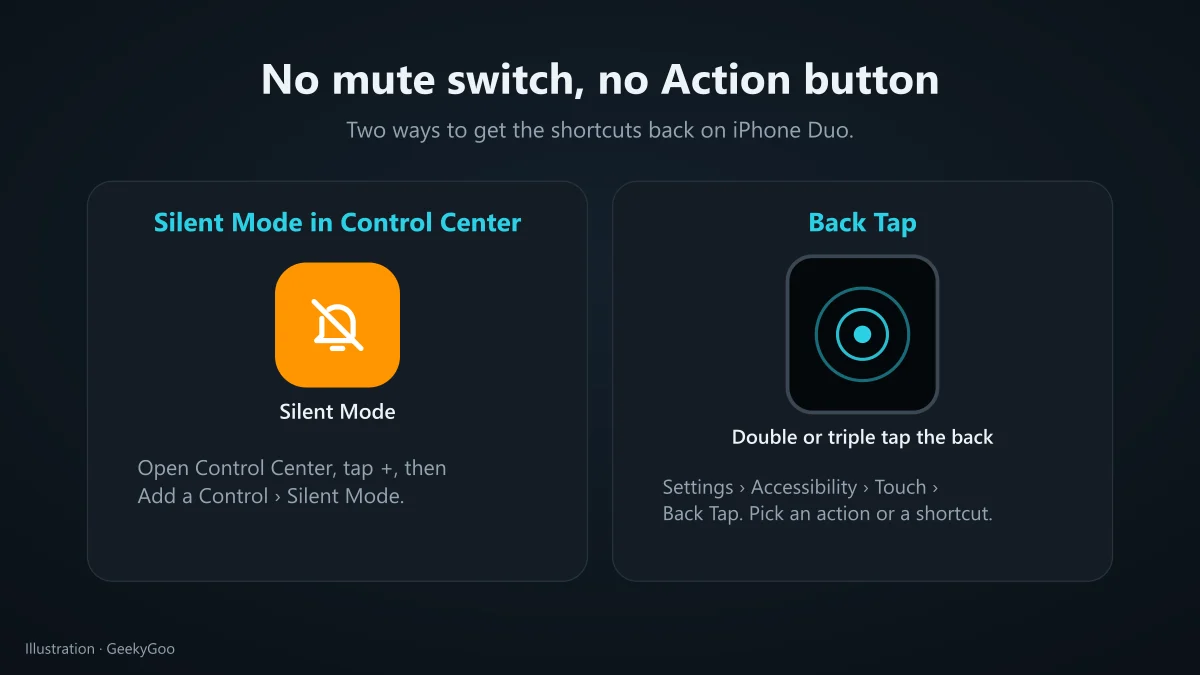
The Duo has no Ring/Silent switch and no Action button. Its only physical controls are the volume buttons, the side button and Camera Control. So the quickest way to silence it is a Control Center button.
Open Control Center, tap + at the top left, tap Add a Control, and choose Silent Mode.
8. Set up Back Tap
With no Action button, Back Tap is the next best thing: double- or triple-tap the back of the phone to take a screenshot, turn on the flashlight or run any shortcut. Go to Settings › Accessibility › Touch › Back Tap, then choose Double Tap or Triple Tap and pick an action. Triple Tap is less likely to go off by accident.
9. Use Orientation Lock on one screen at a time
On the Duo, the Orientation Lock button in Control Center only locks the screen you’re using when you tap it. So you can keep the outer screen locked upright for reading in bed and still let the inner screen turn sideways for video. There’s nothing to set in Settings: just know that each screen remembers its own lock.
10. Turn on Shift Left Edge if your case covers the outer screen
Some cases wrap around the left edge of the outer screen. Settings › Display & Brightness › Shift Left Edge moves the outer display’s content over to make room, leaving a thin black border on the left. Apple’s own iPhone Duo Case prompts you to turn it on. If your case doesn’t cover the screen, leave it off. Our iPhone Duo cases guide has the options.
11. Show the battery percentage
The Duo’s status bar is more compact than on other iPhones, which makes the battery icon harder to read at a glance. Go to Settings › Battery and turn on Battery Percentage: the number then appears inside the battery symbol.
Camera
12. Stop the Smart Take flash from blinking
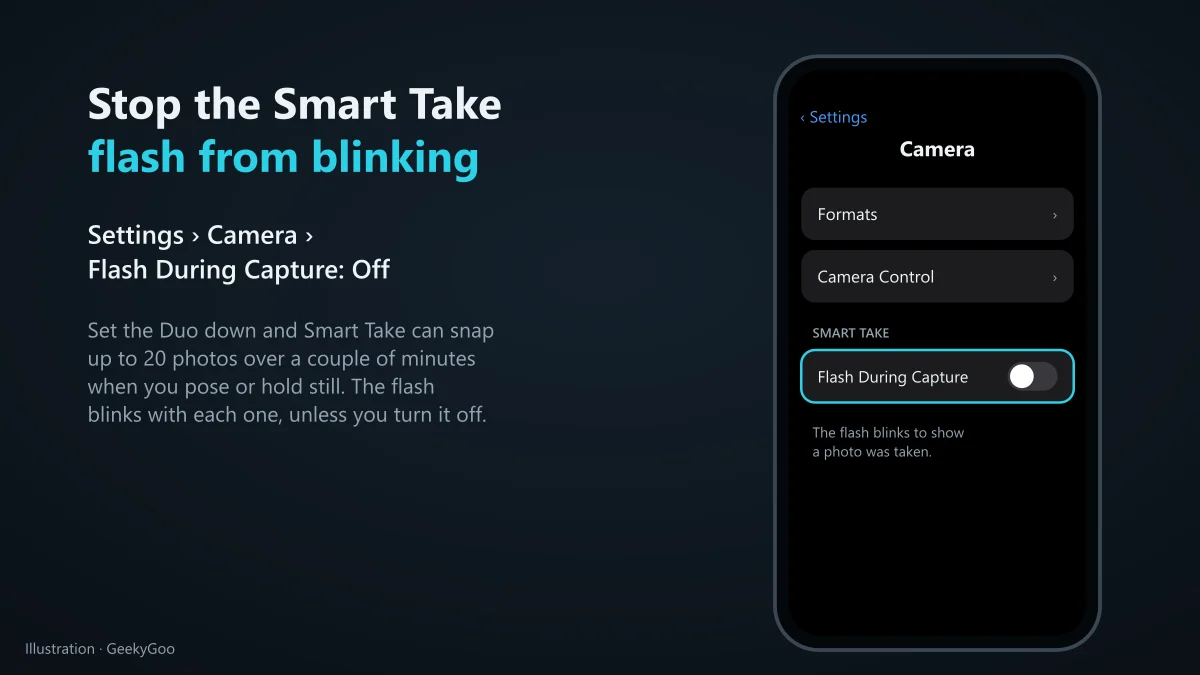
Smart Take is a Duo camera feature: set the phone down on a surface and it can take a photo for you “when you strike a pose or hold still”, up to 20 photos over a couple of minutes. It’s on by default when the Duo is on a surface. The catch is that the flash blinks with every shot, which is a lot of blinking at a dinner table or around kids and pets.
Go to Settings › Camera and turn off Flash During Capture. Smart Take still works; it just stops flashing at everyone. To turn Smart Take off altogether, open the Camera app, tap the Camera Controls button and tap Smart Take.
StandBy and battery
13. Choose your StandBy positions (and whether it needs a charger)
On other iPhones, StandBy needs the phone on its side and charging. On the Duo you just half-fold it, either like a book or like a tent, and set it down, and it becomes a bedside clock. Apple says you don’t need to connect a charger.
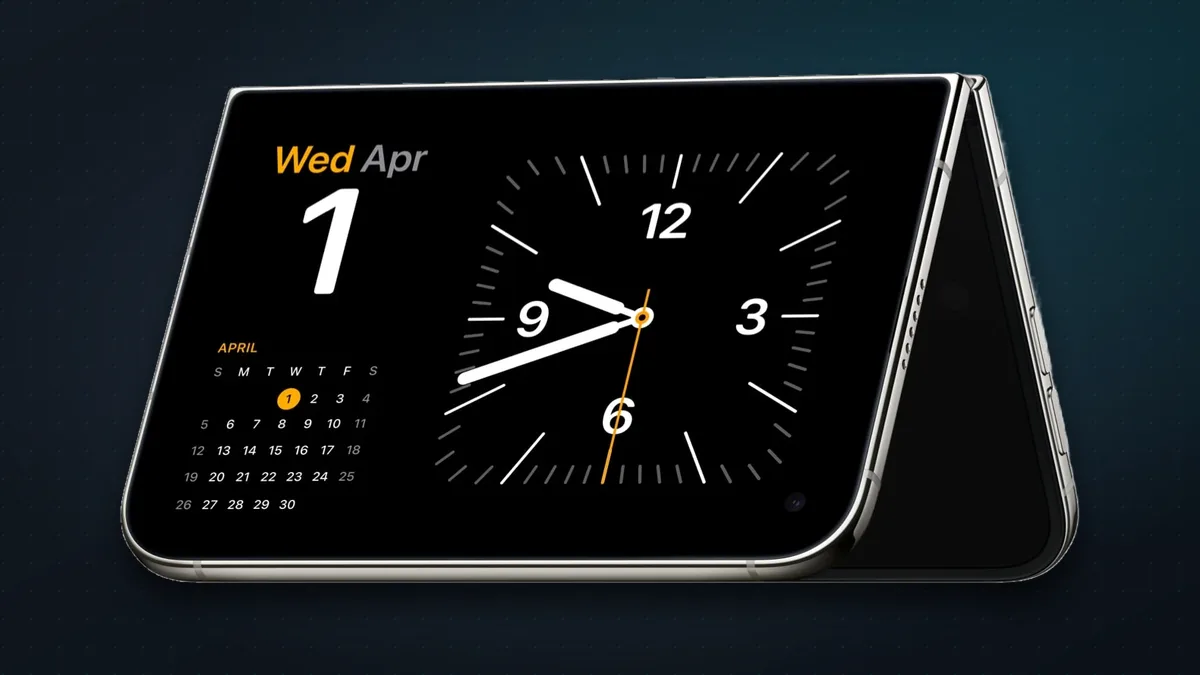
In Settings › StandBy you can pick which positions start it. If you’d rather it didn’t run on battery, turn on Only While Charging. The same screen has Night Mode, which turns the clock red in the dark.
14. Set a charge limit
If you keep a phone for years, limiting charging can help the battery age more slowly. Go to Settings › Battery › Charging and choose a limit between 80% and 100%, in 5% steps. Apple lists this for iPhone 15 models and later. On the same Battery screen, Battery Health shows the Duo’s two batteries separately.
15. Pick your text size (Display Zoom is a setup-only choice)
During setup, the Duo asks how big you want things on screen. Choose carefully: unlike other iPhones, the Duo doesn’t currently offer Display Zoom in Settings afterwards. What you can still change later is Settings › Appearance › Text Size (and Bold Text), which is usually enough.
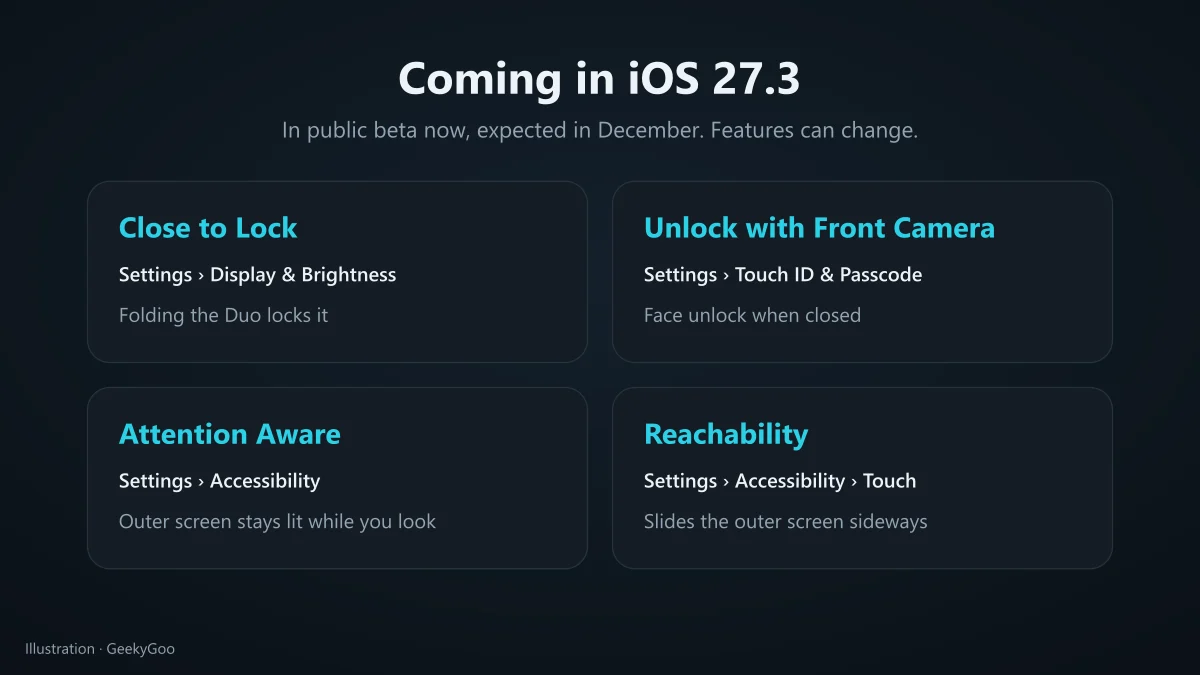
Coming in iOS 27.3
iOS 27.3 is in public beta and expected in December. It adds four things for the Duo, and features can change before release:
- Close to Lock (Display & Brightness): folding the Duo locks it. See setting 4.
- Unlock with Front Camera (Touch ID & Passcode): unlock with your face when the Duo is closed, using the outer screen’s camera. It isn’t Face ID, and Apple Pay and passwords still need Touch ID. Our Duo face unlock explainer has the details.
- Attention Aware features (Accessibility): on the outer screen, the Duo checks you’re looking before it dims, and turns some alerts down while you are.
- Reachability (Accessibility › Touch): on the outer screen, a swipe in from the side slides the interface sideways so you can reach the far side with your thumb. It’s on after the update; turn it off if it fires by accident.
Tricks with no switch
- Split keyboard: with the Duo open and sideways, tap the keyboard’s More (…) button and choose Split to type with your thumbs. Choose Full to join it back up.
- Selfies with the main cameras: point the rear cameras at yourself and the outer screen shows a preview, so you get the better cameras for selfies.
- Show people the photo before you take it: with the Duo open in the Camera app, Outer Display Options shows your subject a live preview, and Kid Cue plays an animation on the outer screen to get children and pets to look.
- App pairs: in Split View, tap the divider between two apps to pair them, and they’ll open together next time.
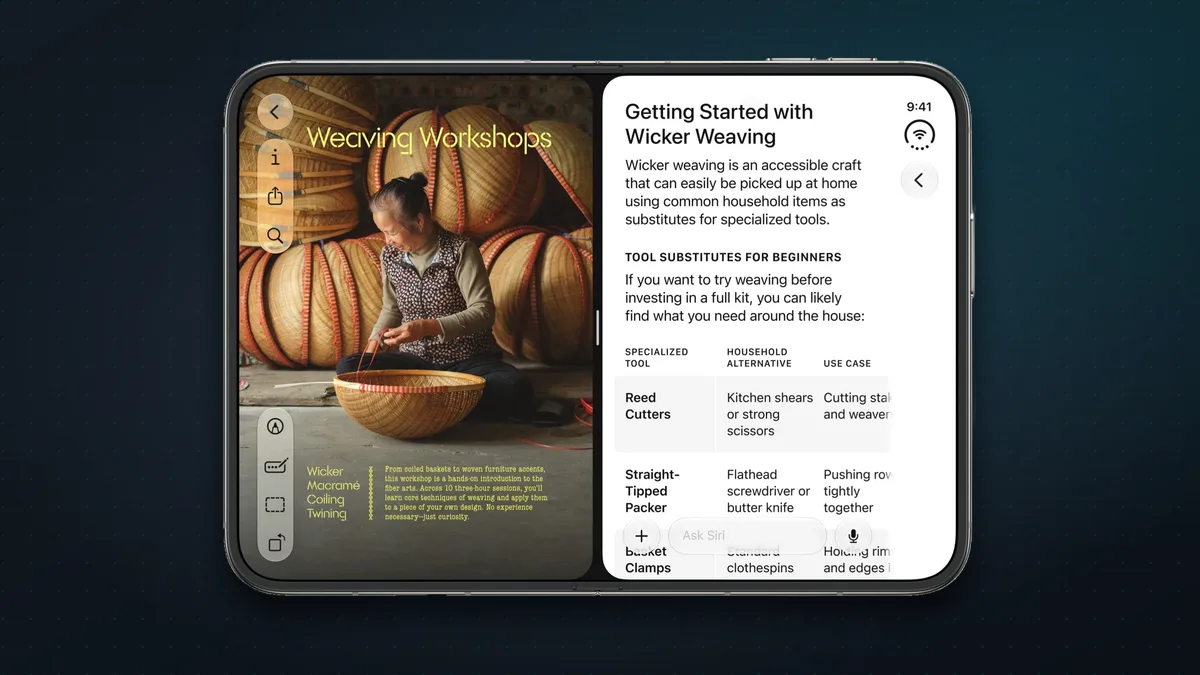
Want apps that make the most of the fold? Start with our best iPhone Duo apps. Still deciding? Read our iPhone Duo pros and cons.
FAQ
Why doesn’t my iPhone Duo lock when I close it? Apple designed it so the app you were using carries on on the outer screen. On iOS 27.2, a Shortcuts automation with the Opened or Closed trigger and the Lock Screen action makes it lock. iOS 27.3 adds a Close to Lock switch in Display & Brightness.
How many fingerprints can the iPhone Duo save? Up to five. Add fingers from both hands, because the side button sits under different fingers when the Duo is open or closed.
How do I stop the flash blinking when I take photos on the iPhone Duo? That’s Smart Take. Go to Settings › Camera and turn off Flash During Capture.
Does the iPhone Duo have a mute switch or Action button? No. Add Silent Mode to Control Center, and use Back Tap for a quick shortcut.
Does StandBy on the iPhone Duo need a charger? No. Half-fold it like a book or a tent and set it down. Turn on Only While Charging in Settings › StandBy if you want it to need a charger.
Can I change Display Zoom on the iPhone Duo later? Not at the moment. It’s only offered during setup. You can still change Text Size in Settings › Appearance.
Does the iPhone Duo have Face ID? No. It uses Touch ID in the side button. iOS 27.3 adds an optional face unlock that works only when the Duo is closed.
Watch: this guide in 3 minutes
More short videos
Sources & further reading
- Apple Support — Use the volume buttons, side button and other controls on your iPhone
- Apple Support — Adjust settings for the side or Home button on iPhone
- Apple Support — Use Touch ID on iPhone and iPad
- Apple Support — Use Apple Watch with iPhone
- Apple Support — Take photos with Smart Take on iPhone Duo
- Apple Support — Use StandBy on iPhone
- Apple Support — Adjust your display when you put a case on iPhone Duo
- Apple Support — Back Tap on iPhone
- Apple Support — Show the battery percentage on iPhone
- Apple Support — About charging limits and Optimized Battery Charging
- Apple Support — Use Stolen Device Protection on iPhone
- Apple Support — Open two apps in Split View on iPhone Duo
- Apple — iPhone Duo technical specifications
- Apple Newsroom — Apple unveils iPhone Duo (9 Sep 2026)
- MacRumors — iPhone Duo "Opened or Closed" Shortcuts automation (25 Oct 2026)
- MacRumors — Using Smart Take on iPhone Duo (28 Oct 2026)
- MacRumors — Separate rotation lock for each iPhone Duo display (26 Oct 2026)
- MacRumors — iPhone Duo is missing the Display Zoom option (2 Nov 2026)
- MacRumors — Everything new in iOS 27.3 beta 2 (16 Nov 2026)
- 9to5Mac — iPhone Duo is getting three new features in iOS 27.3 (18 Nov 2026)
- TechCrunch — Got an iPhone Duo? These settings make it easier to use (14 Nov 2026)
Keep reading
iPhone Duo screen cracked at the hinge, or a white line? What to do (and what it costs)
Some iPhone Duo inner screens are cracking at the hinge. Apple is replacing affected phones, even without AppleCare+. What to do, and what repairs cost.
Read more →
What Offload App actually does on your iPhone (and when to delete instead)
Offload App removes an iPhone app but keeps its data. What stays, how to get the app back, the automatic setting, and when to delete instead.
Read more →
iPhone for beginners: the complete guide to your first iPhone (iOS 27)
New to iPhone? The buttons, gestures, setup, Home Screen, Control Center, Messages, Siri and the security settings to turn on, explained for iOS 27.
Read more →