What Offload App actually does on your iPhone (and when to delete instead)
Offload App removes an iPhone app but keeps its data. What stays, how to get the app back, the automatic setting, and when to delete instead.
“iPhone Storage Full” usually arrives at the worst moment, like when you’re trying to take a photo or install an update. Deleting apps works, but it also wipes everything inside them. iOS has a gentler option that most people scroll straight past: Offload App.
Here’s exactly what it removes, what it keeps, how to get an app back, and when deleting is still the better choice. The steps are for iOS 27, and they work the same way on iOS 26 and on iPad.
The short version:
- Offload App removes the app itself but keeps its documents and data on your iPhone.
- The icon stays on your Home Screen with a small cloud next to its name. Tap it and the app downloads again, with your data still there.
- Delete App removes the app and its data.
- Offload Unused Apps does this automatically for apps you don’t use when storage runs low.
What Offload App removes, and what it keeps
Every app on your iPhone takes up space in two ways. There’s the app itself (the program you download from the App Store) and there’s what the app has saved: your documents, settings, game progress, downloads, chat history and so on.
Offloading removes only the first part. Apple’s own description is that it “frees up storage used by the app, but keeps its documents and data.” Deleting removes both.
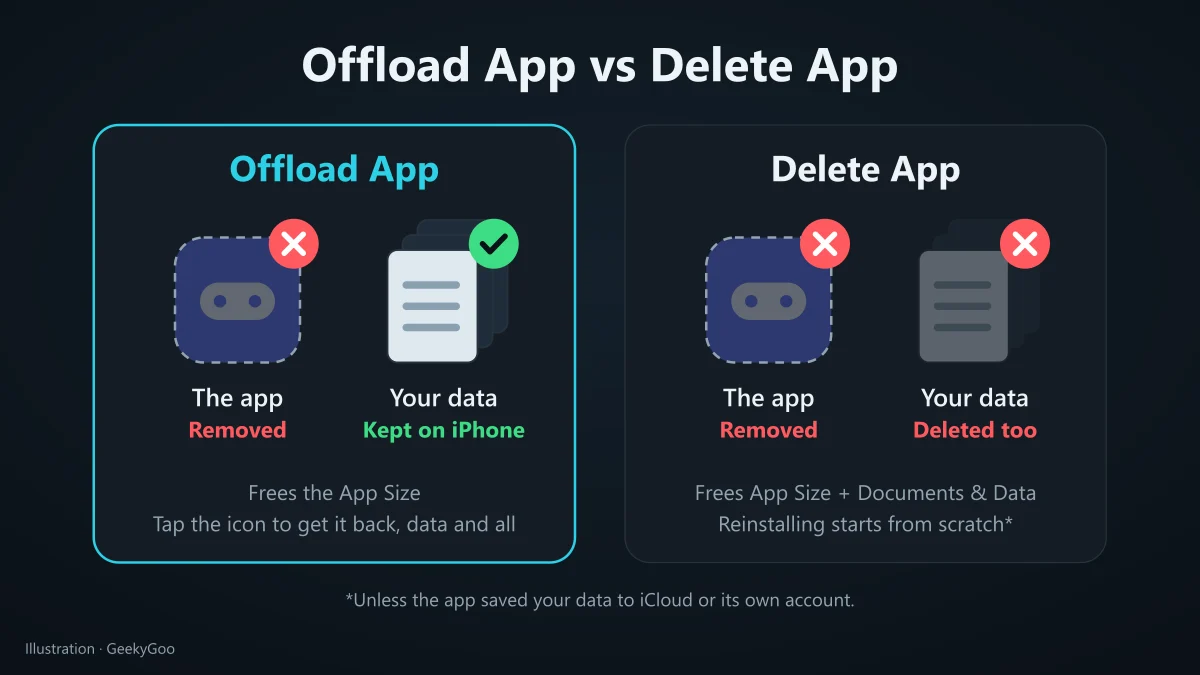
That makes offloading the safe way to clear space from an app you’ll want again later: a travel app between trips, a game you’ve paused, or a big editing app you only open once a month.
How to offload an app
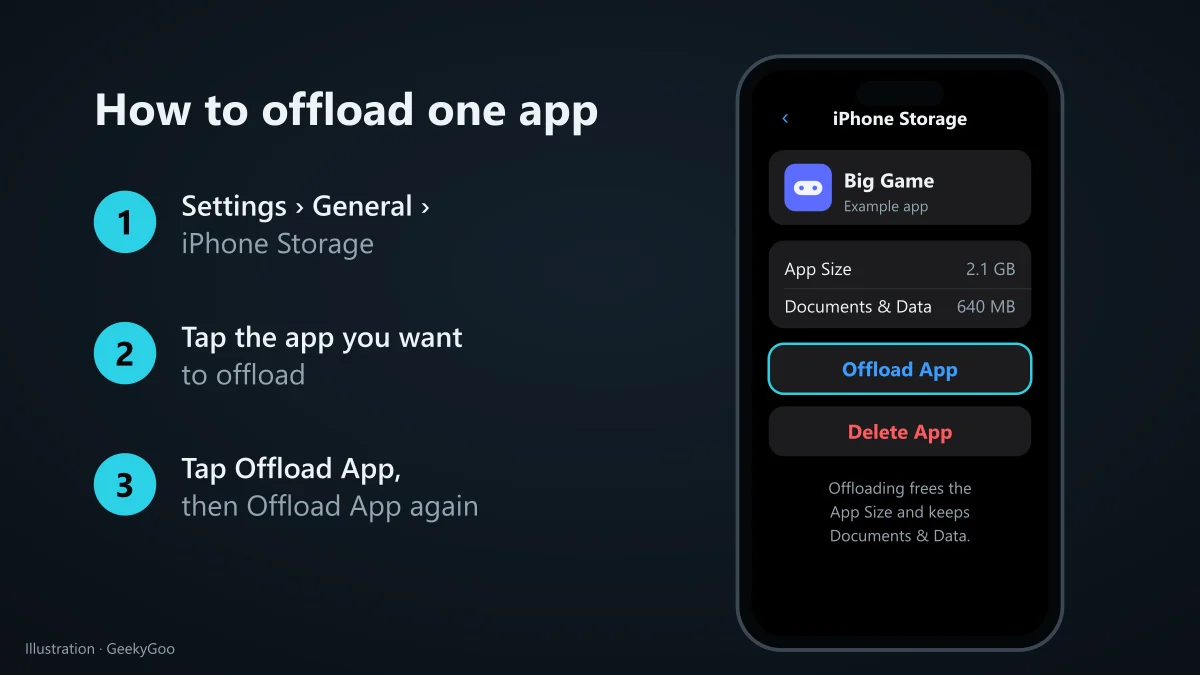
- Open Settings › General › iPhone Storage. Give it a few seconds to work out what’s using your space.
- Scroll down to the list of apps. It’s sorted by size, and each app shows when you last used it, which makes it easy to spot big apps you’ve forgotten about.
- Tap an app, then tap Offload App, and tap Offload App again to confirm.
Check the two numbers first
When you tap an app in iPhone Storage, you’ll see two figures: App Size and Documents & Data. Offloading frees the App Size. The Documents & Data stays put.
So offloading pays off for apps that are big but hold little data, like many games, photo and video editors, and office apps. It does almost nothing for apps where the data is the heavy part, such as a podcast or video app full of downloads, or a messaging app with years of chat history. For those, clear out the downloads or old chats inside the app instead.
What happens to an offloaded app
The app stays on your Home Screen in the same place, with a small cloud icon next to its name.
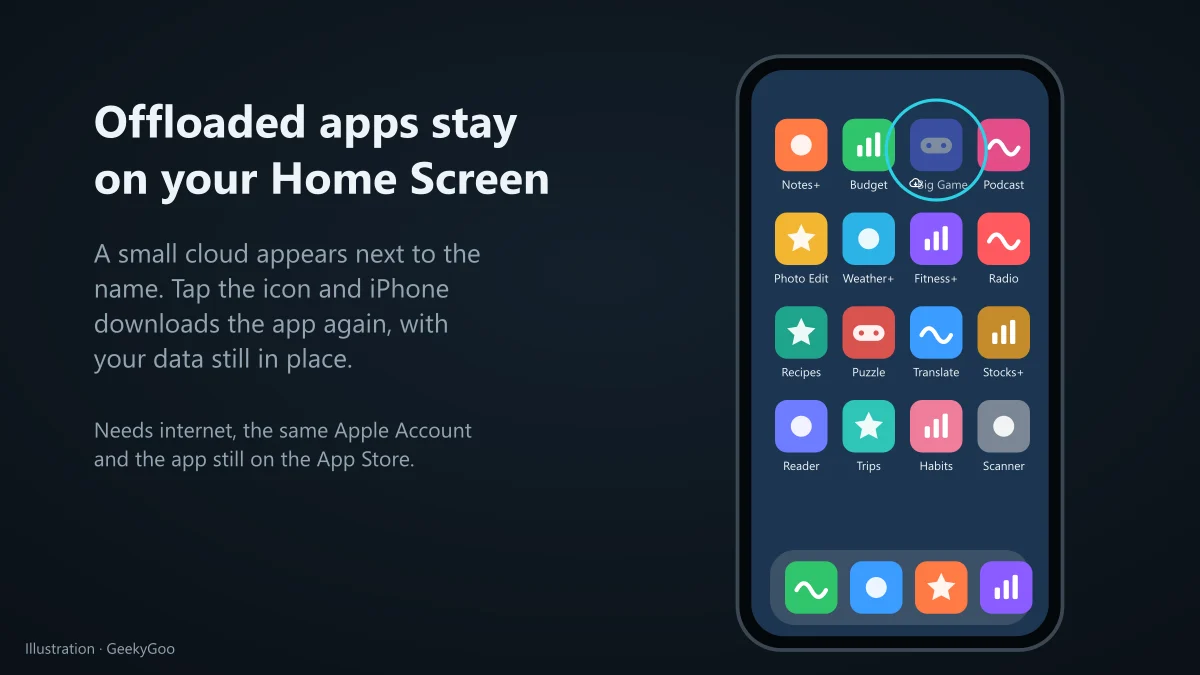
Until you bring it back, the app isn’t installed, so it can’t run. It won’t refresh in the background or send you notifications.
How to get an offloaded app back
- Tap its icon on the Home Screen. iPhone downloads it again from the App Store and puts your data back, so you can carry on where you left off.
- Or go to Settings › General › iPhone Storage, tap the app, and choose Reinstall App.
There are three conditions:
- You need an internet connection. Don’t offload an app you might need on a flight or abroad without data.
- Use the same Apple Account that originally downloaded it.
- The app must still be on the App Store. If the developer has pulled it, you can’t download it again, and its data is stuck. Don’t offload apps you couldn’t replace.
Let iPhone offload apps automatically
If you’d rather not manage this yourself, turn on Offload Unused Apps:
- Go to Settings › Apps › App Store and turn on Offload Unused Apps.
- Or, when storage is tight, Settings › General › iPhone Storage may show it as a recommendation. Tap Enable there.
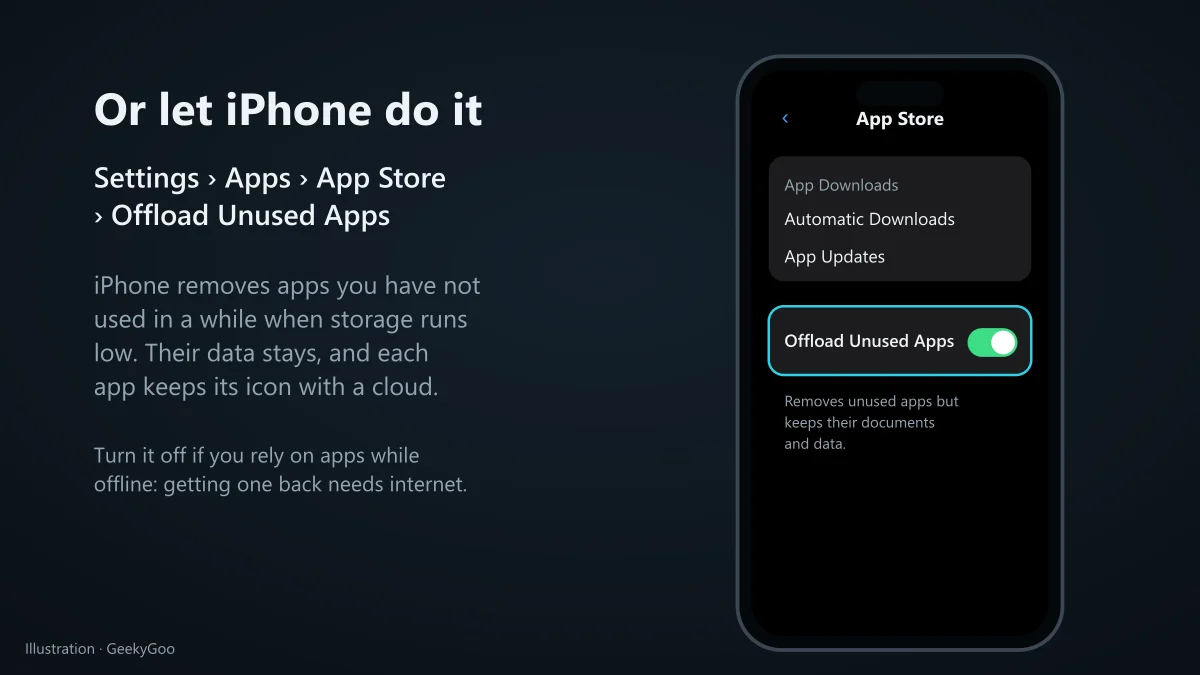
With it on, iPhone removes apps you haven’t used for a while when it’s running low on space. As with manual offloading, their data stays and their icons stay put with a cloud next to the name.
It’s handy, but it’s also the reason some people suddenly find a cloud next to an app they need right now, with no signal. If you depend on certain apps offline, leave this off and offload by hand instead. Turning it off doesn’t bring back apps that were already offloaded; tap each one to reinstall it.
Offload, delete or remove from Home Screen?
| What you do | The app | Your data | Space freed |
|---|---|---|---|
| Offload App | Removed, icon stays with a cloud | Kept on iPhone | The App Size |
| Delete App | Removed | Deleted from iPhone | App Size + Documents & Data |
| Remove from Home Screen | Still installed, moved to App Library | Kept | None |
Delete when you’re done with an app for good, or when its data is the part taking up space and you don’t need it. Anything the app synced to iCloud or to its own online account, such as photos, notes or a streaming service’s playlists, isn’t affected by deleting the app.
Remove from Home Screen (touch and hold the app › Remove App › Remove from Home Screen) only tidies your screens. It frees no space at all.
Other quick ways to free space
Offloading is one of several suggestions iPhone can make. In Settings › General › iPhone Storage, look for the recommendations near the top (tap Show All if there are several). They depend on what’s filling your phone, and they often point to big wins like old message attachments, videos or photos you’ve already deleted but are still in Recently Deleted. Tap a recommendation to review it before anything is removed.
FAQ
Does offloading an app delete my data or game progress? No. Offloading keeps the app’s documents and data on your iPhone, and they’re back when you reinstall it. Deleting the app is what removes them.
How much space does Offload App free? Exactly the App Size shown when you tap the app in iPhone Storage. Its Documents & Data stays.
What does the cloud icon next to an app mean? The app has been offloaded, by you or by Offload Unused Apps. Tap it to download it again.
Can I get an offloaded app back without Wi-Fi? You need some internet connection, Wi-Fi or mobile data, to download it again. The app also has to still be available on the App Store.
Will I have to sign in again? Usually not, because your data and settings are kept. A few apps may still ask you to sign in after a reinstall.
Does Offload App work on iPad? Yes. It’s in Settings › General › iPad Storage, and Offload Unused Apps is under Settings › Apps › App Store.
Is Offload Unused Apps worth turning on? If you often run out of space and have a lot of apps you rarely open, yes. If you rely on particular apps when you’re offline, or you use apps that might disappear from the App Store, offload by hand instead.
New to iPhone? Our iPhone beginner’s guide covers the rest of the basics, and these iPhone tips and tricks are worth five minutes.
Watch: this guide in 2 minutes
More short videos
Sources & further reading
Keep reading
15 iPhone Duo settings to change first (plus what's coming in iOS 27.3)
Out of the box, the iPhone Duo acts like a phone that can't fold. 15 settings fix that: Touch ID, volume buttons, lock on close, Smart Take flash and more.
Read more →
iPhone for beginners: the complete guide to your first iPhone (iOS 27)
New to iPhone? The buttons, gestures, setup, Home Screen, Control Center, Messages, Siri and the security settings to turn on, explained for iOS 27.
Read more →
How to use Gemini on Apple CarPlay: setup, what to ask, and the catches
Google's Gemini app now runs on Apple CarPlay. How to set it up in two minutes, what to ask it on the road, what it can't do, and what works in India.
Read more →