iPhone for beginners: the complete guide to your first iPhone (iOS 27)
New to iPhone? The buttons, gestures, setup, Home Screen, Control Center, Messages, Siri and the security settings to turn on, explained for iOS 27.
Your first iPhone can feel strangely bare. There’s no Home button, no back button and no menu key, and half of what it can do is hidden behind a swipe from a corner. Once you know a dozen gestures and where a few settings live, though, it’s one of the easiest phones there is.
This guide covers what you need in your first week, in the order you’ll need it: which iPhone you have, the buttons, the gestures, setting up, the Home Screen and Lock Screen, Control Center, Messages and calls, Siri, iCloud, battery, and the security settings to turn on before anything else. Everything is written for iOS 27, the version every new iPhone ships with (the latest update is iOS 27.2.1).
The 10 things to learn first:
- Go home: swipe up from the bottom edge of the screen.
- See your open apps: swipe up from the bottom and pause in the middle.
- Control Center: swipe down from the top-right corner.
- Notifications: swipe down from the top-left corner.
- Search: swipe down in the middle of the Home Screen, or tap the Search button.
- Siri: hold the side button, or say “Siri”.
- Screenshot: press the side button and volume up together.
- Turn it off: hold the side button and either volume button, then drag the slider.
- Move or delete apps: touch and hold an empty spot on the Home Screen.
- Blue vs green bubbles: blue is iMessage, green is a regular text or RCS.
Which iPhone do you have?
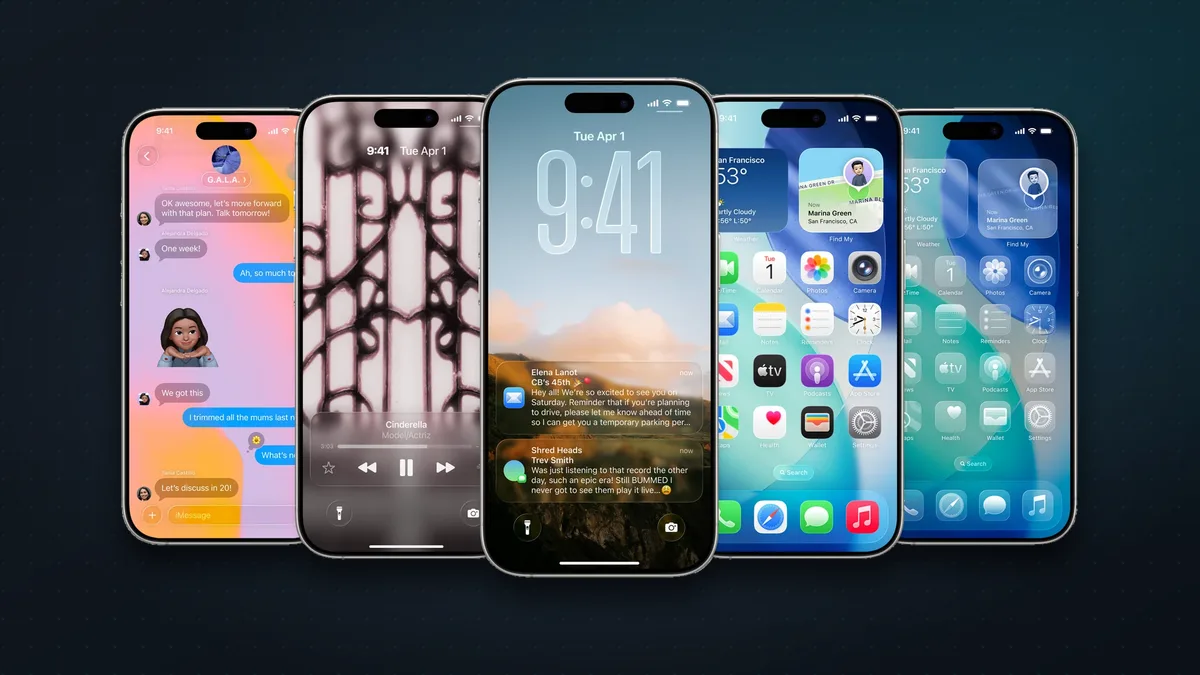
Apple currently sells six iPhone lines: the iPhone 17e, iPhone 16, iPhone 17, iPhone Air, iPhone 18 Pro (and Pro Max) and the foldable iPhone Duo. None of them has a Home button. To check which one you have, go to Settings > General > About and look at Model Name.
The main differences for a beginner are a few buttons and screen features:
| Model | Unlocks with | Action button | Camera Control | Dynamic Island | Always-On display |
|---|---|---|---|---|---|
| iPhone 17e | Face ID | Yes | No | No | No |
| iPhone 16 | Face ID | Yes | Yes | Yes | No |
| iPhone 17 | Face ID | Yes | Yes | Yes | Yes |
| iPhone Air | Face ID | Yes | Yes | Yes | Yes |
| iPhone 18 Pro / Pro Max | Face ID | Yes | Yes | Yes | Yes |
| iPhone Duo | Touch ID (side button) | No | Yes | Yes | Yes |
If you have an older iPhone, iOS 27 runs on the iPhone 11 and later and the iPhone SE (2nd and 3rd generation). Everything here works the same on those, except the newer buttons and the new Siri. The SE is the one exception to the gestures below: it still has a Home button, so you press it to go home and double-click it to see your open apps. Not sure which model to buy? Our guide to which iPhone to buy in 2026 compares them all.
The buttons and what they do
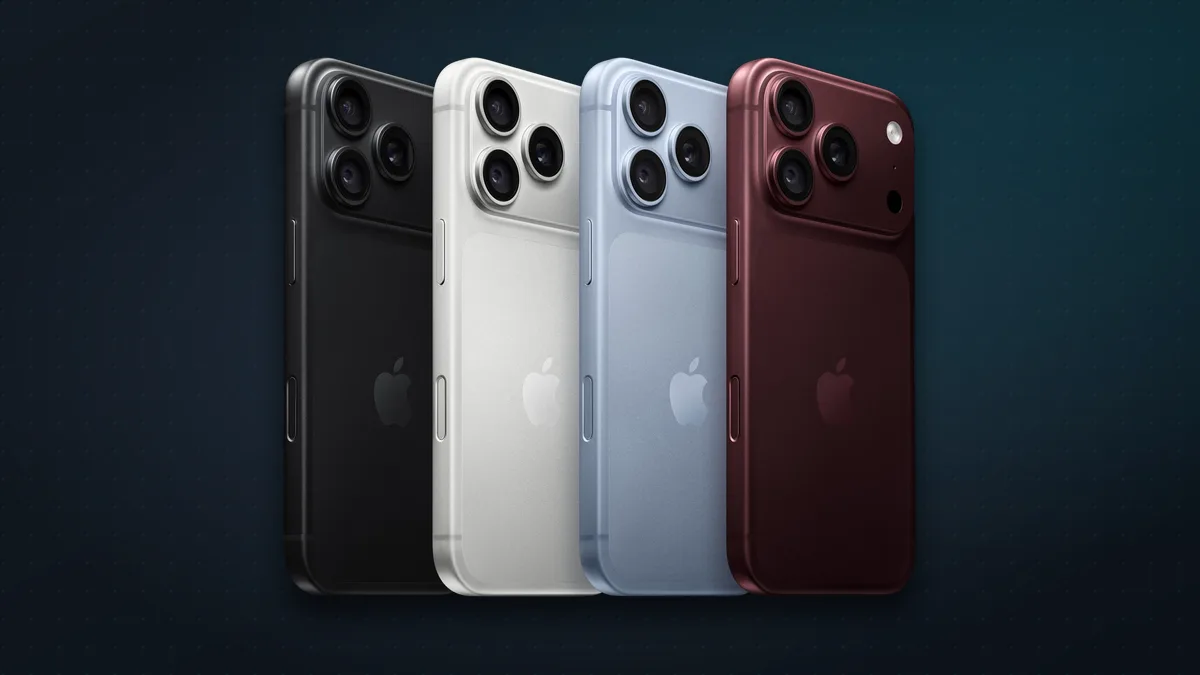
- Side button (right side). Press it to lock or wake the screen. Hold it to talk to Siri. Double-click it to pay with Apple Pay. On the iPhone Duo it’s also the Touch ID fingerprint sensor: rest your finger on it to unlock.
- Volume buttons. On the left side of most models, and on the top edge of the iPhone Duo. They also work as a camera shutter when the Camera app is open.
- Action button (left side, above the volume buttons). It replaced the old Ring/Silent switch. Out of the box, pressing and holding it turns Silent mode on or off. In Settings > Action Button you can make it open the camera, turn on the flashlight, start a voice memo, translate, recognise music, run a shortcut and more. The iPhone Duo doesn’t have one.
- Camera Control (right side, lower down). Click it to open the camera from anywhere, click again to take a photo, and click and hold to record video. Lightly press it twice to bring up settings like zoom and exposure, then slide your finger along it to adjust. You can tune it in Settings > Camera > Camera Control.
- USB-C port (bottom). Every current iPhone charges with a standard USB-C cable, the same as most Android phones and laptops, and all of them also charge wirelessly on MagSafe, Qi2 and Qi chargers.
Useful button combos:
| To do this | Press |
|---|---|
| Take a screenshot | Side button + volume up, together, then let go |
| Turn the iPhone off | Hold the side button + either volume button, then drag the slider |
| Turn it back on | Hold the side button until the Apple logo appears |
| Force restart a frozen iPhone | Press and release volume up, press and release volume down, then hold the side button until the Apple logo appears (on the Duo, start with the volume button nearest the side button) |
| Call emergency services | Hold the side button + either volume button until the countdown ends. In India, press the side button three times quickly |
| Pay with Apple Pay | Double-click the side button |
The gestures you’ll use every day
Because there’s no Home button, your iPhone is driven by swipes from the edges of the screen. These are the ones to learn first:
| Gesture | What it does |
|---|---|
| Swipe up from the bottom edge | Go to the Home Screen |
| Swipe up from the bottom and pause in the middle | Open the App Switcher (your recent apps); swipe an app up to close it |
| Swipe right or left along the bottom edge | Jump straight to the previous or next app |
| Swipe down from the top-right corner | Open Control Center |
| Swipe down from the top-left corner | Open Notification Center |
| Swipe down in the middle of the Home Screen | Search your iPhone, apps and the web |
| Swipe right from the left edge of the Home Screen | Today View widgets |
| Swipe left past your last Home Screen page | The App Library, with every app sorted into groups |
| Swipe right (in most apps) | Go back to the previous screen |
| Swipe down on the bottom edge | Reachability: pulls the top of the screen within thumb reach. Turn it on in Settings > Accessibility > Touch (not on the iPhone Duo) |
You don’t need to close apps to save battery. Apple says quitting apps doesn’t help, because iOS pauses the ones you’re not using. Only swipe an app away if it’s frozen.
Setting up your new iPhone
When you first turn on your iPhone, it walks you through setup. Three choices matter:
- Moving from another iPhone? Use Quick Start. Unlock your old iPhone, keep it on its Home Screen, and turn on the new one next to it. Follow the prompts, then choose to download your stuff from iCloud (so you can use the new phone straight away) or transfer it directly. Keep both phones plugged in until it finishes. Tip: Apple gives you free temporary iCloud storage for up to three weeks to make a full backup for the move, even if you don’t pay for iCloud (on the old phone: Settings > General > Transfer or Reset iPhone > Get Started).
- Moving from Android? Install Apple’s free Move to iOS app from Google Play. During iPhone setup, choose to transfer your apps and data From Android, then enter the code the iPhone shows. Your contacts, messages (including WhatsApp chats), photos, calendars, mail accounts and bookmarks come across. Newer Android phones can even transfer without the app by scanning a QR code. Music, books and PDFs need to be moved by hand, and if you skip this step during setup you’d have to erase the iPhone to do it later.
- Your Apple Account. This free account (it was called an Apple ID until 2024) is your key to the App Store, iCloud, iMessage, FaceTime and Find My. If you’ve ever used an iPad, Mac or iTunes, you already have one: sign in with it rather than making a new one. In India, your phone number can be your username.
You’ll also be asked to create a passcode and set up Face ID (Touch ID on the Duo). Don’t skip either. They protect everything on the phone, and Apple Pay won’t work without them.
The Home Screen and your apps
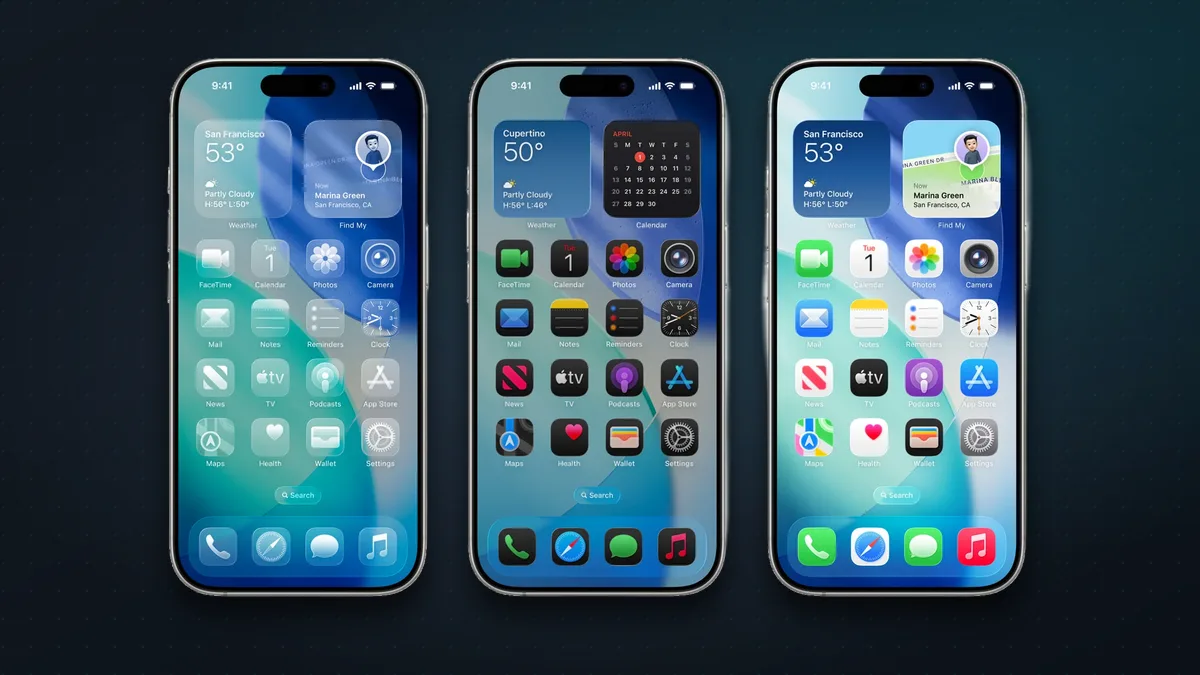
The Home Screen is where your apps live. Swipe left and right to move between pages. The row at the bottom is the Dock: it stays put on every page, so keep your most-used apps there.
- Move apps: touch and hold an empty spot on the Home Screen until the icons jiggle, then drag them anywhere. Drag one to the right edge to move it to the next page. Tap the background when you’ve finished.
- Make a folder: while the icons jiggle, drop one app on top of another. To rename it, touch and hold the folder and tap Rename.
- Delete an app: touch and hold its icon, tap Remove App, then choose Delete App to remove it and its data, or Remove from Home Screen to tuck it away in the App Library. Anything you’ve bought can be downloaded again for free.
- Add widgets: while the icons jiggle, tap Edit > Add Widget for weather, calendar, photos, battery and more. iOS 27 adds extra-large widgets.
- Change the look: tap Edit > Customize to make icons large, dark, clear or tinted in any colour. New in iOS 27, Settings > Appearance > Liquid Glass has a slider that sets the see-through glass effect anywhere from ultra-clear to fully tinted.
- Lock or hide an app: touch and hold its icon, tap Require Face ID, then choose Require Face ID to lock it, or Hide and Require Face ID to also hide it in a locked Hidden folder at the bottom of the App Library.
All your apps come from the App Store. Many are free; others charge once, or sell extras and subscriptions inside the app. To see or cancel a subscription, go to Settings > [your name] > Subscriptions.
The Lock Screen and StandBy
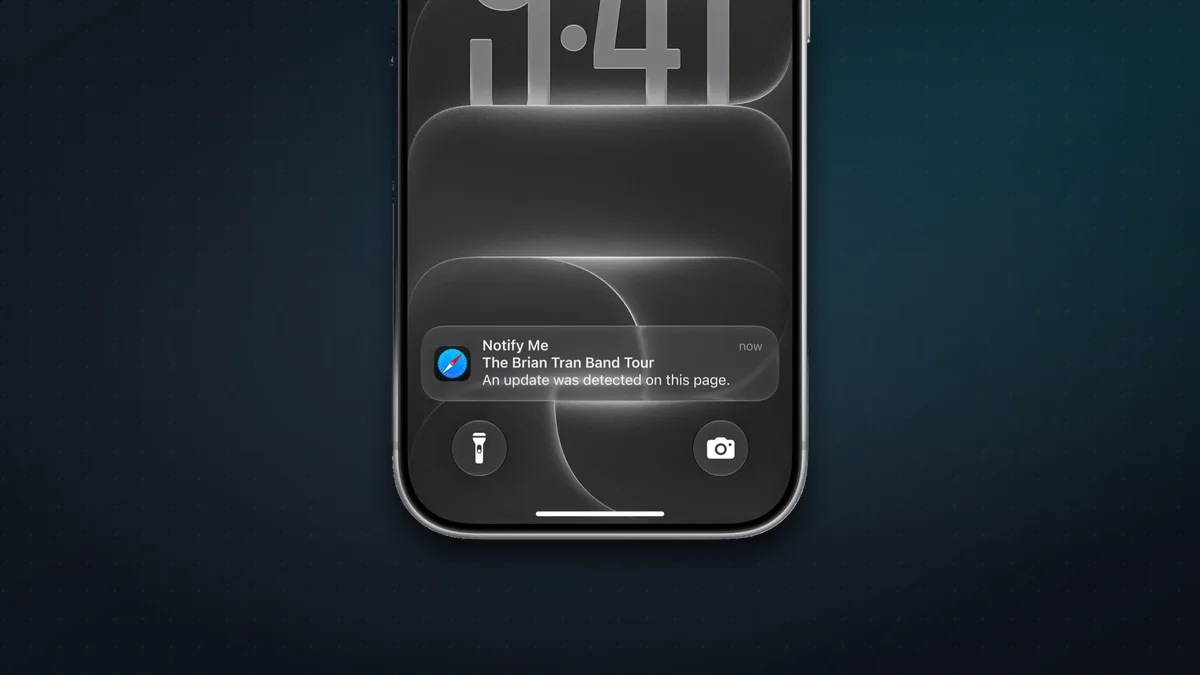
The Lock Screen is what you see when you wake the phone: the time, your notifications and two buttons at the bottom for the flashlight and the camera. Touch and hold either button to use it, or swipe left to open the camera straight away. Swipe up from the middle to see earlier notifications.
To make it your own, touch and hold the Lock Screen and tap Customize (or + to make a new one). You can change the wallpaper and the clock’s font and size, add widgets like battery, weather and calendar, and swap the two bottom buttons for other controls. You can keep several Lock Screens and swipe between them.
The screen wakes when you raise the phone or tap it. The iPhone 17, Air, 18 Pro and Duo also have an Always-On display that keeps a dimmed Lock Screen visible (Settings > Display & Brightness > Always On Display). Turn on StandBy in Settings > StandBy, and your iPhone becomes a bedside clock and photo frame when it’s charging on its side. The Duo does it when you stand it half-folded, no charger needed.
Control Center, notifications and the Dynamic Island
Control Center (swipe down from the top-right corner) gives you quick switches for Wi-Fi, Bluetooth, Airplane Mode, mobile data, the flashlight, brightness, volume, the music that’s playing, screen recording and more. Keep swiping down for more pages of controls. To add, remove, resize or move controls, open Control Center and tap the + button at the top-left.
One quirk worth knowing: tapping Wi-Fi or Bluetooth in Control Center only disconnects you. The radios stay on, so AirDrop, AirPlay and your Apple Watch keep working. To switch them off completely, use Settings > Wi-Fi or Settings > Bluetooth.
Notification Center (swipe down from the top-left corner) shows the alerts you’ve missed. Swipe a notification left for options, such as muting an app for an hour or a day. To choose which apps can alert you, and how, go to Settings > Notifications. On iPhones with Apple Intelligence, notification summaries can boil a busy group chat down to one line.
Focus replaced the old Do Not Disturb, which is now one of its modes. A Focus silences calls and notifications except from the people and apps you choose. Turn one on from Control Center (tap Focus), or set up Sleep, Work and others in Settings > Focus.
On every current model except the 17e, the pill-shaped Dynamic Island at the top of the screen shows live activity: a timer, a call, music, directions or an AirDrop in progress. Tap it to open the app, or touch and hold it for controls. The iPhone 18 Pro can show three at once.
Wi-Fi, mobile data, SIMs and AirDrop
- Wi-Fi: Settings > Wi-Fi. Use it whenever you can: it’s usually faster than mobile data and doesn’t eat into your plan.
- Mobile data: in Settings > Cellular you can see how much data each app uses and switch it off for apps you only want to use on Wi-Fi.
- SIM cards: iPhones sold in the US use eSIM only, with no SIM tray. In India, the iPhone 17e, 16, 17 and 18 Pro take a nano-SIM plus an eSIM, while the iPhone Air and Duo are eSIM-only everywhere. To add an eSIM, go to Settings > Cellular > Add eSIM, or ask your carrier.
- Wi-Fi Calling: if your carrier supports it, Settings > Cellular > Wi-Fi Calling lets you make calls over Wi-Fi where the signal is weak.
- Personal Hotspot: share your mobile data with a laptop or tablet. The first time, go to Settings > Cellular > Set Up Personal Hotspot; after that it’s in Settings > Personal Hotspot.
- Bluetooth: Settings > Bluetooth, for headphones, speakers, cars and keyboards. AirPods pair when you open the case next to your iPhone.
- AirDrop: send photos, videos and files to nearby Apple devices, with no internet needed. Tap the Share button, then AirDrop, and pick the person. Someone who isn’t in your contacts now needs an AirDrop code, and Apple says iOS 27 makes transfers up to 80% faster. To share with Android phones and Windows PCs too, see our guide to how AirDrop works.
- Satellite: every current iPhone can text emergency services by satellite when there’s no signal at all, in the US, UK, much of Europe, Japan, Australia and a few other countries. These satellite features don’t work in India yet. You can try a demo in Settings > Emergency SOS.
Messages, calls and FaceTime
The Messages app handles all your texts, and the colour of the bubble tells you how a message was sent:
- Blue bubbles are iMessages. They go over the internet (Wi-Fi or mobile data) to other iPhones, iPads and Macs. They’re end-to-end encrypted, don’t count against a text allowance, and support full-quality photos and videos, voice notes, reactions and group chats. To check it’s on: Settings > Apps > Messages > iMessage.
- Green bubbles are regular texts (SMS/MMS) or RCS. They’re used with Android phones. RCS adds typing indicators, read receipts and better photos to those chats, but only if your carrier supports it (in India, Apple lists only Jio). Find it in Settings > Apps > Messages > RCS Messaging.
You don’t have to choose: Messages picks the right one automatically.
Messages isn’t email. Email lives in the Mail app, which works with Gmail, Outlook, Yahoo, iCloud Mail and work accounts. Add them in Settings > Apps > Mail > Mail Accounts > Add Account. Your Apple Account also comes with a free @icloud.com address if you want one (Settings > [your name] > iCloud > iCloud Mail).
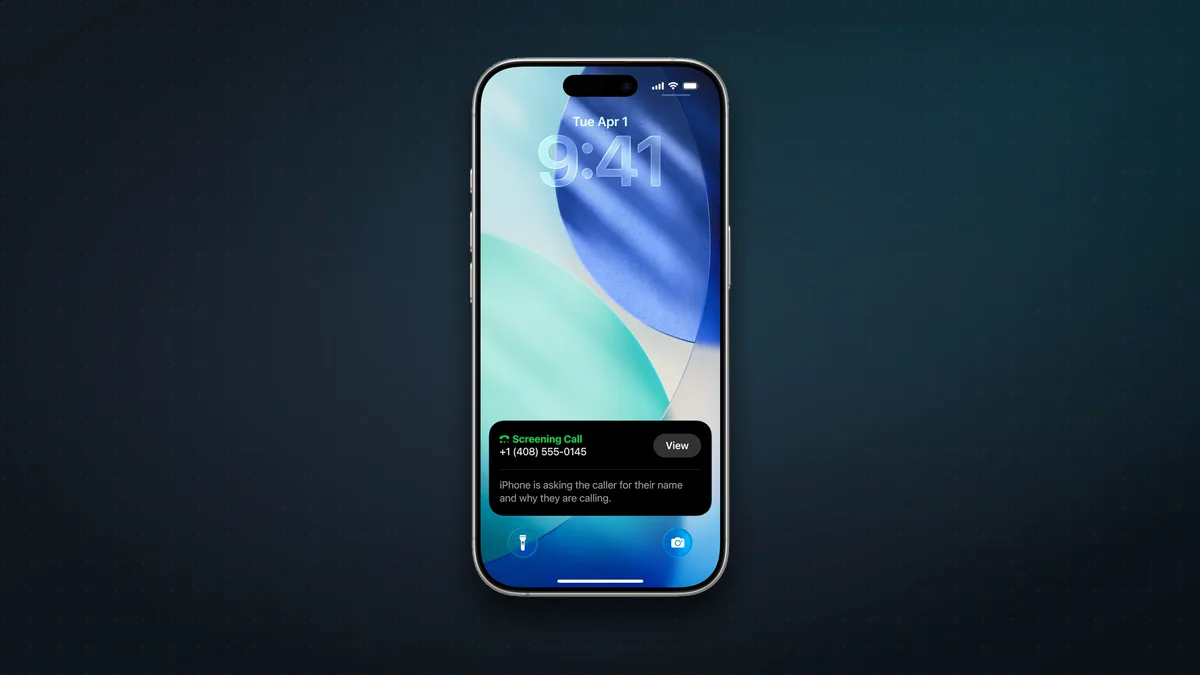
The Phone app has learned some clever tricks. Call Screening (Settings > Apps > Phone > Ask Reason for Calling) answers unknown numbers for you and asks the caller who they are before your phone rings. Hold Assist (tap More during a call) waits on hold and alerts you when a real person picks up. New in iOS 27, Call Context can show a booking reference or confirmation code when you call a business. FaceTime makes free video and audio calls to other Apple users over the internet.
Siri and Apple Intelligence
Siri is Apple’s assistant. Hold the side button, or say “Siri” or “Hey Siri”, then ask: set a timer, send a message, call someone, get directions, play music or answer a question. Its settings are in Settings > Siri.
iOS 27 brought Siri AI, a rebuilt and much more capable Siri, to the iPhone 15 Pro, 15 Pro Max and every iPhone 16 or newer, which includes all the iPhones Apple sells today. It’s still labelled a beta, and you turn it on in Settings > Siri. It can:
- Understand what’s on your screen and answer questions about it.
- Use your personal context, finding things in your messages, emails, notes and photos.
- Search the web for up-to-date answers.
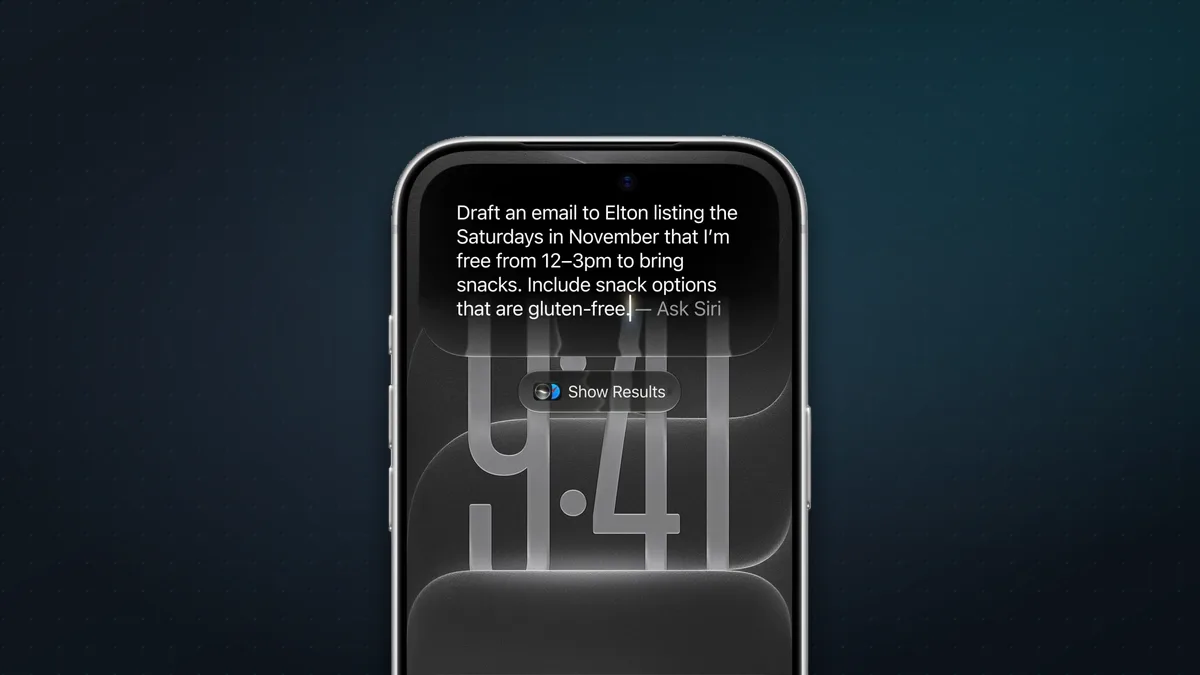
- Help you write with Write with Siri: describe what you need and it drafts it, or ask it to proofread or change the tone.
- Look through the camera with Siri mode: point it at something and ask about it.
- Keep your conversations in its own Siri app, which syncs across your Apple devices and lets you type instead of talk.
With Siri AI on, you can also swipe down from the top of the screen (where the Dynamic Island is) to start a conversation. It speaks English, French, Japanese, Korean, Portuguese and Spanish, isn’t available in the EU or mainland China yet, isn’t for under-13s, and has daily usage limits on its heavier features. To keep some apps out of Siri’s reach, use Settings > Siri > Excluded Apps.
iCloud, backups and storage
Your Apple Account comes with iCloud, which keeps your photos, contacts, notes, passwords and backups in sync across your devices and safe if you lose your phone. You get 5GB free, which fills up fast once photos are involved. More space comes with iCloud+, and every plan can be shared with up to five family members:
| iCloud+ plan | US (per month) | India (per month) |
|---|---|---|
| 50GB | $0.99 | ₹75 |
| 200GB | $2.99 | ₹219 |
| 2TB | $9.99 | ₹749 |
| 6TB | $29.99 | ₹2,999 |
| 12TB | $59.99 | ₹5,900 |
Apple’s prices as of November 2026.
Turn on iCloud Backup (Settings > [your name] > iCloud > iCloud Backup) and your iPhone backs itself up every day while it’s charging, locked and on Wi-Fi. That backup is what lets Quick Start restore everything onto your next iPhone. To change your plan, go to Settings > [your name] > iCloud > Storage > Manage Plan. To see what’s filling the phone itself, go to Settings > General > iPhone Storage.
Safari and the internet
Safari is the iPhone’s built-in web browser. You can install Chrome, Firefox, Edge or others from the App Store and make one your default in Settings > Apps > Default Apps > Browser App. Except in the EU and Japan, every iPhone browser runs on the same Apple engine under the hood, so choose the one whose features and syncing you like; none of them is faster. To change the search engine, go to Settings > Search > Search Engine.
In Safari, swipe left or right on the address bar to switch tabs. New in iOS 27, Safari can sort your tabs into topics automatically and Notify Me when a page changes, like a price drop or an item coming back in stock.
Security and privacy: do these on day one
- Use a six-digit passcode and Face ID. Settings > Face ID & Passcode (Touch ID & Passcode on the Duo). Six digits is the default; avoid easy ones like 123456 or your birthday.
- Check that Find My is on. Settings > [your name] > Find My > Find My iPhone. Turn on Find My network and Send Last Location too. If your iPhone is lost or stolen, you can see it on a map, play a sound, or lock and erase it from the Find My app on another Apple device or at icloud.com/find.
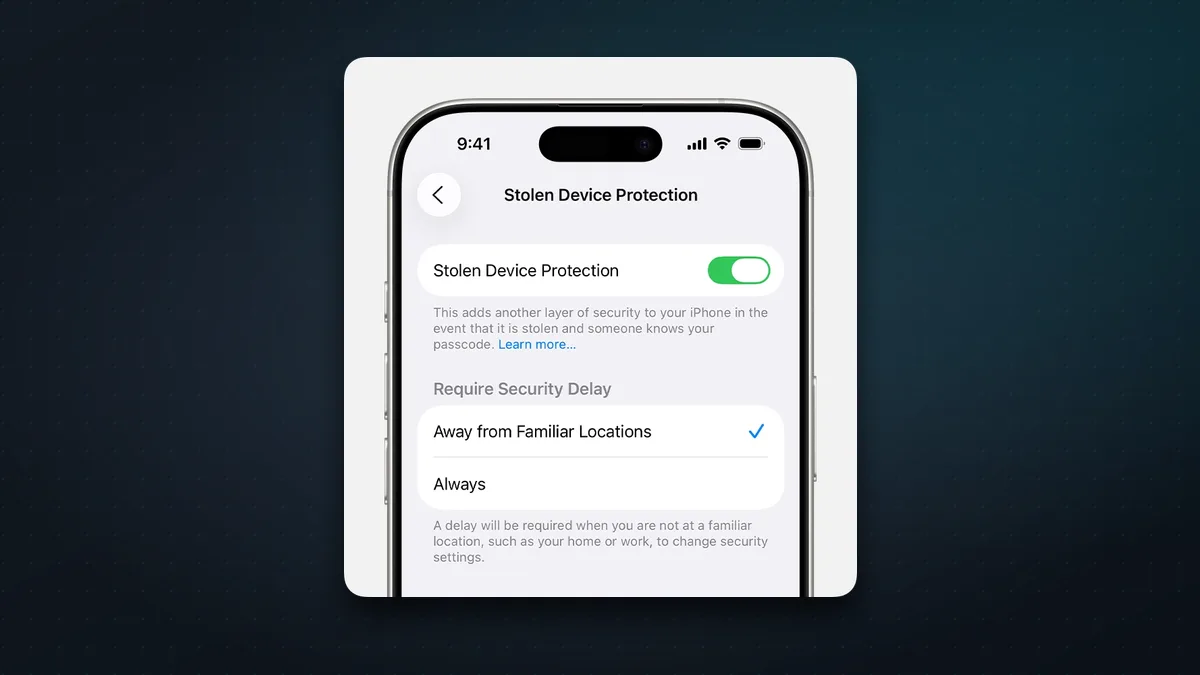
- Turn on Stolen Device Protection. Settings > Face ID & Passcode > Stolen Device Protection. Away from home and work, it stops a thief who has seen your passcode from changing your Apple Account password or turning off Find My.
- Review app permissions. In Settings > Privacy & Security you can see which apps use your location, photos, contacts, microphone and camera, and switch them off. Under Tracking, turn off Allow Apps to Request to Track to stop apps asking to follow you across other apps and websites.
- Use the Passwords app. It stores and fills in your passwords and passkeys, flags weak or leaked ones, and syncs through iCloud.
For five more settings that stop thieves, spam calls and scammers, see our guide to iPhone security settings to turn on now.
Battery and charging
- See the percentage: turn on Settings > Battery > Battery Percentage to show the number inside the battery icon.
- Stretch a low battery: turn on Low Power Mode from Control Center, or in Settings > Battery > Power Mode. The battery icon turns yellow while it’s on. On the iPhone 15 Pro and later, Adaptive Power (on by default) also saves battery when you’re using more than usual.
- Look after the battery: on the iPhone 15 and later, you can set a charge limit such as 80% in Settings > Battery > Charging. We explain the trade-off in why your iPhone stops charging at 80%.
- Check its health: Settings > Battery > Battery Health shows how much capacity the battery has left.
Make it easier to see and use
- Bigger text: Settings > Appearance > Text Size (and Bold Text). For even larger sizes, go to Settings > Accessibility > Display & Text Size > Larger Text.
- Back Tap: Settings > Accessibility > Touch > Back Tap lets you double- or triple-tap the back of the phone to take a screenshot, open Control Center or run a shortcut.
- AssistiveTouch: Settings > Accessibility > Touch > AssistiveTouch adds an on-screen button for Home, Control Center, screenshots and more, which helps if gestures are tricky for you.
Keep your iPhone up to date
Apple releases free iOS updates with new features and, more importantly, security fixes. Go to Settings > General > Software Update to install one, and turn on Automatic Updates so your iPhone updates itself overnight while it charges. Our guide to iOS 27.2 covers the latest feature update.
Where to go next
Once the basics feel natural, try our 12 iPhone tips and tricks worth knowing. Apple’s own Tips app, already on your iPhone, also has short guides to every feature.
FAQ
Do I need to close apps on my iPhone? No. Apple says quitting apps doesn’t save battery, because iOS pauses apps you’re not using. Only close an app (swipe up and pause, then flick it away) if it’s frozen.
What’s the difference between an Apple Account and iCloud? Your Apple Account is your login for everything Apple: the App Store, iMessage, FaceTime and Find My. iCloud is the storage and syncing service that comes with it, with 5GB free.
Why are some of my messages green? Green bubbles are regular texts (SMS/MMS) or RCS chats, usually with Android phones. Blue bubbles are iMessages between Apple devices.
How do I take a screenshot on an iPhone? Press the side button and the volume up button at the same time, then let go. Tap the preview that appears to mark it up or share it, or swipe it away to save it to Photos.
How do I turn off my iPhone? Hold the side button and either volume button until the sliders appear, then drag the power-off slider. You can also go to Settings > General > Shut Down.
Can I move my WhatsApp chats from Android? Yes. Apple’s Move to iOS app can bring your WhatsApp chat history across during setup, along with your contacts, messages and photos.
Which iPhones get iOS 27? The iPhone 11 and later, plus the iPhone SE (2nd and 3rd generation). Siri AI needs an iPhone 15 Pro, 15 Pro Max, or any iPhone 16 or newer.
Watch: this guide in 4 minutes
More short videos
Sources & further reading
- Apple — iPhone User Guide (iOS 27)
- Apple — Learn gestures to navigate iPhone
- Apple — Compare iPhone models
- Apple — Use and customize the Action button
- Apple — Use the Camera Control
- Apple — Use and customize Control Center
- Apple — Use Quick Start to transfer data to a new iPhone or iPad
- Apple — Move from Android to iPhone or iPad
- Apple — iCloud+ plans and pricing
- Apple — Get started with Siri AI
- Apple — Use Stolen Device Protection
- Apple Newsroom — Major updates for Apple’s software platforms are now available (14 Sept 2026)
Keep reading
How to use Gemini on Apple CarPlay: setup, what to ask, and the catches
Google's Gemini app now runs on Apple CarPlay. How to set it up in two minutes, what to ask it on the road, what it can't do, and what works in India.
Read more →
5 iPhone security settings to turn on now: stop thieves, spam calls and scammers
Five iPhone settings that stop thieves, spam calls and scammers: Stolen Device Protection, iOS 27's Impersonation Risk Detection, call screening and more.
Read more →
How does AirDrop work without the internet? Bluetooth, Wi-Fi and the 10-minute rule, explained
AirDrop finds nearby devices over Bluetooth, then sends files over a direct Wi-Fi link with no internet. How it works, fixes, and which Androids work with it.
Read more →