5 iPhone security settings to turn on now: stop thieves, spam calls and scammers
Five iPhone settings that stop thieves, spam calls and scammers: Stolen Device Protection, iOS 27's Impersonation Risk Detection, call screening and more.
Your iPhone has strong built-in protection against thieves and scammers, but some of the best of it is switched off by default. These five settings take about five minutes. They stop someone who has your passcode from taking over your Apple Account, warn apps when you might be being scammed, quieten spam calls, and keep your phone findable even when it’s switched off.
The steps are for iOS 27.2. Most of them work the same way on iOS 26.
The five settings at a glance:
- Stolen Device Protection: Settings > Face ID & Passcode
- Impersonation Risk Detection (new in iOS 27): Settings > Privacy & Security
- Screen Unknown Callers and Screen Unknown Senders: Settings > Apps > Phone, and Settings > Apps > Messages
- Find My network and Send Last Location: Settings > [your name] > Find My > Find My iPhone
- Lock Screen privacy: Settings > Notifications, Settings > Face ID & Passcode, and Settings > Privacy & Security > Wired Accessories
1. Stolen Device Protection: make a stolen passcode useless
Thieves sometimes watch you type your passcode in a bar or on a train, then grab the phone. Without protection, that passcode is enough to change your Apple Account password and lock you out of your own account and photos.
Stolen Device Protection closes that gap. When your iPhone is away from familiar places like home or work, sensitive actions need Face ID or Touch ID, with no passcode fallback. The most important changes also need a one-hour Security Delay: Face ID, wait an hour, then Face ID again. That gives you time to mark the phone as lost.
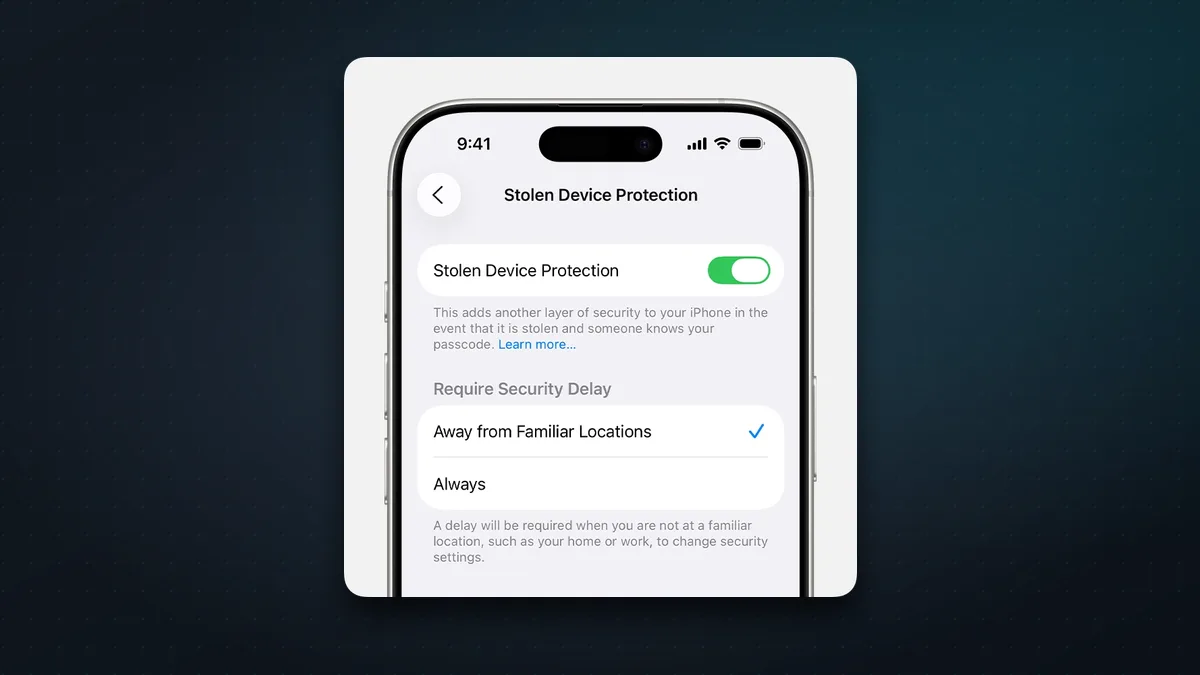
Turn it on: Settings > Face ID & Passcode (Touch ID & Passcode on iPhone SE and iPhone Duo) > enter your passcode > Stolen Device Protection > on.
- Face ID or Touch ID only: using saved passwords and passkeys, using cards saved in Safari, turning off Lost Mode, erasing the iPhone, setting up a new device from it, and moving an eSIM.
- Face ID + one-hour delay: changing your Apple Account password, signing out of your Apple Account, changing your passcode, adding or removing Face ID or Touch ID, Reset All Settings, and turning Stolen Device Protection off.
- Apple Pay still works with your passcode.
Under Require Security Delay you can choose Always, so the delay also applies at home and work. That’s stricter, but slower when you need to change something.
You need two-factor authentication, a passcode, Face ID or Touch ID, Find My, and Significant Locations turned on (Settings > Privacy & Security > Location Services > System Services). Apple says the feature may already be on, so it’s worth checking. Turn it off before you sell or trade in your iPhone.
2. Impersonation Risk Detection: catch scammers in the act (new in iOS 27)
The most damaging scams don’t hack your phone. They talk you into doing something yourself, like moving money or changing a password, while someone pretends to be your bank, a government office or a relative. Two-factor authentication can’t stop that, because it really is you tapping the buttons.
Impersonation Risk Detection is Apple’s answer, new in iOS 27. When you try something risky in an app that supports it, such as a payment, a password change or a sign-in, the app can ask your iPhone whether it sees signs of a scam in progress. It gets back a risk level of Unknown, Medium or High, and the app decides what to do: show a warning, ask you to verify your identity, or add a delay.
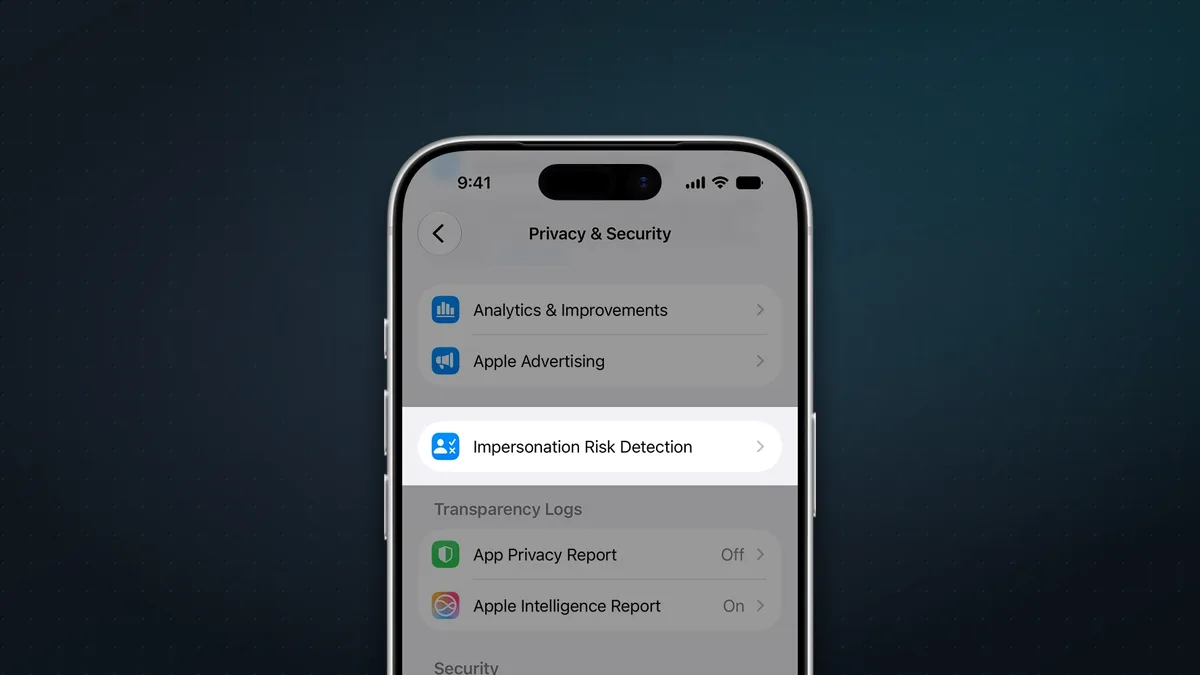
Turn it on: Settings > Privacy & Security > scroll down to Impersonation Risk Detection > turn on Share with App Developers. It’s off by default. Changes can take up to 24 hours to kick in.
What about privacy?
- The iPhone looks at signals such as interaction patterns, timing, whether you’re sharing your screen and roughly how many recent calls you’ve had.
- It never reads your Messages, Mail or Photos.
- The raw signals stay on your phone. Apple’s privacy notice explains that the phone’s assessment is sent to Apple, combined with your recent App Store activity, and then passed to the app.
- Apple learns the type of action you tried, such as a payment, but not which app.
Two things to know:
- It only works in apps that support it. Apple hasn’t published a list of banks or apps yet.
- You can see which apps have asked, and why, under Recent Activity, and turn it off for any app.
Apple’s own warning is worth remembering: if someone tells you to turn this off, you’re probably being scammed.
3. Screen unknown callers and texts
Most scams start with a call or text from a number you don’t know: a fake bank, courier, tax office or “your son with a new number”.
Calls: Settings > Apps > Phone > Screen Unknown Callers, then pick one:
- Ask Reason for Calling: your iPhone answers first, asks the caller who they are and why they’re calling, then rings you and shows their answer. Genuine callers can explain themselves, while automated spam calls usually can’t. This is the best pick for most people, and it works in English (India) as well as US English.
- Silence: calls from numbers that aren’t in your contacts don’t ring. They go to voicemail and show up in Recents.
- Never: everything rings, as before.
In iOS 26 and 27 there’s no separate “Silence Unknown Callers” switch for phone calls any more. It’s now the Silence option here. FaceTime still has its own switch under Settings > Apps > FaceTime.
“Unknown” means any number not saved in your contacts, so save your doctor, your kids’ school and anyone else you can’t afford to miss. Calls aren’t screened while you’re roaming, and screening switches off for 24 hours after you call emergency services.
Texts: Settings > Apps > Messages > Unknown Senders > Screen Unknown Senders. This is the old “Filter Unknown Senders”, renamed in iOS 26, and it’s off by default unless you had the old setting on.
- Messages from people you don’t know go to a separate Unknown Senders list, and you won’t be notified about them.
- Until you tap Mark as Known, links in those messages don’t work and images stay blurred. That’s a big help against phishing.
- Time-sensitive messages, such as one-time codes, still notify you. In India and the US you can choose which kinds of messages from unknown senders still notify you.
4. Find My network and Send Last Location: find your iPhone even when it’s off
A thief’s first move is often to switch the phone off. Two settings mean that doesn’t make it disappear.
Turn them on: Settings > [your name] > Find My > Find My iPhone. Check that Find My iPhone is on, then turn on Find My network and Send Last Location.
- Find My network: nearby Apple devices anonymously report your iPhone’s location, even when it has no Wi-Fi or mobile data. The reports are end-to-end encrypted, so Apple can’t see them.
- Switched off: on supported models, the Find My network can locate your iPhone for up to 24 hours after it’s turned off, or up to 5 hours in power reserve mode after the battery runs out. That covers the iPhone 11 and later, except the iPhone SE, iPhone 16e and iPhone 17e.
- Send Last Location: when the battery gets critically low, your iPhone sends its location to Apple automatically. The Find My app shows the last known location for up to 7 days.
5. Stop your Lock Screen from leaking information
A locked phone on a table can still show message previews and one-time bank codes, and let anyone use some features without unlocking it.
Hide message previews: Settings > Notifications > Show Previews > When Unlocked. You’ll still see that a message has arrived, but the text appears only once Face ID unlocks the phone. You can change this for individual apps too.
Limit what works while locked: Settings > Face ID & Passcode > scroll down to Allow Access When Locked. Turn off anything you don’t need, especially:
- Control Center, so nobody can switch on Airplane Mode and take the phone offline
- Wallet
- Reply with Message
The exact list depends on your iOS version.
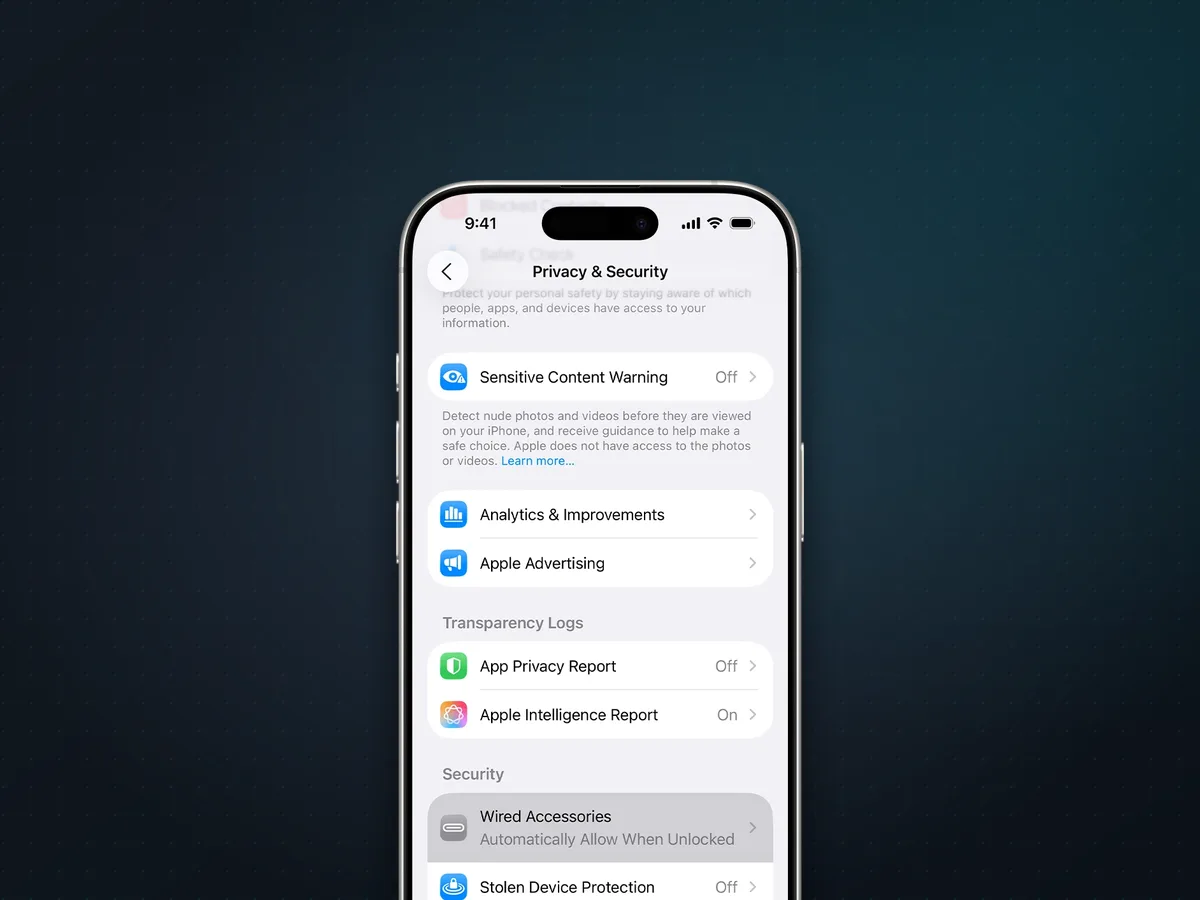
Check Wired Accessories: the old “USB Accessories” switch moved in iOS 26. It’s now at Settings > Privacy & Security > Wired Accessories.
- Automatically Allow When Unlocked is the default and the sensible choice. Avoid “Always Allow”.
- Charging still works while the phone is locked.
- On a USB-C iPhone you can also pick Ask for New Accessories or Always Ask for extra protection, for example against a tampered charging cable.
- Apple adds a safety net: once your iPhone has been locked for more than an hour, no new accessory can make a data connection until you unlock it.
If your iPhone is stolen anyway
- Mark it as lost straight away in the Find My app on another Apple device, or at icloud.com/find. That locks it, shows a message on the screen and suspends Apple Pay.
- Call your carrier to block your SIM, so nobody can use your number to receive bank codes.
- Report it to the police if you need a reference for insurance.
- Don’t remove it from your account. Activation Lock stays on as long as it’s listed, so the thief can’t set it up as their own phone.
With Stolen Device Protection on, a thief who knows your passcode still can’t change your Apple Account password or turn off Find My without your face and the one-hour wait.
FAQ
Does Stolen Device Protection slow me down at home? Not with the default setting. The extra checks only apply away from places your iPhone recognises as familiar, like home and work. If you choose Always, the delay applies everywhere.
Is Impersonation Risk Detection available in India? Apple has an India support page for it under the same name, and the setting is in iOS 27. Whether it does anything depends on your bank or app adding support, and Apple hasn’t published a list yet.
Will screening unknown callers block delivery drivers? Silence will send them to voicemail. Ask Reason for Calling won’t: the driver says who they are, and your phone rings with their answer. Ask Reason for Calling is the better choice if you get a lot of genuine calls from new numbers.
Do these settings work on older iPhones? Stolen Device Protection needs iOS 17.3 or later. Screen Unknown Callers and Screen Unknown Senders need iOS 26. Impersonation Risk Detection needs iOS 27, which runs on the iPhone 11 and later. Finding a switched-off iPhone needs an iPhone 11 or later, but not an SE, 16e or 17e.
More iPhone help: what’s new in iOS 27.2, 12 iPhone tips and tricks for 2026 and the best password managers.
Watch: this guide in 2 minutes
More short videos
Sources & further reading
- Apple — About Stolen Device Protection for iPhone
- Apple — iPhone User Guide: Use Stolen Device Protection
- Apple — About Impersonation Risk Detection
- Apple — Trust Insights and privacy
- Apple — Manage unknown callers on iPhone
- Apple — iPhone User Guide: Screen and block calls
- Apple — View conversations from unknown senders in Messages
- Apple — iPhone User Guide: Add your iPhone to Find My
- Apple — If your iPhone is lost or stolen
- Apple — iPhone User Guide: Access features from the Lock Screen
- Apple — Allow wired accessories to connect to your iPhone or iPad
- Apple Platform Security — Activating data connections securely
Keep reading
How does AirDrop work without the internet? Bluetooth, Wi-Fi and the 10-minute rule, explained
AirDrop finds nearby devices over Bluetooth, then sends files over a direct Wi-Fi link with no internet. How it works, fixes, and which Androids work with it.
Read more →
Dropped your iPhone in water? What to do first (and what not to do)
Dropped your iPhone in water? Apple's steps: tap the water out, wait before charging and skip the rice. Plus water-resistance ratings and repair costs.
Read more →
Why does my iPhone stop charging at 80%? The 4 reasons, and how to fix each
An iPhone stuck at 80% is usually doing it on purpose: Optimized Battery Charging, a charge limit, heat or Clean Energy Charging. How to tell which, and fix it.
Read more →