How does AirDrop work without the internet? Bluetooth, Wi-Fi and the 10-minute rule, explained
AirDrop finds nearby devices over Bluetooth, then sends files over a direct Wi-Fi link with no internet. How it works, fixes, and which Androids work with it.
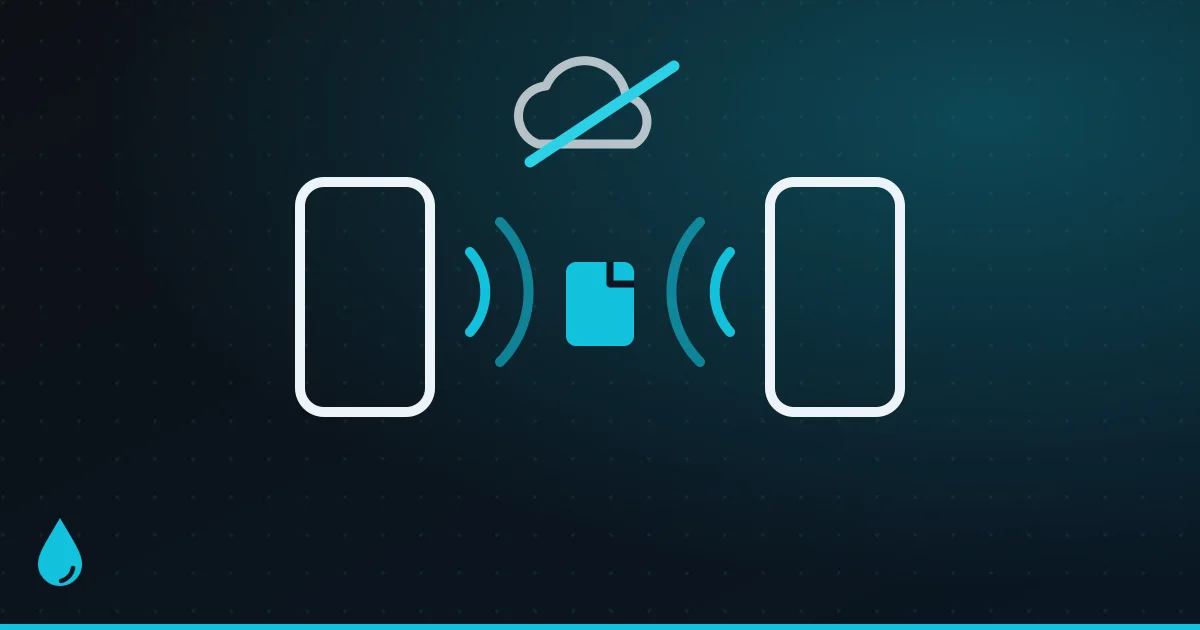
AirDrop works on a plane, in a basement with no signal, or in the middle of a field. That’s because a nearby AirDrop never touches the internet. Your iPhone finds the other device over Bluetooth, then sends the file over a direct Wi-Fi link between the two, with no router and no mobile data.
Here’s what actually happens when you tap someone’s face in the share sheet, what Contacts Only and Everyone really mean, and how to fix AirDrop when it won’t work.
The short version:
- Bluetooth finds nearby devices that have AirDrop turned on.
- Wi-Fi sends the file, directly from device to device. You need Wi-Fi turned on, but you don’t need to be connected to a network.
- Every transfer is encrypted, and the other person has to accept it.
What happens when you AirDrop something
Apple describes the process in its Platform Security Guide. In plain English:
- Discovery over Bluetooth. When you open the share sheet, your iPhone broadcasts a short, scrambled code (a “hash”) made from the phone numbers and email addresses on your Apple Account. It does this over Bluetooth Low Energy, which uses very little power.
- The contacts check. Nearby devices with AirDrop on hear that code. If they’re set to Contacts Only, they only answer if it matches someone in their Contacts. If they’re set to Everyone, they answer anyway.
- A direct Wi-Fi link. The two devices then connect over Apple’s peer-to-peer Wi-Fi. Researchers call it Apple Wireless Direct Link (AWDL). In Apple’s words, it lets devices “communicate directly between devices without using any internet connection” or Wi-Fi router.
- An encrypted transfer. Each transfer runs over its own encrypted (TLS) connection. The devices swap identity certificates from iCloud, and the receiver has to accept the file before anything arrives.
That’s why AirDrop needs both Wi-Fi and Bluetooth switched on, even with no network around.
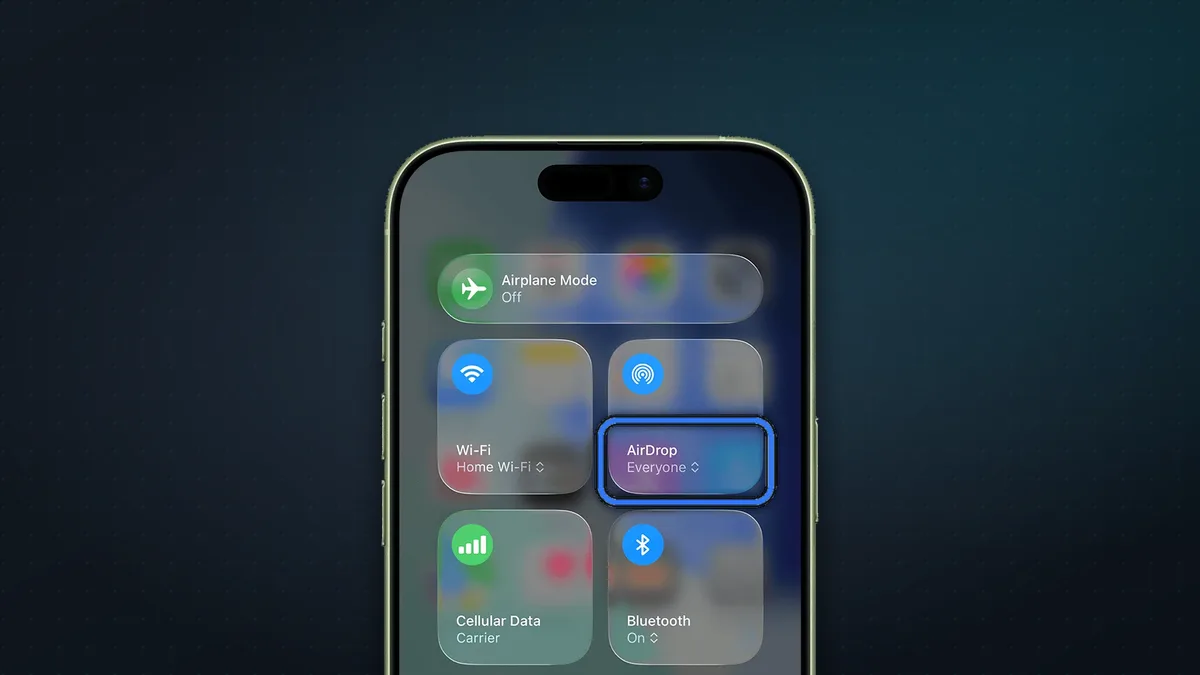
Contacts Only vs Everyone for 10 Minutes
There are three receiving options, in Settings > General > AirDrop or in Control Center:
- Receiving Off: nobody can send you anything.
- Contacts Only: only people in your Contacts can see you. The catch: the phone number or email they use for their Apple Account has to be on the contact card you’ve saved for them. If AirDrop can’t “see” a friend, this is usually why.
- Everyone for 10 Minutes: anyone nearby can see you, and it switches back to Contacts Only after 10 minutes.
That 10-minute limit started in China in November 2022, a few weeks after protesters there were reported to be using AirDrop. Apple said it was to reduce unwanted file sharing, and made it worldwide in iOS 16.2 a month later.
AirDrop codes. Since iOS 26.2, there’s a middle ground for people who aren’t in your Contacts. You tap Get AirDrop Code, they type it in, and they can then AirDrop you for 30 days.
How private is it? The scrambled code isn’t as private as it sounds. Researchers at TU Darmstadt showed in 2021 that the hashes can be reversed to reveal phone numbers and email addresses. In 2024, Beijing authorities said they’d identified AirDrop senders this way. So stick to Contacts Only in public, and use Everyone only briefly when you need it.
What needs the internet (and what doesn’t)
| Feature | Needs internet? |
|---|---|
| A normal nearby AirDrop | No |
| Finishing a transfer after you walk away | Yes |
| NameDrop (holding two iPhones together) | No |
| Android phones sending to iPhone by QR code | Yes |
- Continue over the internet. Since iOS 17.1, if you start a big transfer and walk out of range, it can finish over the internet, as long as you’re both signed in to iCloud. It’s controlled by Use Mobile Data (or Cellular Data) under Out of Range in Settings > General > AirDrop.
- Bringing devices together. Since iOS 17, you can hold two iPhones close to start a share, or swap contact details with NameDrop.
- Faster in iOS 27. Apple says AirDrop transfers are now up to 80% faster, in its tests with photos sent between nearby contacts not connected to Wi-Fi.
How far, and how big?
Apple says devices should be within about 10 metres (30 feet) of each other. It doesn’t publish a file-size limit, and big videos work, though they take longer. Keep both screens on until the transfer finishes.
AirDrop not working? Try these
- Turn on Wi-Fi and Bluetooth on both devices. Airplane mode is fine as long as you switch them back on.
- Turn off Personal Hotspot. Apple says to disconnect it on both devices.
- Move closer and wake and unlock the other device.
- Check the receiving setting. Everyone may have timed out after 10 minutes, or Contacts Only can’t match your Apple Account details.
- Turn off any VPN briefly, then restart both devices.
Still hit-and-miss? AirDrop can struggle to find the other device even between two Apple devices. Our own free app, AirLan, is built to connect seamlessly, iPhone to Mac included, and it’s at least as fast as AirDrop (more below).
Does AirDrop work with Android or Windows?
Some Android phones, yes. In November 2025, Google made Quick Share work with AirDrop on the Pixel 10, using its own implementation; Apple hasn’t commented. It has since spread: the Pixel 9 in February 2026, the Galaxy S26 in March, and by June a list that included the Galaxy S24 and S25, recent Galaxy Z Fold and Flip models, the OnePlus 15, Xiaomi 17T Pro, OPPO Find X9, Vivo X300 and HONOR Magic V6. Transfers are direct, like AirDrop itself.
The catch: the iPhone has to be set to Everyone for 10 Minutes. Contacts Only doesn’t work with Android yet.
Windows PCs, Macs talking to Android, and most other Android phones: no.
AirLan: one app for everyone
That’s why we built AirLan, our own free app for iPhone, iPad, Android, Mac and Windows, and it’s for everyone, not just mixed households:
- Like AirDrop, it needs no internet. Files go directly over your Wi-Fi or a phone hotspot, with no size limit and no compression.
- It connects seamlessly, even between two Apple devices, where AirDrop can be hit-and-miss.
- It’s at least as fast as AirDrop, if not faster.
- It works with any of those devices, with no “Everyone for 10 Minutes” setting to remember, and the other person can even receive in a web browser.
- It does everything LocalSend does, so it can replace that too, and it adds share links for when the other person isn’t nearby.
(Full disclosure: AirLan is made by Image Devices, the company behind GeekyGoo.)
FAQ
Does AirDrop use mobile data? Not for nearby transfers. It only uses data if you’ve allowed a transfer to continue over the internet after walking out of range.
Does AirDrop work on a plane? Yes. Turn on airplane mode, then switch Wi-Fi and Bluetooth back on. AirDrop works between nearby devices without any connection.
Is AirDrop encrypted? Yes. Each transfer uses its own encrypted connection, and the receiver has to accept it.
Why can’t my friend see me in AirDrop? If you’re on Contacts Only, the phone number or email on their Apple Account has to be in your contact card for them. Switch to Everyone for 10 Minutes, or use an AirDrop code.
What’s the range of AirDrop? About 10 metres (30 feet), according to Apple.
More Apple help: why your iPhone stops charging at 80% and what to do if you drop your iPhone in water.
Watch: this guide in 2 minutes
More short videos
Sources & further reading
- Apple Platform Security — AirDrop security
- Apple — How to use AirDrop on your iPhone or iPad
- Apple — Use AirDrop on Mac to send items to nearby devices
- Apple — Personal Safety User Guide: secure NameDrop
- Apple — iOS 27
- Google — Quick Share now works with AirDrop
- Google Security Blog — Quick Share support for AirDrop
- MacRumors — Google brings AirDrop support to more Android phones
- 9to5Mac — Apple limits AirDrop Everyone mode to 10 minutes worldwide
- TU Darmstadt — Apple AirDrop shares more than files
Keep reading
5 iPhone security settings to turn on now: stop thieves, spam calls and scammers
Five iPhone settings that stop thieves, spam calls and scammers: Stolen Device Protection, iOS 27's Impersonation Risk Detection, call screening and more.
Read more →
Dropped your iPhone in water? What to do first (and what not to do)
Dropped your iPhone in water? Apple's steps: tap the water out, wait before charging and skip the rice. Plus water-resistance ratings and repair costs.
Read more →
Why does my iPhone stop charging at 80%? The 4 reasons, and how to fix each
An iPhone stuck at 80% is usually doing it on purpose: Optimized Battery Charging, a charge limit, heat or Clean Energy Charging. How to tell which, and fix it.
Read more →