How to use Gemini on Apple CarPlay: setup, what to ask, and the catches
Google's Gemini app now runs on Apple CarPlay. How to set it up in two minutes, what to ask it on the road, what it can't do, and what works in India.
Your commute just got a chatty new passenger. On 11 November, Google brought the Gemini app to Apple CarPlay, so you can now have a full back-and-forth voice conversation with Gemini on your car’s screen. You can ask what’s on your calendar, have your unread emails read out and summarised, rehearse a pitch, or just ask why the sky turns orange at sunset.
It’s free for every Gemini user on iPhone, it’s rolling out worldwide, India included, and it takes about two minutes to set up. It also has a few catches that Google’s announcement skims over. Here’s the full picture.
What you need
- An iPhone with the latest Gemini app. The app is free on the App Store.
- A recent version of iOS. Apple opened CarPlay to chatbot apps in iOS 26.4, so you’ll need that or later. Any iPhone running iOS 27 is fine.
- A car with CarPlay, wired or wireless. CarPlay is officially supported in both the US and India.
- A Google account. A personal account works best. Work and school accounts get fewer features (see below).
- No subscription. Google says the CarPlay app is for “all Gemini users on iOS”. A paid Google AI plan isn’t required.
How to set up Gemini on CarPlay (2 minutes)
Do steps 1 to 3 on your phone before you drive. Google says Gemini won’t work in the car until you’ve done them.
- Update the Gemini app. Open the App Store, search for “Google Gemini” and tap Update.
- Allow the microphone. Go to Settings > Privacy & Security > Microphone and turn on Gemini.
- Use Gemini Live once on your phone. Open the Gemini app, tap Live at the bottom, follow the first-time prompts and say hello. That’s the step most people miss.
- Connect your iPhone to the car with a cable or wirelessly, as you normally would.
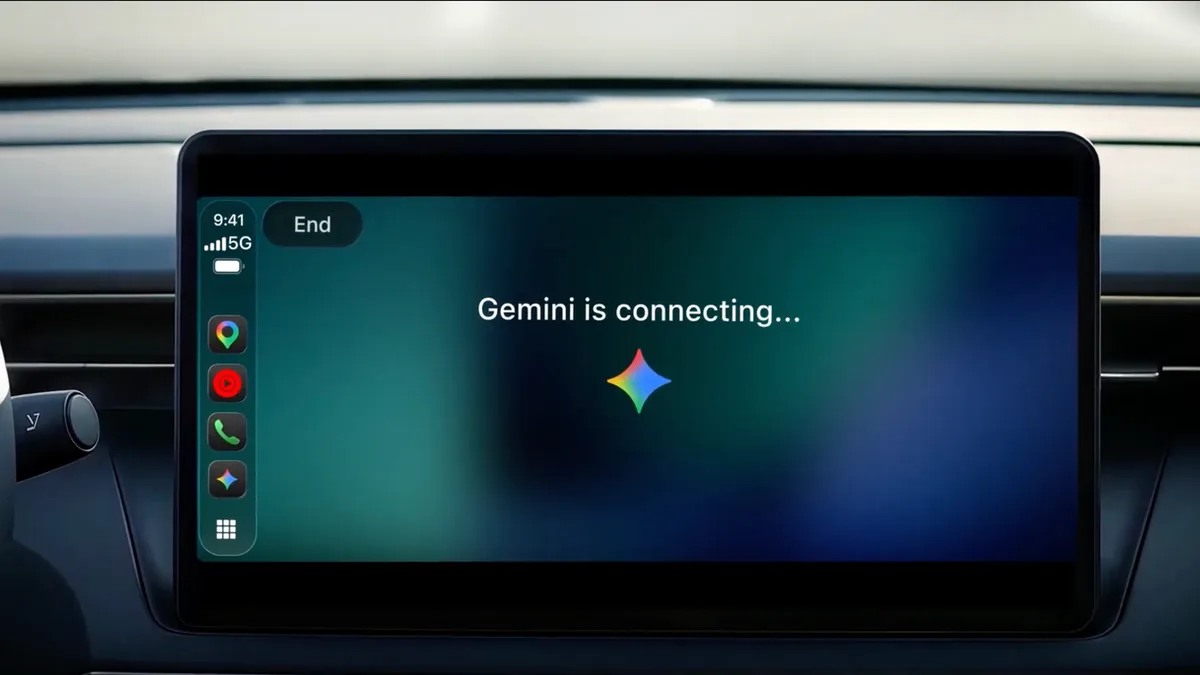
- Tap the Gemini icon on the CarPlay home screen or the side bar. Start a new conversation, or pick up one you were having earlier.
Can’t see the icon? Go to Settings > General > CarPlay, choose your car, tap Customize and add Gemini, or drag it onto the first page. The change shows up the next time you connect. Google is rolling the feature out gradually, so if it isn’t listed yet, keep the app updated and check again in a few days.
What to ask Gemini in the car
Gemini on CarPlay is built for conversation rather than one-line commands. You can interrupt it, change the subject, or tell it to pause while you take a tricky junction. Some ideas, roughly in the order Google suggests:
| Use it to | Try saying |
|---|---|
| Plan your day | “What does my day look like?” |
| Prep for a meeting | “Help me get ready for my 11 o’clock with the sales team.” |
| Clear your inbox | “Read my unread emails and summarise the long ones.” |
| Reply by voice | “Draft a reply to Priya saying I’ll be 15 minutes late.” |
| Find food on the way | “Where’s somewhere quick for lunch near my next meeting?” |
| Rehearse | “Play a tough interviewer and ask me about my project.” |
| Learn something | “Explain how hybrid cars charge their batteries, simply.” |
Inbox and calendar questions work because Gemini connects to Gmail and Google Calendar. Whatever you talk about is saved to your Gemini chat history on the phone, so notes and summaries are waiting when you park.
Daily brief (US only): in the US you can also say “Give me my daily brief” for a spoken rundown of your day. Google limits it to users who are 18 or over, in the US, on a personal account, in English, with Gemini’s Personal Intelligence and Google Workspace connections switched on.
What it can’t do
This is where Gemini on CarPlay differs from the assistant you might expect:
- There’s no wake word. You can’t say “Hey Gemini”. Apple doesn’t let third-party chatbots be started by voice on CarPlay, so you tap the icon to begin.
- Siri is still in charge. The voice button on your steering wheel and “Siri” still go to Siri. Gemini doesn’t replace it.
- It can’t control the car or your phone. Apple’s rules stop chatbot apps from changing the music, making calls, sending iMessages or adjusting the air conditioning. Gemini talks; it doesn’t operate anything.
- It’s voice-only. By design you get very little text on screen: just an animation showing when it’s listening and buttons to mute or end.
- Work and school accounts get less. With a work or school Google account, Gemini Live can only use Google Calendar, Keep and Tasks, not Gmail, and only if your admin allows it.
The other Gemini in your car: Google Maps
Gemini also turns up in a second place on CarPlay, which confuses people. Since late October, Google Maps on CarPlay has had its own Gemini button during navigation. You tap the icon on the edge of the map and ask about your route: the best time to leave given traffic, a stop with good reviews along the way, or a route that avoids tolls.
The two are separate:
| Gemini app | Gemini in Google Maps | |
|---|---|---|
| Where | Its own CarPlay app | Inside Maps, while navigating |
| Best for | Email, calendar, chat | Your route and places on it |
| Availability | Worldwide, from 11 Nov | US first, wider rollout underway |
Gemini vs the other chatbots on CarPlay
Gemini isn’t the first AI chatbot on CarPlay. Since Apple opened the door in iOS 26.4, several have arrived. All of them work the same basic way: tap to start, voice only, and no control over the car.
| Assistant | On CarPlay since | Stands out for |
|---|---|---|
| ChatGPT | March 2026 | The first to arrive |
| Claude | September 2026 | Thoughtful long answers |
| Gemini | November 2026 | Gmail and Calendar built in |
Siri is still the only assistant you can wake by voice or with the steering-wheel button. With iOS 27’s Siri AI it can handle far more conversational questions too. If you live in Google’s apps, though, Gemini is the one that actually knows your inbox and calendar. Our ChatGPT alternatives guide compares the chatbots themselves in more detail.
Does it work in India?
Mostly, yes:
- CarPlay is officially supported in India, and the Gemini app is on the India App Store.
- Gemini Live speaks Hindi, along with Bengali, Gujarati, Kannada, Malayalam, Marathi, Tamil, Telugu and Urdu. Google says the CarPlay app works in every language Gemini Live supports, so you should be able to chat in Hindi on the road. We haven’t seen it tested in a car yet.
- Calendar and email questions work with a personal Google account.
- Daily brief isn’t available in India yet. It’s US-only and English-only for now.
- Gemini in Google Maps on CarPlay started in the US. India hasn’t been confirmed.
Should you use it while driving?
Gemini on CarPlay is designed to be used without looking at the screen, and that’s the right way to use it. Start the conversation before you pull out, keep your eyes on the road, and don’t try to read anything it shows. Treat it like a talk-radio host who knows your diary. If a conversation needs your full attention, it can wait until you’ve parked.
FAQ
Is Gemini on CarPlay free? Yes. Google says it’s available to all Gemini users on iPhone. Paid Google AI plans aren’t required.
Can I say “Hey Gemini” in my car? No. Apple doesn’t allow wake words for third-party chatbots on CarPlay, so you tap the Gemini icon to start. “Siri” and the steering-wheel button still go to Siri.
Why don’t I see Gemini on my CarPlay screen? Update the Gemini app, allow microphone access, and use Gemini Live on your phone once. Then check Settings > General > CarPlay > your car > Customize. The rollout is gradual, so it may take a few days to reach you.
Does Gemini on CarPlay work in Hindi? Gemini Live supports Hindi and eight other Indian languages, and Google says the CarPlay app works in all Gemini Live languages. Daily brief is English-only and US-only.
Can Gemini play music or make calls on CarPlay? No. Apple’s rules don’t let chatbot apps control the car or the iPhone, so music, calls and messages still go through Siri and the regular CarPlay apps.
What’s the difference between the Gemini app and Gemini in Google Maps? The Gemini app is a general voice assistant for your email, calendar and questions. Gemini in Google Maps only appears during navigation and helps with your route.
Want more from your iPhone? See our iPhone tips and tricks, what’s new in iOS 27.2, and the best Claude connectors if you prefer Anthropic’s assistant.
Watch: this guide in 2 minutes
More short videos
Sources & further reading
- Google — Talk it through with Gemini, now on Apple CarPlay
- Google Gemini Help — Talk naturally with Gemini Live (iPhone)
- Google Gemini Help — Daily brief
- Google India — Gemini Live in Hindi and more Indian languages
- App Store — Google Gemini
- Apple Support — Use CarPlay with your iPhone
- Apple — iOS feature availability (CarPlay countries)
- 9to5Google — Google rolling out the Gemini app for CarPlay
- 9to5Google — Gemini comes to Google Maps on CarPlay
- MacRumors — iOS 26.4 brings CarPlay support for ChatGPT, Claude and Gemini
- 9to5Mac — ChatGPT app launches for CarPlay on iOS 26.4
- MacRumors — Anthropic's Claude comes to CarPlay
Keep reading
5 iPhone security settings to turn on now: stop thieves, spam calls and scammers
Five iPhone settings that stop thieves, spam calls and scammers: Stolen Device Protection, iOS 27's Impersonation Risk Detection, call screening and more.
Read more →
How does AirDrop work without the internet? Bluetooth, Wi-Fi and the 10-minute rule, explained
AirDrop finds nearby devices over Bluetooth, then sends files over a direct Wi-Fi link with no internet. How it works, fixes, and which Androids work with it.
Read more →
Dropped your iPhone in water? What to do first (and what not to do)
Dropped your iPhone in water? Apple's steps: tap the water out, wait before charging and skip the rice. Plus water-resistance ratings and repair costs.
Read more →