Claude can now turn your artifacts into Mac and Windows apps: how Install as app works
Claude's new Install as app turns an artifact into its own Mac or Windows app. How to do it, what the apps can do, the permission levels and the catches.
That handy little tool you built in a Claude chat, a tracker, a timer or a calculator, no longer has to live inside the conversation. Anthropic’s new Install as app feature turns a Claude artifact into an app with its own icon and window, sitting in your Dock or Start menu like anything else you’ve installed.
It launched in beta on 24 November in Claude for Mac and Claude for Windows, on every plan. Here’s how it works, what these apps can and can’t do, and the catches worth knowing first.
The short version:
- What: any interactive artifact can become a desktop app. No coding, packaging, code signing or API key: it runs on your Claude account.
- How: open the artifact in Claude Desktop, open its title menu (or right-click it) and choose Install as app.
- Where: Claude for Mac and Windows only, version 6.28899.0 or later. Not the web, phones or Linux.
- Catches: you need to be online and signed in to open one, and the requests it makes to Claude count toward your plan’s usage.
What is Install as app?
An artifact is the interactive thing Claude builds next to a chat: a small web app, a dashboard, a game. Until now it lived in Claude. Install as app wraps it in a proper desktop window with its own icon, so you can open it from the Dock, Spotlight or the Start menu without opening Claude first.
It’s still the same artifact underneath. When you (or anyone you share it with as an editor) change the artifact, the installed app updates too. And because it runs on your Claude account, an installed app can use Claude itself and your connectors, so a tracker that reads your calendar or a dashboard built on a spreadsheet works the same way it does in the chat.
Anthropic’s own examples include Linnet, a layered image editor, Phosphor, a file manager, Tern, a terminal with Claude explaining commands, and Vitals, a menu bar app that shows how hard your computer is working.
How to install an artifact as an app
- Update Claude Desktop. On a Mac, choose Claude › Check for Updates; on Windows, ☰ › Help › Check for Updates. You need macOS 13 or Windows 10 or later.
- Build the artifact. Describe what you want in a chat. Anthropic’s own examples: “Make a Pomodoro timer that lives in my menu bar” or “Make a Windows app that renames the photos in a folder by date.” Try it and ask for changes until it works.
- Install it. Open the artifact in the main Claude window, open its title menu or right-click it, choose Install as app, then Install. (It’s also under Share.)
- Open it. On a Mac it’s in a Claude Apps folder inside the Applications folder in your home folder, and in Spotlight. Right-click its Dock icon and choose Options › Keep in Dock to keep it there. On Windows it’s in a Claude Apps folder in the Start menu, with a desktop shortcut.
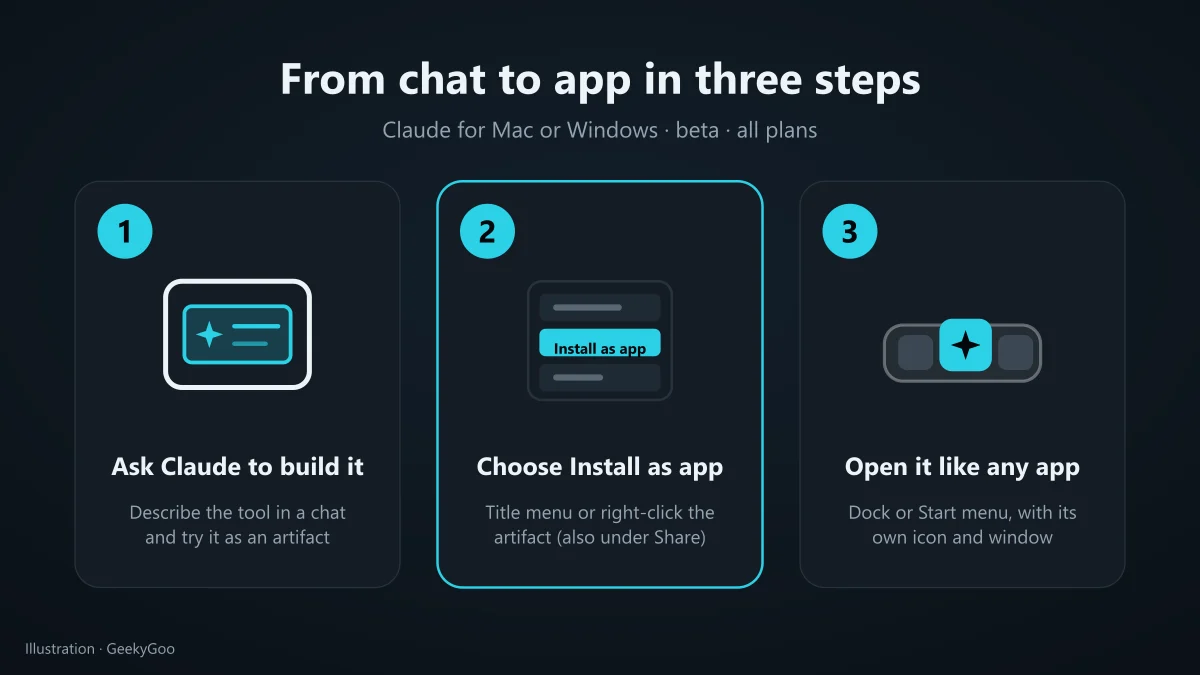
If you don’t see the option, update Claude first. It’s rolling out gradually, and on Team or Enterprise an owner may need to switch it on. Artifacts also need Create and edit files turned on in Settings › Capabilities.
What installed apps can do (and the permission levels)
Every installed app starts at the default level, where it can only do what it could do in a web browser. From there you decide, app by app, how much more to allow:
- App permissions: notifications, a menu bar item (Mac) or system tray icon (Windows), keyboard shortcuts that work while you’re in other apps, and a window that floats above the others. Claude asks for each one, and you answer Allow or Don’t allow.
- Full computer access: the app can run programs and read, change or delete your files without asking each time. You can only grant this to apps you made yourself (or, on Team and Enterprise, apps made by people in your organization).
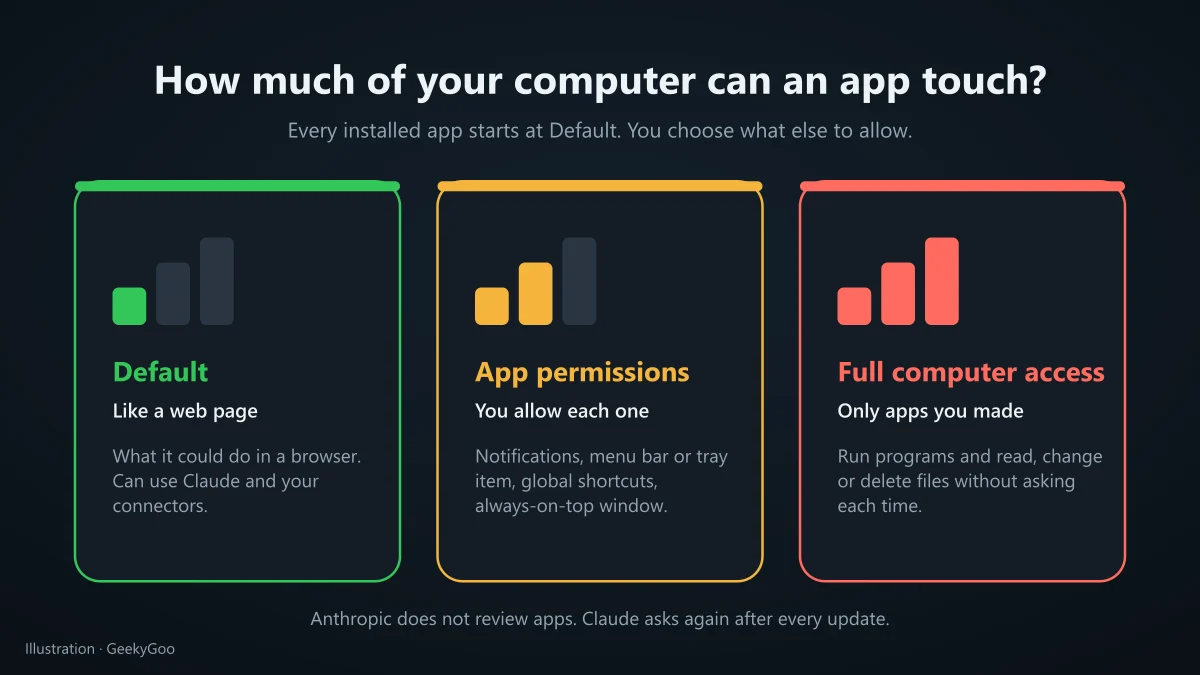
Two safety points matter. Anthropic doesn’t review apps before you install them, so treat an app someone shares with you like any download from a stranger and keep it on default permissions. And an “Allow” only covers one version: Claude asks again after every update, including your own edits. The one gap Anthropic flags itself: if an app loads code from another website, that code can change without a new prompt.
To change permissions later, click the app’s name in the Mac menu bar (or right-click its title bar on Windows) and choose Permissions, or go to File › Apps in Claude Desktop. Turning off full access doesn’t undo changes an app already made.
The catches
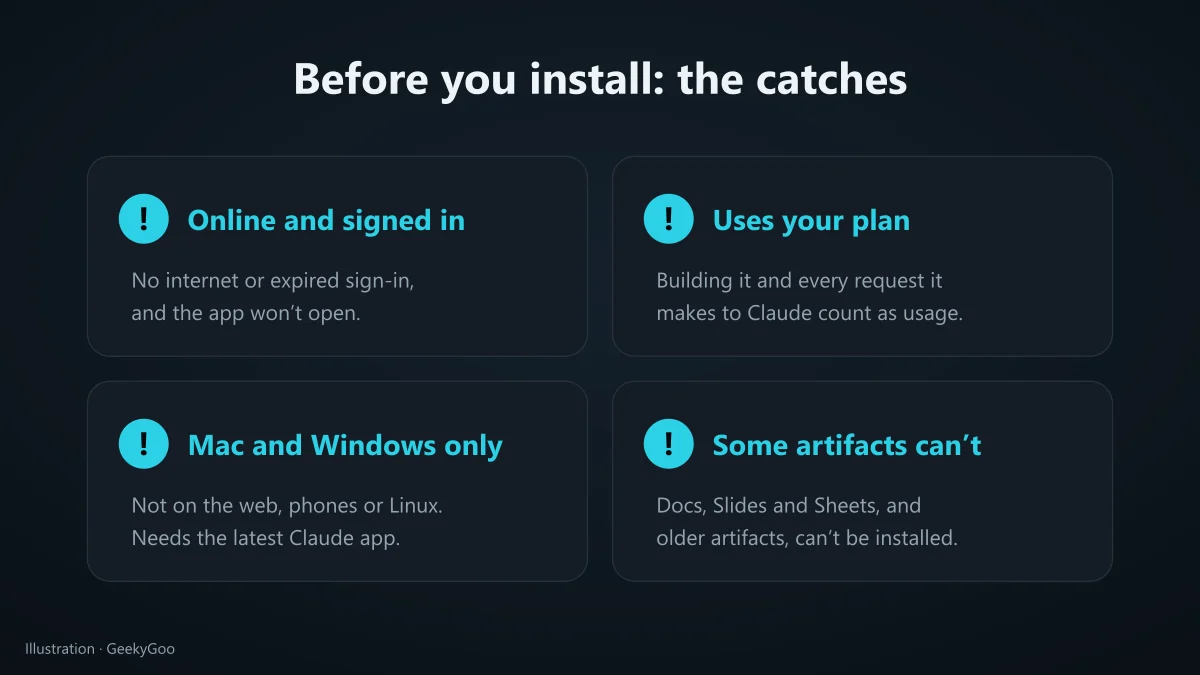
- It isn’t standalone software. To open an app you need to be online and signed in to Claude Desktop. No Wi-Fi, or an expired sign-in, and it won’t launch. For now it’s closer to a very good shortcut than a traditional app.
- It spends your usage. Building the app, and every request it makes to Claude, counts toward your plan’s usage limits, the same pool as your chats. An app that calls Claude every few minutes adds up.
- Not everything can be installed. Claude Docs, Slides and Sheets can’t, and neither can artifacts made in a chat before 16 September 2026 or older Cowork artifacts.
- Free plan limits. Install as app works on every plan, but on Free, artifacts can’t use connectors or be shared by link, so the apps you build there are more limited.
- Menu bar apps keep running after you close their window. Quit them from the Dock or with Cmd+Q on a Mac, or choose Exit from the tray icon on Windows.
Team and Enterprise
On Team, installing and app permissions are on by default and full computer access is off. On Enterprise, everything stays off until an owner turns it on in Organization settings › Artifacts. HIPAA-ready organizations and hybrid deployments can’t use it, zero data retention doesn’t cover these apps, and installs and permission choices aren’t logged in the Compliance API.
How to remove an installed app
In Claude Desktop, go to File › Apps (on Windows, ☰ › File › Apps), select the app and choose Uninstall. On a Mac it moves to the Trash; on Windows its shortcuts are removed. Uninstalling doesn’t delete the artifact itself, so you can reinstall it any time.
Is it worth trying?
Yes, if you already keep a little tool in a Claude chat: giving it its own icon makes you far more likely to use it. Start with something you built yourself, keep permissions at the default, and save full computer access for apps you understand.
New to the redesigned app? Our guide to the new Claude desktop app covers the rest, and our pick of the best Claude connectors shows what an installed app can plug into.
FAQ
Is Install as app free? Yes, it’s on every plan, including Free. But building an app and its requests to Claude use your plan’s usage limits.
Does it work on the web, iPhone or Android? No. At launch it’s only in Claude for Mac and Claude for Windows (version 6.28899.0 or later).
Do installed Claude apps work offline? No. You need to be online and signed in to Claude Desktop to open one.
Is it safe to install an app someone shared with me? Anthropic doesn’t review apps, so only install apps from people you trust and keep them on default permissions. Full computer access is only available for apps you made.
Watch: this guide in 2 minutes
More short videos
Sources & further reading
- Anthropic — Turn artifacts into Mac and Windows apps (24 Nov 2026)
- Anthropic Help Center — Install an artifact as an app
- Anthropic Help Center — Release notes (24 Nov 2026)
- Anthropic Help Center — Artifacts admin guide for Team and Enterprise plans
- Anthropic Help Center — Install Claude Desktop
- Anthropic Help Center — What are artifacts and how do I use them?
- @ClaudeDevs on X — Install Claude artifacts as desktop apps (24 Nov 2026)
- 9to5Mac — Anthropic just gave Claude users a new way to make Mac apps (24 Nov 2026)
- MacRumors — Claude can now install artifacts as desktop apps (25 Nov 2026)
- AppleInsider — Claude can now turn artifacts into semi-independent Mac apps (24 Nov 2026)
Keep reading
How to set up Grok Bot AI agents for your inbox, travel and bills (and 7 safety settings to change first)
Grok Bot 1.0 runs always-on AI agents that work while you sleep. Which agents to set up first, what it costs in dollars and rupees, and the safety settings to change before you connect your email.
Read more →
How to send thousands of photos and videos between any devices in one go
Install AirLan on every device, tap Select all and send: thousands of photos and videos move between iPhone, Android, Mac and Windows at full quality.
Read more →
How to build your first AI agent in Claude Code (no coding needed)
A plain-English, step-by-step guide to making your own AI agent in the Claude desktop app: CLAUDE.md rules, plan mode, subagents, a dashboard and approvals.
Read more →