How to set up Grok Bot AI agents for your inbox, travel and bills (and 7 safety settings to change first)
Grok Bot 1.0 runs always-on AI agents that work while you sleep. Which agents to set up first, what it costs in dollars and rupees, and the safety settings to change before you connect your email.
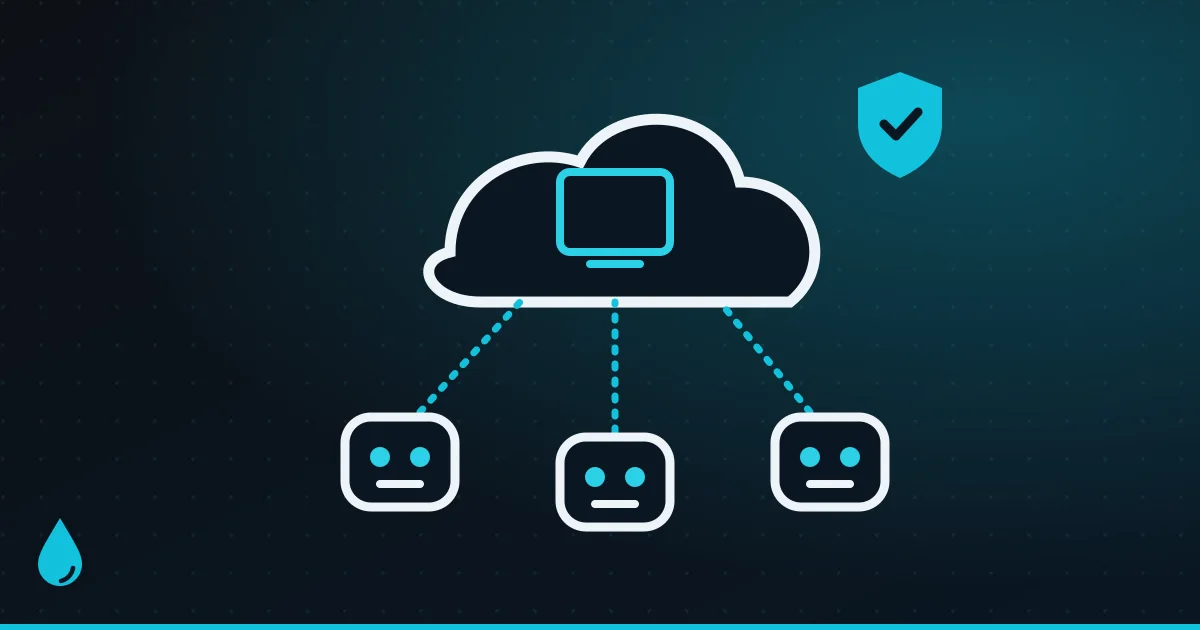
Most of us still use AI like a clever search box: type a question, read the answer, do the work ourselves. AI agents flip that around. You hand one a job, say “sort my inbox every morning” or “find me flights under $400 and hold the best one”, and it does the work in the background, then checks with you before anything important happens.
Grok Bot is one of the easiest ways to try this today. It came out of beta as Grok Bot 1.0 on 2 November, and it lets you set up a small team of “Bots”, each with its own job. This guide covers which Bots to set up first for everyday life, what it costs in the US and India, and, most importantly, the seven safety settings to check before you give an AI your email or your card.
We haven’t run Grok Bot for this guide. Everything below comes from SpaceXSI’s own documentation, its App Store listings and the reporting linked at the end.
What Grok Bot actually is
Grok Bot is made by SpaceXSI, the AI company formerly known as xAI. It’s built with Cursor, the coding-tool maker SpaceX bought this year. The idea is simple:
- Each user gets a cloud computer that stays on after you close the app. Your Bots share it, each with its own screen, so they can browse websites, fill in forms, read files and use apps the way a person would.
- Bots sign in to your tools. There are ready-made connections for Gmail, Google Calendar, Slack, Notion, Outlook and many more. On a Mac they can now also use Apple Mail, Messages, Notes, Reminders and Calendar.
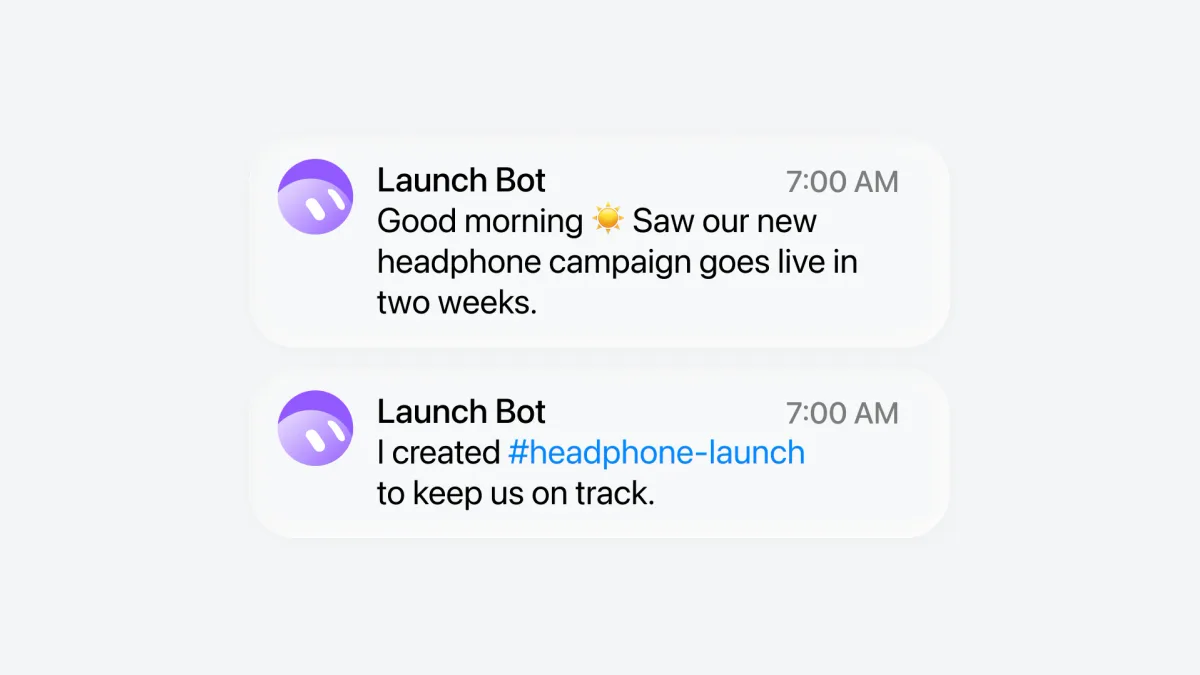
- Bots run on a schedule. You set routines in plain English, like “every weekday at 8:00 AM”, or trigger them with an email or a Slack message.
- Bots ask before risky steps. Sending an email, buying something or deleting files shows you an approval card first (more on that below).
It runs on Mac, Windows, Linux, iPhone, iPad and Android, and the mobile app is called Grok Bot, separate from the Grok and X apps. For the add-ons that give Bots new abilities, see our guide to the best Grok Bot plugins and skills.
What it costs
On the web, Grok Bot comes with The X Subscription, which bundles Grok, Grok Bot, Cursor and X Premium:
| Plan (web) | Price | Grok Bot? |
|---|---|---|
| Plus | $8/month | No |
| Premium | $30/month | Yes |
| Super | $100/month | Yes, 15x Plus usage |
| Ultra | $200/month | Yes, 50x Plus usage |
Paying yearly brings Premium down to $300 a year. Bot work draws from a weekly usage allowance shared with Grok and Cursor. When it runs out you can buy prepaid credits, and there’s an optional auto top-up. Set a spending cap so a busy week doesn’t surprise you.
Buying in the app costs more. In the App Store, SpaceXSI sells monthly plans under different names: Pro is $25.99 in the US. In India, the App Store shows Pro at ₹2,499, Pro+ at ₹7,900 and Ultra at ₹24,900 a month, with usage credits from ₹699. SpaceXSI hasn’t published rupee prices for the web plans, so the App Store is the only official rupee price for now.
The everyday agents worth setting up first
The golden rule is one Bot, one job. A narrow Bot is easier to trust, easier to check and cheaper to run. SpaceXSI offers more than 50 templates; these are the ones that pay off fastest in everyday life.
1. A morning briefing Bot
Every weekday it reads your calendar and email and sends you one short summary: what’s on today, what needs a reply, what can wait. It only reads, so it’s the safest place to start and gives you a feel for how Bots work.
2. An inbox Bot
It sorts incoming mail, labels what matters, unsubscribes from newsletters you never open, and drafts replies for you to check. SpaceXSI’s own Inbox Manager template asks for approval before every send. Gmail connects one mailbox at a time.
3. A calendar Bot
It finds a time that works, sends the invite once you approve it, and sorts out clashes. Pair it with your briefing Bot so tomorrow’s changes show up in tomorrow’s summary.
4. A travel Bot
Give it your rules, such as budget, airlines you like, no red-eyes and aisle seats, and it compares flights and hotels and comes back with options. SpaceXSI’s Travel Coordinator template confirms with you before booking, then adds the itinerary to your calendar.
5. A subscriptions and bills Bot
It goes through your email for receipts and renewal notices, lists what you’re paying for each month, and suggests what to cancel. SpaceXSI’s Subscription Cleaner template only acts on the ones you approve. A good habit is to keep this one read-only for money: it reports, you pay.
6. A research or shopping Bot
“Find the best robot vacuum under ₹30,000 that works with Alexa and has a mop.” It reads reviews and spec sheets and comes back with a shortlist. Let it fill a cart if you like, but make the final purchase yourself.
Bonus for US readers: a phone-call Bot
In the US, a Bot can phone a business for you, for example to book a table or check opening hours. You confirm each call, can take over mid-call, and get a recording and transcript afterwards. It only calls US businesses, so it won’t work for Indian numbers.
How to set up your first Bot
- Get the app from x.ai/bot for your computer, or the App Store or Google Play for your phone, and sign in.
- Create a Bot from a template, such as a daily briefing, and give it a clear name and one job.
- Connect one app, for example your calendar, and give it the smallest access it needs.
- Add a routine: “Every weekday at 7:30 AM, send me a summary of today.” Routines have to be at least five minutes apart, and each Bot can have up to 50.
- Watch the first few runs. You can open the Bot’s screen and see exactly what it’s doing, and take over for logins or CAPTCHAs.
- Teach it your way of doing something. On a computer you can record yourself doing a task once, for up to 10 minutes, and Grok Bot turns it into a reusable “skill” you can edit.
7 safety settings to change before you connect your email or card
This is the part most setup videos skip. Grok Bot can act on your behalf, so set these up first:
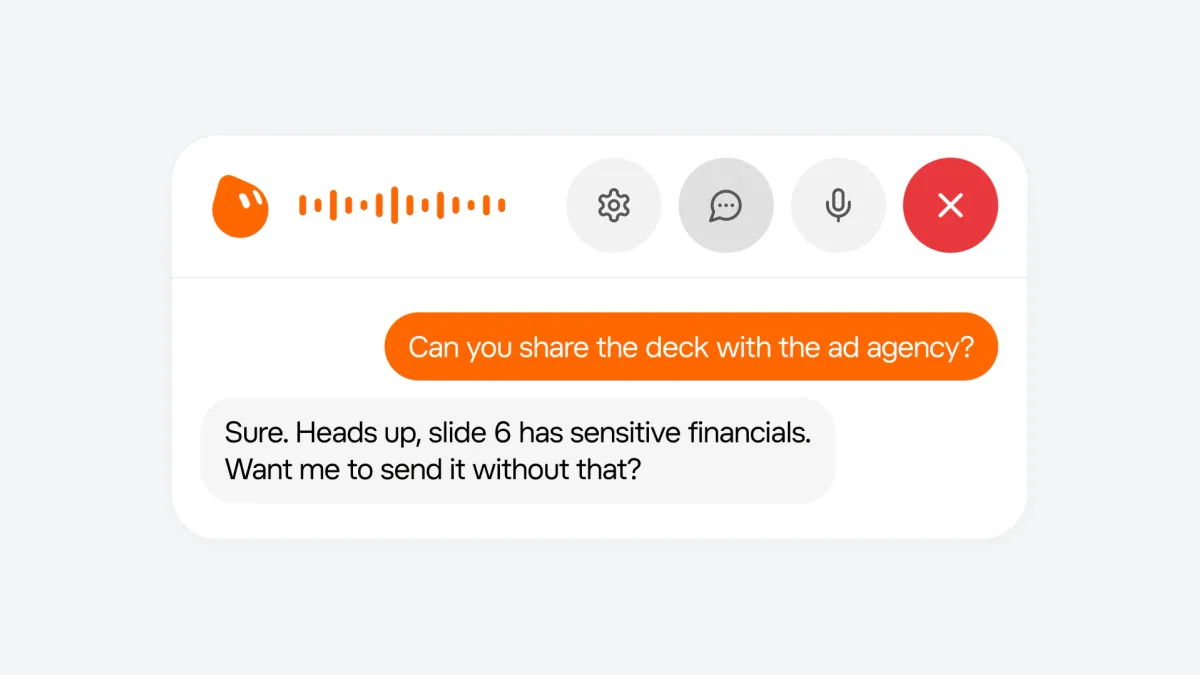
- Keep Auto Review switched on. It’s on by default and checks every action before it runs. Anything risky waits for you to tap Allow once, Always allow or Deny. Be careful with “Always allow”.
- Start with read-only jobs and drafts. SpaceXSI itself recommends keeping sending, publishing, payments, deletions and accepting terms behind approval. Let a Bot earn your trust on reports and drafts first.
- Don’t save your card if you want to approve every payment. This is the big one. According to SpaceXSI’s docs, a card saved in Grok Bot’s Vault fills in at checkout without asking you each time. If you want a say on every purchase, enter the card only when asked and leave “Securely save to Bot’s vault” unticked.
- Remember that your Bots share one computer. Separate Bots aren’t a security wall: files, browser sessions and logins on your cloud computer are available to all of them, and deleting a Bot doesn’t wipe what it left behind. Sign out of services a Bot no longer needs and delete sensitive files when a job is done.
- Use the Vault or a password manager, never the chat. Don’t paste passwords, one-time codes or bank details into a conversation. Grok Bot’s Vault fills them in without the AI seeing them. If you use 1Password, note that Grok Bot can only read your Personal or Private vault, not shared family or team vaults.
- Set a spending cap. Turn off auto top-up, or cap it, so extra usage credits can’t run up a bill. Prepaid credit you’ve used isn’t refundable.
- Decide whether Bots can use your own computer. Under Settings > Computer > Your computer you can pick “Ask every time” (the default), “Always allow” or “Never allow”. Most people should leave it on “Ask every time”.
One more thing to know: there’s no model picker. SpaceXSI says each request may be handled by its own models or by another company’s, and the app doesn’t show which. Keep that in mind before giving a Bot anything very private.
Can you use Grok Bot in India?
Yes:
- The Grok Bot app is in the India App Store, and its interface is available in Hindi, Bengali, Marathi, Tamil, Telugu and Urdu, among 37 languages.
- Prices: the App Store shows rupee prices from ₹2,499 a month. Web plans are priced in dollars.
- What doesn’t work: phone calls to businesses are US-only, and some plugins are built around US services.
- Everything else, including email, calendar, travel research and routines, works the same.
Grok Bot or run your own agent?
You may have seen people buying a Mac mini to run an AI agent at home. That’s usually OpenClaw, a free, open-source agent that runs on your own computer and that you control from WhatsApp, Telegram or iMessage. It costs nothing to download, but you supply the hardware, pay for the AI model you plug in, and handle the security yourself. That matters, because it has full access to your files and browser.
Grok Bot is the opposite trade: a monthly fee, but the computer, approvals and password Vault are handled for you. For most people starting out, a hosted agent with approval cards is the safer first step.
FAQ
What is Grok Bot? An always-on AI agent from SpaceXSI (formerly xAI). You create Bots that each have a job, sign in to your apps, run on a schedule, and ask for approval before risky actions.
How much does Grok Bot cost? It’s included with The X Subscription Premium ($30 a month), Super ($100) and Ultra ($200), but not with Plus ($8). In India, App Store plans start at ₹2,499 a month.
Is Grok Bot available in India? Yes, on the India App Store, with Hindi and five other Indian languages in the app. Calling businesses on your behalf works only in the US.
Is it safe to give Grok Bot my email? It’s designed to ask before sending, buying or deleting, and Auto Review is on by default. Start with read-only tasks and drafts, don’t save your card in the Vault if you want to approve each payment, and remember that all your Bots share one cloud computer.
Can Grok Bot spend my money without asking? Yes, if you save a card in its Vault: SpaceXSI says saved cards fill in at checkout without asking you each time. Don’t save the card if you want to approve every purchase.
Do I need to keep my computer on? No. Bots run on a cloud computer, so they keep working after you close the app or switch off your laptop.
Comparing assistants? See our best ChatGPT alternatives, the best Claude plugins and skills, and how to build your first AI agent in Claude Code.
Watch: this guide in 2 minutes
More short videos
Sources & further reading
- SpaceXSI — Grok Bot
- SpaceXSI — Grok Bot use cases
- SpaceXSI — Introducing Grok Bot 1.0
- SpaceXSI — Introducing The X Subscription
- SpaceXSI docs — The X Subscription pricing
- SpaceXSI docs — Grok Bot FAQ
- SpaceXSI docs — Approvals, security and privacy
- SpaceXSI docs — Vault
- SpaceXSI docs — Computer and apps
- SpaceXSI docs — Skills, routines and automations
- SpaceXSI docs — Message and collaborate
- SpaceXSI docs — Grok Bot for mobile
- App Store (India) — Grok Bot
- App Store (US) — Grok Bot
- TechCrunch — SpaceXSI bundles X Premium, Grok and Cursor into one subscription
- 9to5Mac — Grok Bot for Mac adds Apple Mail, Messages, Notes and more
- OpenClaw — official site
Keep reading
The best Grok Bot plugins and skills in 2026: 14 to add first (and what to skip)
Grok Bot is xAI's always-on AI agent. The 14 plugins and skills to add first, for email, Notion, Slack, Canva, research and shopping, and how to stay safe.
Read more →
How to build your first AI agent in Claude Code (no coding needed)
A plain-English, step-by-step guide to making your own AI agent in the Claude desktop app: CLAUDE.md rules, plan mode, subagents, a dashboard and approvals.
Read more →
The new Claude desktop app ("Claude 2.0"): everything that changed
Chat and Cowork merged, Docs and Slides, split view, cloud sessions, /goal and mods: what's new in the rebuilt Claude desktop app, and how to use it.
Read more →