How to build your first AI agent in Claude Code (no coding needed)
A plain-English, step-by-step guide to making your own AI agent in the Claude desktop app: CLAUDE.md rules, plan mode, subagents, a dashboard and approvals.
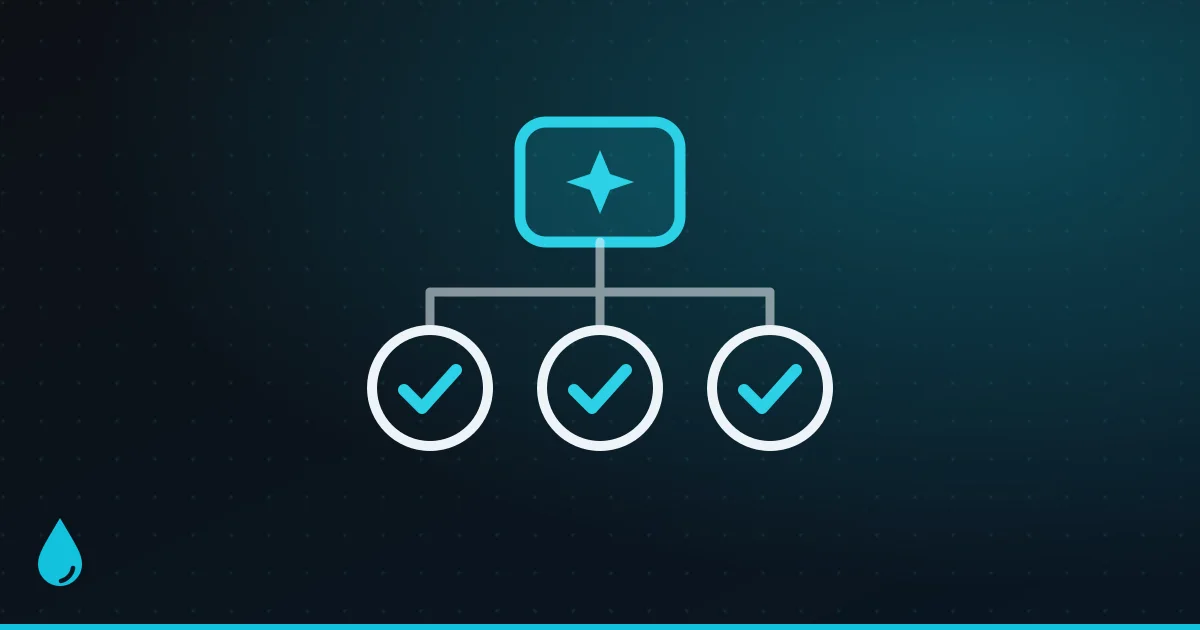
“AI agent” sounds like something only programmers build. It isn’t any more. In the Code tab of the Claude desktop app, you can build a useful agent in an afternoon by describing what you want in plain English. Claude writes the files, sets up its own helpers and builds a page you can check from your phone. You never type a line of code or open a terminal.
This guide walks through one example: a “life admin” agent. You hand it a list of chores, such as comparing broadband plans, finding a plumber, writing a note to your landlord or planning a weekend away. It splits up the work, does the research and hands back answers and drafts for you to approve. Swap in your own idea; the steps are the same.
The short version:
- Open the Code tab in the Claude desktop app and point it at an empty folder.
- Write your agent’s rulebook in a CLAUDE.md file. Claude can write it for you.
- Switch to Plan mode, describe your agent, and let Claude ask questions and write a plan.
- Let Claude build it: helper subagents, plus a dashboard page.
- Keep yourself in charge: the agent drafts, you send.
- Run it, then improve it by telling Claude what to change.
What is an AI agent, really?
A chatbot answers questions. An agent gets things done. You give it a goal and it works out the steps itself. It uses tools to search the web, read files, write documents or work with apps you’ve connected. It checks its own work, and it keeps going until the job is finished, stopping to ask you when it needs a decision.
Claude Code is already an agent. “Building your own” really means giving it a job, rules and helpers, so it does that job the same way every time you ask.
The helpers are the clever part. Anthropic calls them subagents: assistants the main agent hands jobs to. Each one works in its own separate space, with its own instructions and its own set of tools, and reports back only a short summary. Several can work at once, so a list of five tasks doesn’t take five times as long.

What you need
- The Claude desktop app, free from claude.com/download, for Mac, Windows and (in beta) Linux.
- A paid Claude plan that includes Claude Code: Pro, Max, Ultra, Team or Enterprise. The free plan can’t open the Code tab.
- An empty folder for your agent, for example
Documents/life-admin-agent. - Optional: connectors for any apps the agent should use, such as your email or calendar.
One thing to know about cost: every subagent’s work counts toward the same usage limits as your main conversation. Running lots of helpers at once uses up your allowance faster.
Step 1: Open the Code tab and pick a folder
Open the app and click Code at the top of the sidebar. In the row under the message box:
- Click the first control, the environment selector, and choose the top entry under Local.
- Click the folder control next to it, choose Open folder…, and pick your new, empty folder.
- Choose a model from the model picker. A more capable model is worth it for planning, and you can switch later.
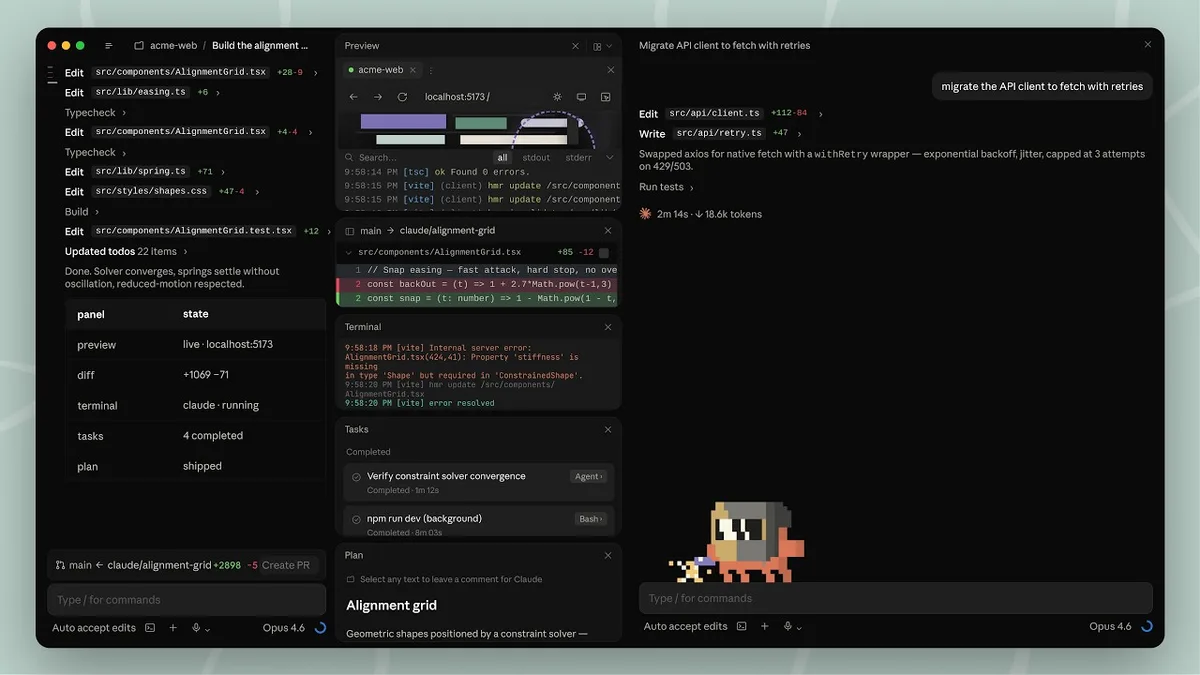
Step 2: Decide how much freedom to give it
The permission mode, also in the row under the message box, sets what Claude can do without asking you first:
| Mode | Can do alone | Good for |
|---|---|---|
| Manual | Only reading | Checking every step |
| Accept edits | Reading and editing | Watching changes |
| Plan | Research, no edits | Designing your agent |
| Auto | Most things, with safety checks | Long jobs |
Our suggestion: use Plan while you design the agent, then Auto or Accept edits while it builds. Even in Auto, a background check reviews each action, and some actions always need your OK.
Step 3: Write the agent’s rulebook (CLAUDE.md)
CLAUDE.md is a plain text file in your folder that Claude reads at the start of every session. Think of it as your agent’s rulebook: who you are, what the agent is for and how it should behave. Claude also keeps its own auto memory notes as you correct it, so it gets better at your preferences over time.
You don’t have to write it yourself. Ask Claude: “Create a CLAUDE.md for a personal life-admin agent,” then describe yourself and your rules. For our example, it could look like this:
# Life-admin agent

## About me
- I live in Pune, India. Show prices in rupees.
- I'd rather pay a little more for reliable, well-reviewed services.

## What this agent does
- Takes my to-do list and works through each task.
- Researches options, compares them and recommends one.
- Writes drafts of any emails or messages I need to send.

## Rules
- Never send an email or message, and never pay for or book anything.
  Save drafts for me to approve.
- Give a source link for every fact and price.
- If a task is unclear, ask me one short question first.
One caution from Anthropic’s own docs: Claude treats CLAUDE.md as guidance, not a lock. For anything that must never happen, the safest approach is simply not to connect the tool that could do it.
Step 4: Plan before you build
Switch the permission mode to Plan. In Plan mode, Claude reads, researches and writes a plan, but doesn’t change any files. Now describe your agent in your own words. Don’t worry about being tidy:
I want an agent that takes my list of life-admin tasks and works on them at the same time. For each task, one helper researches the options, another drafts any messages I’ll need, and a third checks the results for mistakes. Show everything on a simple dashboard I can open on my phone, with each task’s status, the recommendation, the sources and any drafts. Nothing gets sent without my OK.
Claude will usually come back with a few questions, and then a plan. Read the plan properly. It’s the cheapest moment to change your mind: fixing a plan takes seconds, while unpicking a finished build takes much longer. When you’re happy, approve it and switch to Auto or Accept edits so Claude can build.
Step 5: Let Claude build the helpers
Claude creates each subagent as a small text file in your folder, inside .claude/agents/. Each file has a name, a description that tells the main agent when to use it, the tools it’s allowed to use and, optionally, which model it runs on. A researcher for our example could look like this:
---
name: researcher
description: Researches one life-admin task, compares two or three
  options and recommends one. Use for any task that needs prices,
  reviews or availability.
tools: WebSearch, WebFetch, Read
model: sonnet
---
You research a single task. Find two or three good options, compare
price, reviews and convenience, and recommend one. Always include
source links. Never contact anyone.
Three tips from Anthropic’s docs:
- Keep descriptions short and clear. The main agent reads them to decide which helper gets which job.
- Give each helper only the tools it needs. A researcher that can only search and read can’t change or send anything.
- Use faster, cheaper models for simple jobs. A quick model is fine for tidying a list. Save the most capable one for careful research.
Step 6: Give it a dashboard you can open anywhere
Ask Claude to show the results as an artifact. An artifact is a live, interactive page that Claude publishes to a private link on claude.ai and updates as it works. It’s private to you unless you share it. Because it lives on claude.ai, you can open it from your phone’s browser too.
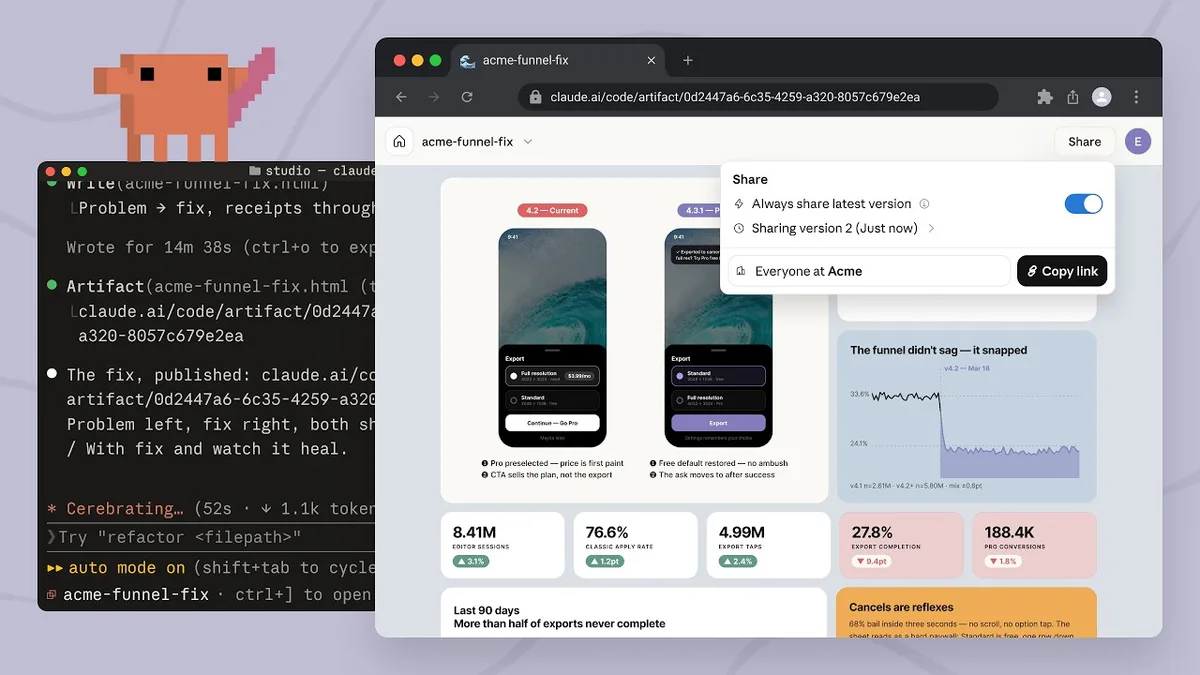
A dashboard artifact can also pull in fresh data through your connectors each time you open it. There’s a limit to know about: an artifact is one self-contained page, not a full app with its own server. That’s plenty for a task dashboard.
Step 7: Keep a human in the loop
Agents make mistakes, so design yours to prepare, not act:
- Drafts, not sends. Have it write emails and messages for you to check and send yourself.
- Check the recommendations. The source links in your rulebook make that quick.
- Connect only what it needs. Anything you connect, the agent can read.
Claude Code also has some checks built in. It asks before it publishes a page that uses your connectors, and Manual mode lets you approve every action if you’d like to watch closely the first few times.
Step 8: Run it, then make it better
Paste in your list and tell the agent to get going. You’ll see the helpers work in parallel, and the dashboard fill in as results arrive.
The first version won’t be perfect, and that’s fine. Tell Claude what to change, just as you’d brief a person: “show the cheapest option first,” “stop suggesting big chains,” “keep email drafts under 100 words.” Ask it to add any lasting preference to CLAUDE.md, so the agent remembers next time.
Make it run on its own
Once your agent works, you can stop starting it by hand:
- Desktop scheduled tasks run your agent on your computer at set times, such as every morning at 8. Your computer needs to be awake with the Claude app open and signed in.
- Cloud scheduled tasks (a research preview on Pro and higher plans) run on Anthropic’s servers on a schedule, even with your laptop shut.
- Remote Control lets you check on and steer a session running on your computer from your phone.
Five first agents to try
| Agent | What it does |
|---|---|
| Inbox helper | Sorts the day’s email and drafts replies for you to check |
| Price watcher | Checks a few products every week and flags price drops |
| Trip planner | Builds an itinerary with options at three budgets |
| Weekly report | Pulls numbers from your apps into a one-page summary |
| Bill tracker | Lists due dates from your statements and reminds you |
The catches
- You need a paid plan. The Code tab isn’t on the free plan.
- Helpers use up your limits. Subagents and parallel work burn through your plan’s usage faster.
- It can be wrong. Check facts, prices and drafts before you act on them.
- Privacy. Only connect the apps and folders the agent really needs.
- Some features are still in preview. Cloud scheduled tasks, for one, may change.
FAQ
Do I need to know how to code? No. You describe what you want and Claude writes the files. It helps to read what it writes, but you never have to type code or use a terminal.
Is it free? The desktop app is free to download, but the Code tab needs a paid plan with Claude Code: Pro, Max, Ultra, Team or Enterprise.
Can my agent send emails by itself? It can if you connect your email and allow it. We’d strongly suggest it only writes drafts, at least until you trust it.
Will it keep working when my computer is off? A session running on your computer needs the computer on. Cloud sessions and cloud scheduled tasks run on Anthropic’s servers instead, and the dashboard lives on claude.ai, so you can always open it.
What’s the difference between an agent and a subagent? The agent is the one you talk to. Subagents are its helpers: each takes one job, works on it separately and reports back a summary.
Want to go further? See everything that’s new in the Claude desktop app, the best Claude connectors to plug into your agent, and what MCP is. If you write code, read our Claude Code vs GitHub Copilot vs Cursor comparison.
Watch: this guide in 3 minutes
More short videos
Sources & further reading
- Claude Code docs — Get started with the desktop app
- Claude Code docs — Choose a permission mode
- Claude Code docs — How Claude remembers your project (CLAUDE.md)
- Claude Code docs — Create custom subagents
- Claude Code docs — Run agents in parallel
- Claude Code docs — Share session output as artifacts
- Claude Code docs — Automate work with scheduled tasks
- Claude Code docs — Schedule recurring tasks in Claude Code Desktop
- Claude Code docs — Desktop application
- Anthropic — Claude plans and pricing
Keep reading

The new Claude desktop app ("Claude 2.0"): everything that changed
Chat and Cowork merged, Docs and Slides, split view, cloud sessions, /goal and mods: what's new in the rebuilt Claude desktop app, and how to use it.
Read more →
The best Claude connectors in 2026: 12 worth turning on (and which work in India)
Claude connectors link Gmail, Spotify, Zomato, Notion and 1,000+ more apps to Claude. The 12 worth adding, what each can and can't do, and how to stay safe.
Read more →
Claude Duet: Anthropic's new AI agent that keeps working when you don't
Claude Duet watches your email, calendar and business apps, briefs you each morning and works in the background. How it works, what it costs, the catches.
Read more →