How to send thousands of photos and videos between any devices in one go
Install AirLan on every device, tap Select all and send: thousands of photos and videos move between iPhone, Android, Mac and Windows at full quality.
Disclosure: AirLan is made by Image Devices, the company behind GeekyGoo. It’s our own app, so read this as a guide from the people who built it, not an independent review.
You’ve got 2,000 photos on your phone and you want them on your computer. Or your Android phone’s videos need to go on your Mac. Or the whole family’s holiday shots need to end up on one laptop.
The usual options all have a catch:
- A cable: if you can find the right one. iPhone to Windows also means installing Apple’s software and tapping “Trust” on the phone.
- The cloud: upload everything, wait, then download it all again on the other device, using your data and storage both ways.
- Chat apps: small batches, squashed photos and file-size caps.
- AirDrop: Apple devices only, and it can be hit-and-miss at finding the other device.
There’s an easier way, and it really is this short.
The AirLan way: install it and go
- Install AirLan on every device you want to send to or from. Your iPhone, your Android phone, your Mac, your Windows PC, your partner’s tablet. It’s free on all of them.
- Open it on both devices. Same Wi-Fi, or one device on the other’s phone hotspot. No internet needed.
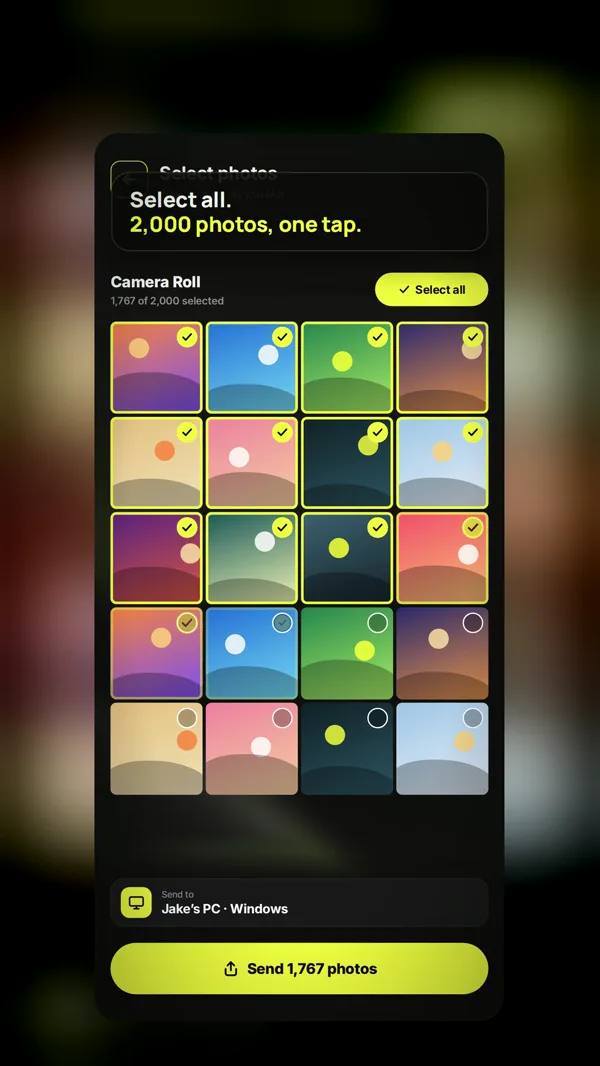
- Tap Select all, pick the device, and send. The other side taps Accept.
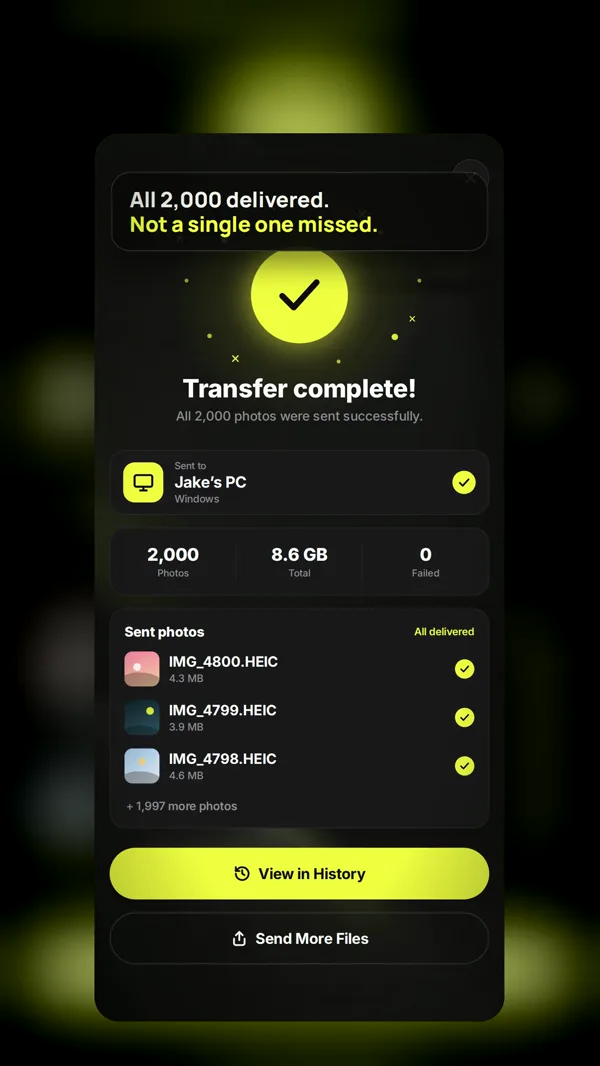
That’s it. Thousands of photos and videos go across in one go, straight from one device to the other.
Why AirLan is the best way to move a whole camera roll
Thousands at once, with no batches. Select all and send the lot in one go. No sending in small batches, no splitting an album into chunks, no “file too large”.
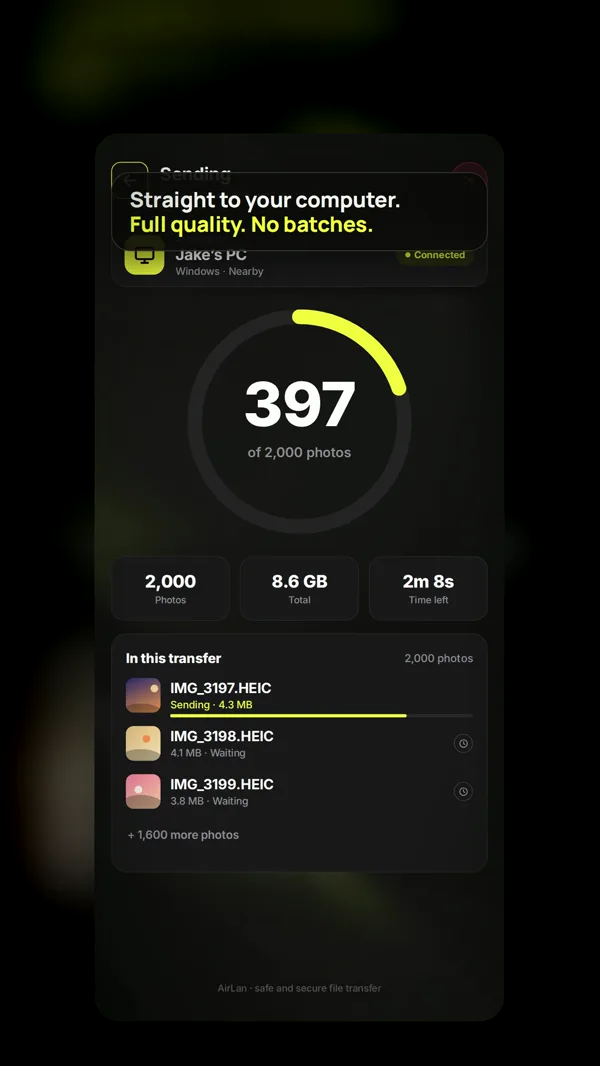
Full quality, always. Photos and videos arrive exactly as they left your phone. Nothing is compressed, so 4K video stays 4K and your originals stay original.
No size cap. Nearby transfers have no limit, whether it’s a 4 GB video or a 40 GB holiday.
No internet, no cloud, no data. Files go straight from device to device over your Wi-Fi or a phone hotspot. Nothing is uploaded anywhere, and it works with the internet switched off: on a plane, at a site with no signal, or when you’re out of data.
Every device, every direction. One app on iPhone, iPad, Android, Mac and Windows means any device can send to any other.
Fast. It’s at least as fast as AirDrop, if not faster.
No account, no cables, no drivers. Open it and send. A Windows PC or Mac simply shows up on your phone as a nearby device.
You can watch it happen. A live counter shows how many files are done, and on iPhone you can follow progress on the Lock Screen.
Every combination, covered
| From | To | With AirLan |
|---|---|---|
| iPhone | Windows PC | ✓ |
| iPhone | Mac | ✓ |
| iPhone | Android | ✓ |
| Android | Windows PC | ✓ |
| Android | Mac | ✓ |
| Android | iPhone | ✓ |
| Mac or PC | Any phone | ✓ |
AirDrop only covers the Apple rows (plus a few recent Android phones). Google’s Quick Share covers Android and Windows (plus iPhone on certain phones). AirLan covers the whole table with one app.
And if someone doesn’t have AirLan yet, they can still receive: they can open a link or scan a QR code in any web browser. For someone far away, AirLan can make a download link for files up to 3 GB.
Tips for moving a really big batch
- Plug in both devices for a transfer of thousands of files, so neither runs out of battery halfway.
- Use iCloud Photos with “Optimise iPhone Storage”? Then your iPhone may keep only smaller versions of older photos. Full-size originals come down from iCloud when they’re sent, which needs internet and takes longer. If you want everything at full resolution, turn on Download and Keep Originals in your iPhone’s Photos settings first.
- Check before you delete. Once the transfer says it’s complete, open the folder on your computer and spot-check a few photos and videos before you clear space on your phone.
- Stay close to the router, or use your phone’s hotspot, for the steadiest connection.
Download AirLan
Put it on every device you want to send to or from:
| Device | Get it from | Needs |
|---|---|---|
| iPhone & iPad | App Store | iOS 15 or later |
| Mac | Mac App Store | macOS 12 or later |
| Android | Google Play | Android phone or tablet |
| Windows | Microsoft Store | Windows 10 or 11 |
AirLan is free on every platform and supported by ads. There’s no account to make.
FAQ
Can I really send thousands of photos at once? Yes. Tap Select all and send them in one transfer, with no batches.
Will my photos and videos lose quality? No. AirLan sends the original files, with no compression.
Do I need internet? No. Both devices just need to be on the same Wi-Fi, or one on the other’s phone hotspot. Only download links, for sending to someone far away, use the internet.
Is there a size limit? Not for nearby transfers. Download links carry up to 3 GB.
Does it work from iPhone to a Windows PC? Yes, with no cable, no iTunes and no drivers. Install AirLan on both, and the PC shows up on your iPhone.
Is AirLan free? Yes, on iPhone, iPad, Android, Mac and Windows. It’s supported by ads.
More on AirLan: the full guide to how it works and how it compares, and how AirDrop works without internet.
Watch: this guide in 2 minutes
More short videos
Sources & further reading
Keep reading
Colorify: the free colour memory game that shows how well you really see colour
Colorify shows you a colour for a few seconds, then asks you to rebuild it with hue, saturation and brightness sliders. How it works, scoring and tips.
Read more →
AirLan: free AirDrop-style file sharing for iPhone, Android, Mac and Windows
AirLan sends photos, videos and files between iPhone, Android, Mac and Windows over Wi-Fi or a hotspot, with no internet needed. Here's how it works.
Read more →
How does AirDrop work without the internet? Bluetooth, Wi-Fi and the 10-minute rule, explained
AirDrop finds nearby devices over Bluetooth, then sends files over a direct Wi-Fi link with no internet. How it works, fixes, and which Androids work with it.
Read more →