Colorify: the free colour memory game that shows how well you really see colour
Colorify shows you a colour for a few seconds, then asks you to rebuild it with hue, saturation and brightness sliders. How it works, scoring and tips.
Disclosure: Colorify is made by Image Devices, the company behind GeekyGoo. It’s our own game, so read this as an introduction from the people who made it, not an independent review. We’ve stuck to what the game actually does.
Most of us think we know what colour something is. Then someone asks you to mix that exact shade of teal from memory, and it turns out “teal” covers a lot of ground.
That’s the idea behind Colorify, a free game for iPhone, iPad and Android. It shows you a colour for a few seconds, takes it away, and asks you to rebuild it with three sliders. Then it tells you, in numbers, how close you got.
A round takes seconds, and a full game takes a minute or two. That’s exactly why it’s hard to stop at one.
Colorify at a glance:
- What it is: a colour memory game. Look at a colour, remember it, then rebuild it with hue, saturation and brightness sliders.
- A game: 5 colours, one shot each, scored out of 100 each, so 500 is perfect
- Modes: Easy gives you 5 seconds to memorise each colour, Hard just 3
- Price: free. The Android version shows ads.
- Works offline: yes, you don’t need a connection to play
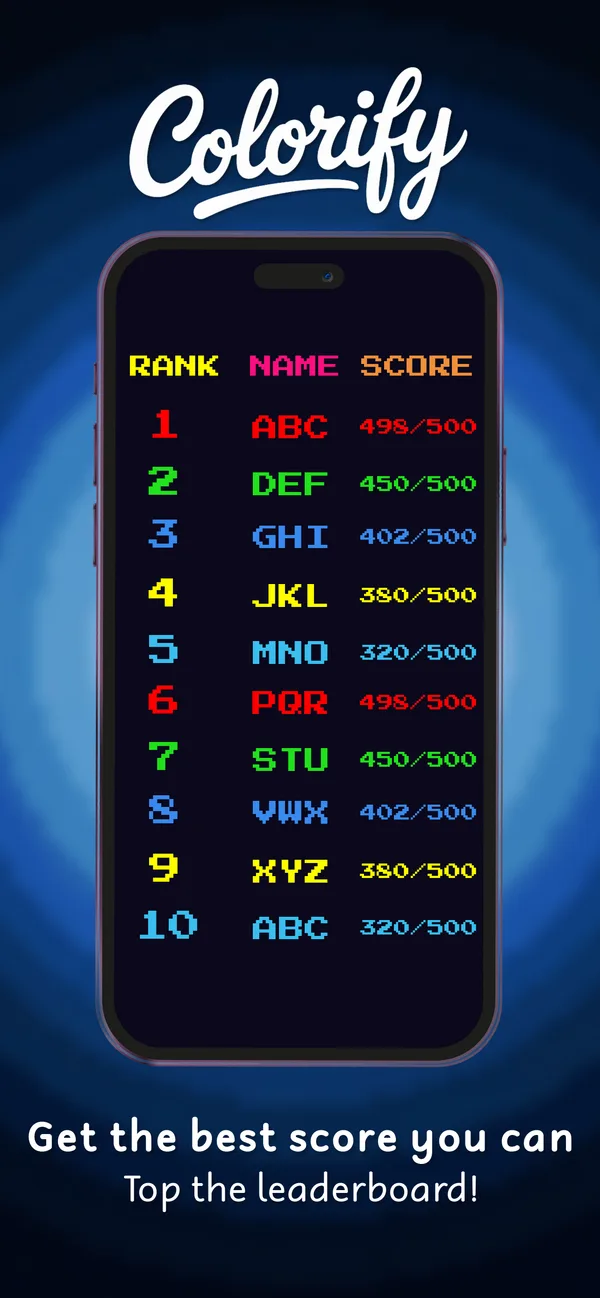
- Leaderboard: the top 200 players are listed
- Platforms: iPhone and iPad (iOS 15 or later) and Android
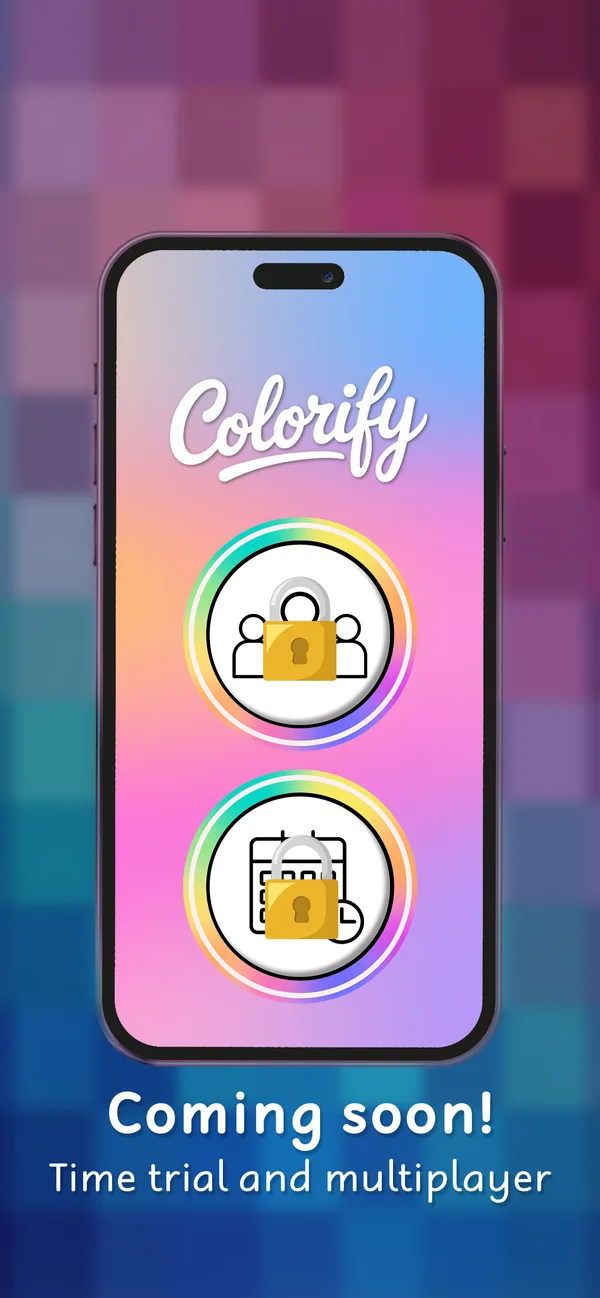
- Coming soon: time trials and multiplayer battles
How a game of Colorify works
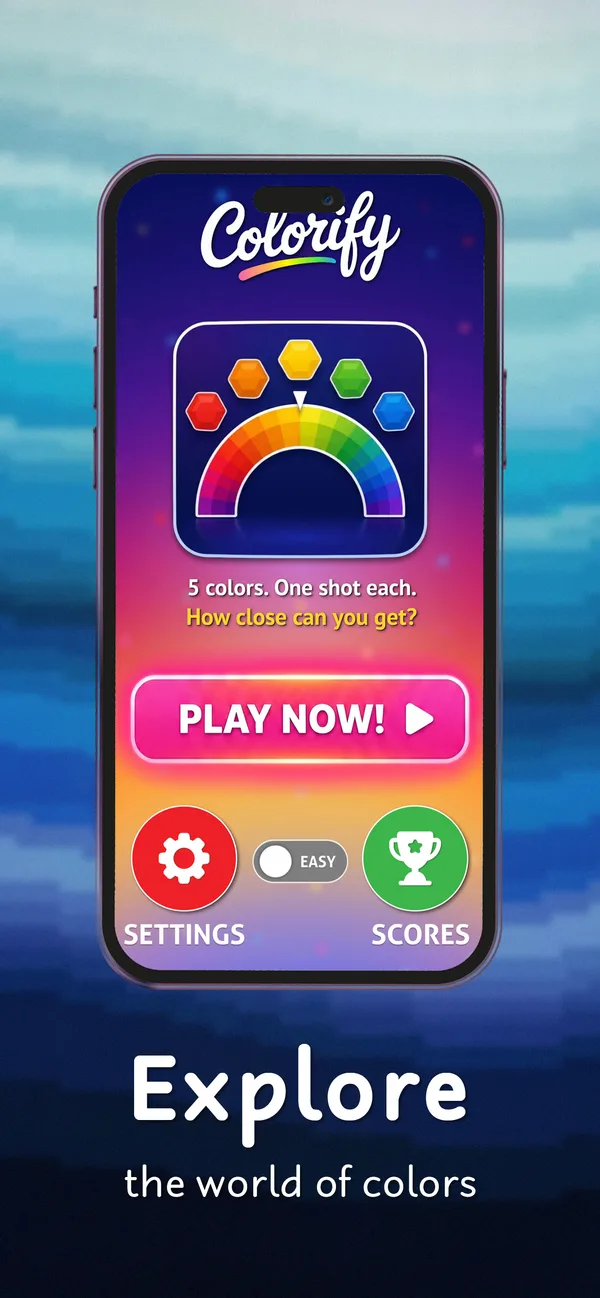
Tap Play now, and the game runs through five colours. Each one goes like this:
- Remember it. The whole screen fills with one colour, and a countdown starts.
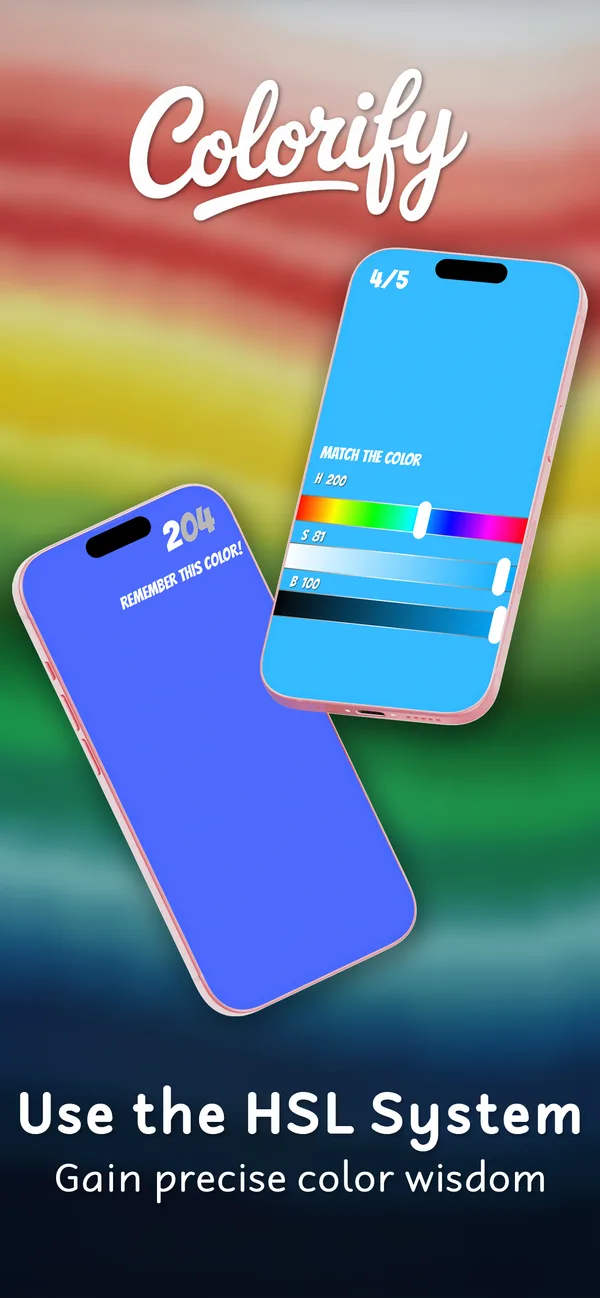
- Rebuild it. The colour disappears. Now drag three sliders, H, S and B, until the screen matches what you remember. You can’t peek.
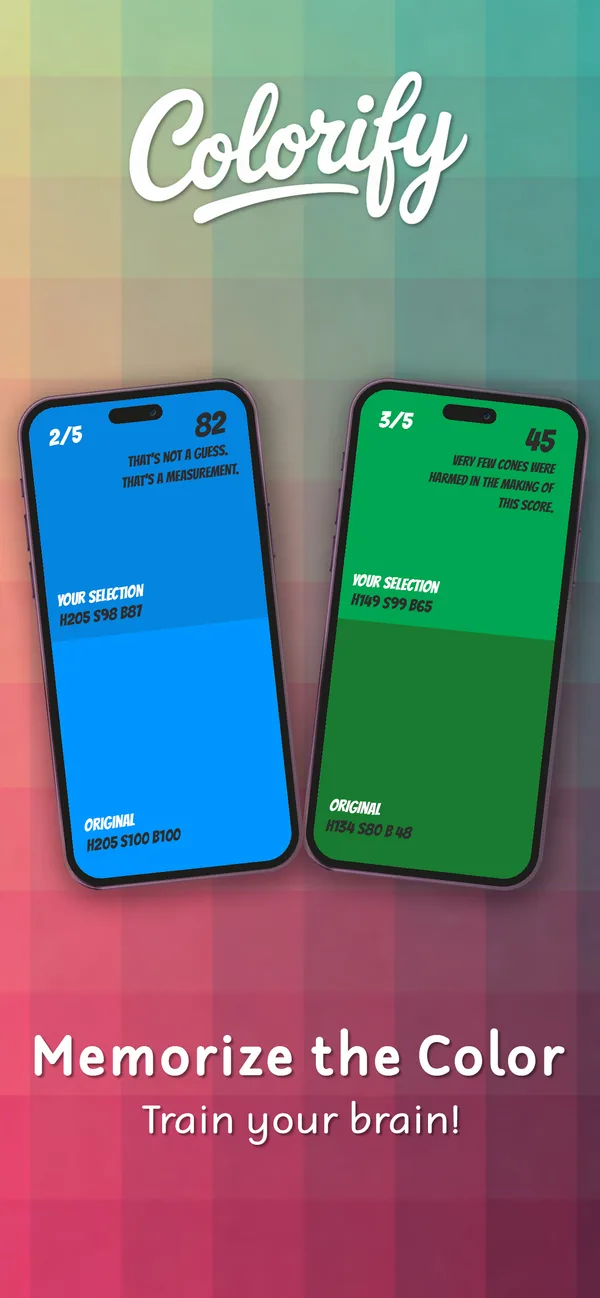
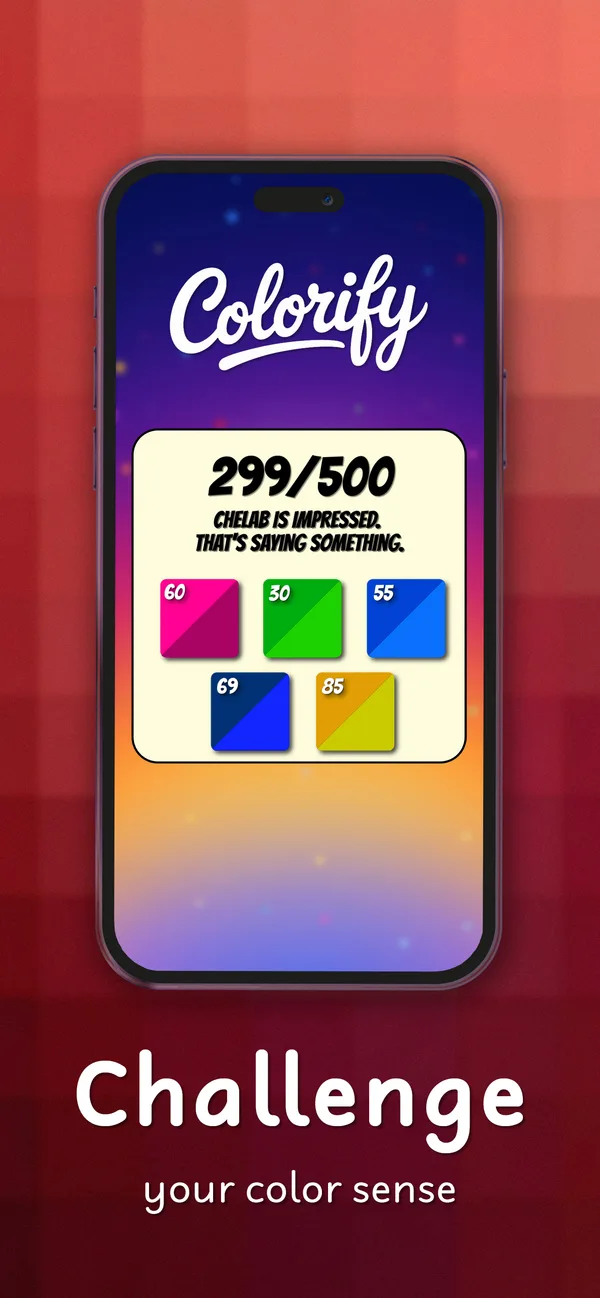
- See your score. The game shows your colour next to the original, with the exact values of both, and scores you out of 100. You also get a one-line verdict. A close match might earn “That’s not a guess. That’s a measurement.”
After five colours, you get your total out of 500 and a grid of all five attempts, so you can see where you went wrong. Was it the shade, or how bright it was?
Easy or Hard?
A switch on the home screen picks the mode. Easy shows each colour for 5 seconds, and Hard for only 3. Two seconds doesn’t sound like much, but it’s the difference between studying a colour and glimpsing it. Start on Easy, and move up once your scores settle.
Hue, saturation and brightness, explained
The three sliders are the same controls designers use in colour pickers. Once you know what each one does, it gets much easier to land on the right shade.
- Hue (H) is which colour it is: its position around the colour wheel, from 0 to 360. Red sits at 0, yellow at 60, green at 120, cyan at 180, blue at 240 and magenta at 300, before it wraps back to red.
- Saturation (S) is how vivid it is, from 0 (grey) to 100 (as rich as it gets). A dusty pastel has low saturation; a neon highlighter has high saturation.
- Brightness (B) is how light it is, from 0 (black) to 100 (full brightness).
This way of describing colour is called HSB (also known as HSV), a close cousin of HSL. It matches how people actually talk about colour (“a darker, greyer blue”) far better than mixing red, green and blue numbers does.
Tips to score higher
- Say it in words. While the colour is on screen, describe it to yourself: “teal, quite dark, a bit grey”. Words are easier to hold on to than a picture.
- Set hue first, then saturation, then brightness. Get the colour family right before fine-tuning. A perfect brightness on the wrong hue still scores badly.
- Watch out for “too vivid”. It’s easy to remember a colour as richer than it really was. If your scores keep slipping, try pulling saturation down a touch.
- Turn off screen tints while you play. A warm night-time tint makes small colour differences harder to see. On iPhone, check Night Shift and True Tone under Settings > Display & Brightness. On Android, look for Night Light or Eye comfort shield in your display settings.
- Keep the lighting steady. Playing in a dark room one game and in sunlight the next makes your scores jump around.
Who it’s for
- Anyone who wants a quick brain game. One game takes a minute or two, which makes it a good fit for a coffee break or a queue.
- Designers, artists and photographers. Rebuilding colours from memory is a fun way to sharpen your eye for hue and saturation. The sliders are the same controls you find in most colour pickers.
- Families and friends. Pass the phone round and compare totals. Colorify is rated 4+ on the App Store and 3+ on Google Play. Younger children may need help with the sliders, but they’ll enjoy guessing the colours.
- Competitive types. The leaderboard shows the top 200 players, so there’s always a score to chase.
Price and privacy
Colorify is free on both stores. On Android, the Google Play listing says it contains ads.
On privacy:
- App Store: Apple’s privacy label says the developer doesn’t collect any data from the app.
- Google Play: the Data safety section says no data is collected. It also says the app may share app activity, app performance information and device IDs with third parties, and that data is encrypted in transit.
On iPhone and iPad it needs iOS 15 or later. The download is about 316 MB, so grab it on Wi-Fi.
Download Colorify
| Device | Where to get it | Price |
|---|---|---|
| iPhone & iPad | App Store | Free |
| Android | Google Play | Free (with ads) |
FAQ
Is Colorify free? Yes, on both iPhone and Android. The Android version is supported by ads.
Do I need an internet connection to play? No. You can play Colorify offline, anywhere.
How is Colorify scored? Each colour is scored out of 100, depending on how close your hue, saturation and brightness are to the original. A game has five colours, so the maximum is 500.
Is Colorify a colour blindness test? No. It’s a game, not a medical or eyesight test. If you’re worried about your colour vision, see an optometrist.
Is there a multiplayer mode? Not yet. Time trials and multiplayer battles are listed as coming soon.
Can kids play it? Yes. It’s rated 4+ on the App Store and 3+ on Google Play. Younger kids may need a hand with the sliders, and it works well as a family game.
Related: our other app, AirLan, for sending files between iPhone, Android, Mac and Windows, plus iPhone tips and tricks for 2026 and the best Android phones.
Watch: this guide in 2 minutes
More short videos
Sources & further reading
Keep reading
How to send thousands of photos and videos between any devices in one go
Install AirLan on every device, tap Select all and send: thousands of photos and videos move between iPhone, Android, Mac and Windows at full quality.
Read more →
iOS 27.2: every new feature, and should you update?
iOS 27.2 brings Siri AI in five more languages, Messages suggestions, Apple TV profiles, Pencil on iPhone Duo and 162 security fixes. Everything new, explained.
Read more →
The best iPhone Duo apps, and the big ones that aren't ready yet
Which apps make the most of the iPhone Duo's folding screen, from Netflix and Fantastical to games that use the hinge, plus popular apps that aren't ready yet.
Read more →