How iPhone swipe typing actually works (and how to get better at it)
Your iPhone doesn't read every letter you swipe over. How QuickPath turns a swipe into a word, how to turn Slide to Type on, and tips to get it right.
Swipe across your iPhone keyboard, from H to E to L to O, and “hello” appears, even though your finger slid over half the keyboard on the way. So how does it know? The short answer: your iPhone barely looks at the letters you pass over. It looks at the shape of your swipe.
Apple calls the feature QuickPath, and the setting is called Slide to Type. Here’s what happens behind it, and how to use it well.
How your iPhone turns a swipe into a word
Every word has an ideal path on the keyboard: the line you’d draw through its letters. When you swipe, your iPhone does roughly three things:
- It reads the shape of your swipe, not each key you touch along the way.
- It compares that shape with the paths every word would make, and how close you came to the right keys.
- It asks a language model which of the close matches is most likely, given the words you’ve already typed.
Apple’s own researchers describe QuickPath as “robust pattern matching enhanced with a statistical language model”. That’s why sloppy swipes still work: your line doesn’t have to be accurate, just closer to the word you meant than to any other word. Apple says the recognition runs with on-device machine learning.
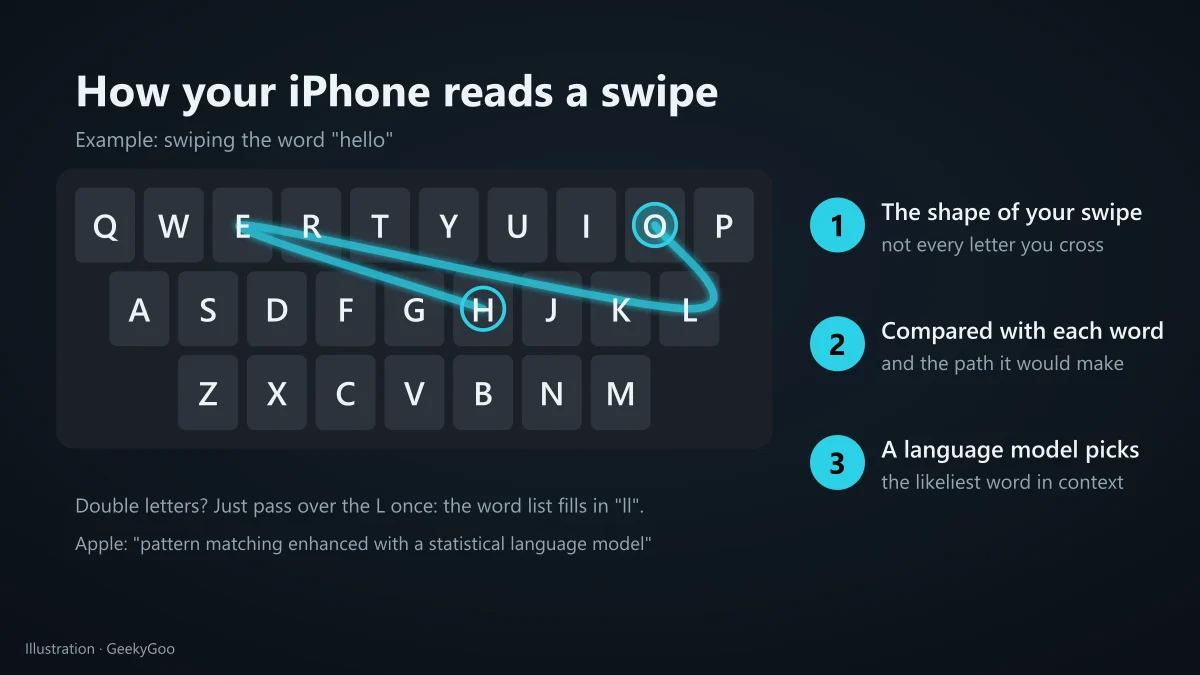
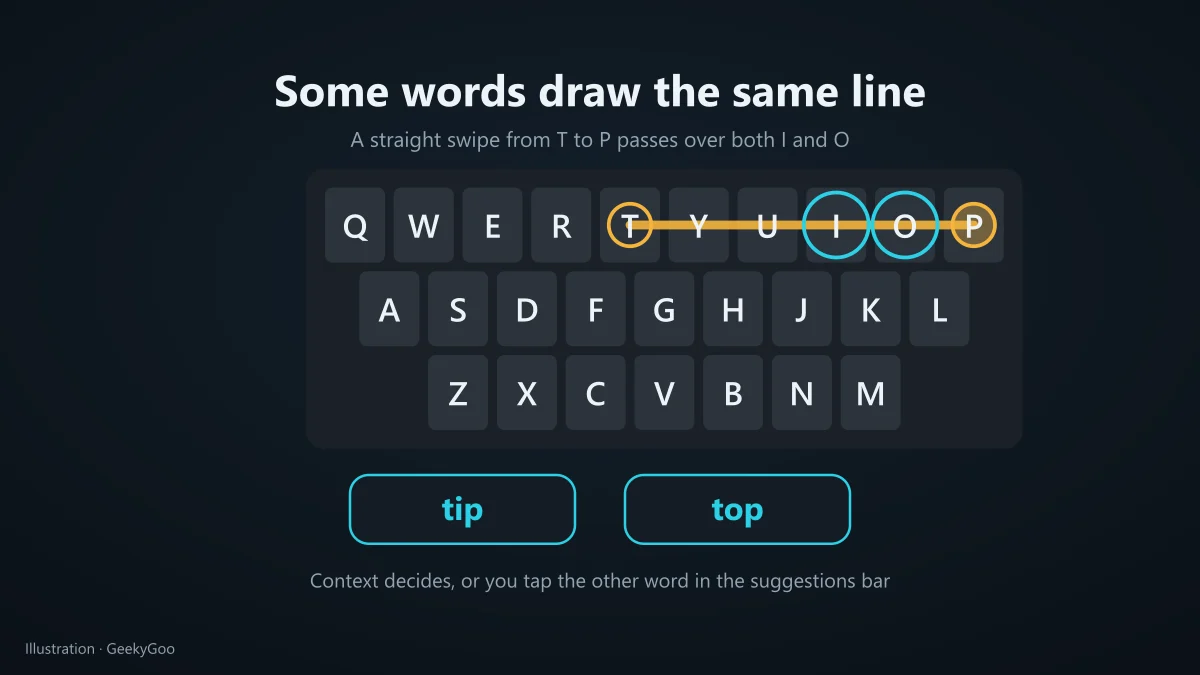
It also explains two odd things. Double letters need no loop: pass over L once and the word list knows “hello” has two. And some words draw exactly the same line. Swipe straight from T to P and you’ve passed over both I and O, so it could be “tip” or “top”. The language model picks one from the sentence, and the other appears in the suggestions bar if it guessed wrong.
How to turn on Slide to Type
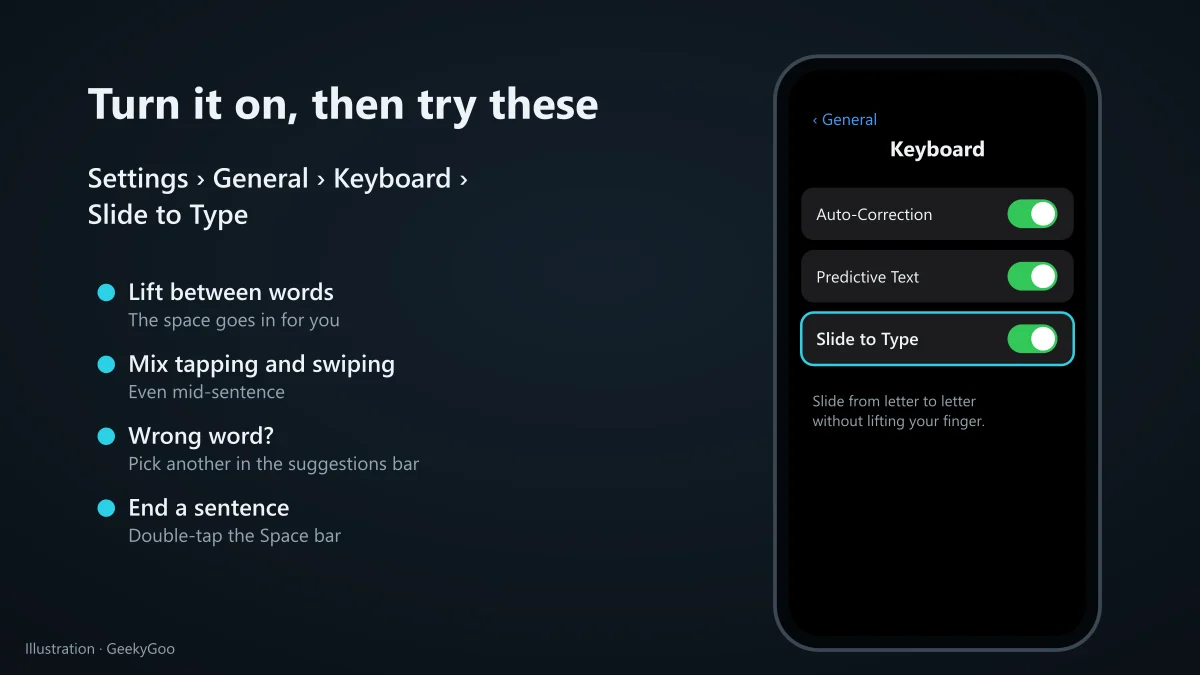
Go to Settings › General › Keyboard and turn on Slide to Type. Then, in any text field, touch the first letter, slide to the next ones without lifting, and lift your finger at the end of the word.
Tips to swipe faster
- Don’t tap Space. Lift your finger between words and the space goes in for you.
- Mix it up. Swipe common words and tap tricky ones like names, even in the middle of a sentence.
- Fix it from the bar. If the wrong word appears, the suggestions bar above the keyboard shows the alternatives. Tap the one you meant.
- Finish fast. Double-tap the Space bar for a full stop and a space.
- It’s built for one hand. Swiping shines when you’re holding a coffee in the other. If you’re a fast two-thumb typist, tapping can still be quicker.
Apple was late to the party
The idea is more than 20 years old. Researchers Shumin Zhai and Per Ola Kristensson at IBM published the first “shape writing” paper in 2003 and released a working swipe keyboard in 2004. Swype brought it to phones in 2009, Android built in Gesture Typing in 2012, and SwiftKey followed with Flow. Apple only added QuickPath in iOS 13 in 2019. Today it works in about 30 languages (Apple keeps the full list), and on Apple Watch Series 7 and later too.
More hidden features? Try our iPhone tips and tricks, or the iPhone beginner’s guide if you’re new.
FAQ
Do I have to swipe over every letter exactly? No. The keyboard matches the overall shape of your swipe, so cutting corners or crossing the wrong keys usually still gives the right word.
How do I type double letters when swiping? Just pass over the letter once. “Hello” needs only one pass over L.
Where is the swipe keyboard setting on iPhone? Settings › General › Keyboard › Slide to Type.
When did the iPhone get swipe typing? With iOS 13 in September 2019. Before that you needed a third-party keyboard.
Watch: this guide in 2 minutes
More short videos
Sources & further reading
- Apple Support — Type with the onscreen keyboard on iPhone (iOS 27)
- Apple — iOS and iPadOS 27 Feature Availability: QuickType Keyboard, QuickPath
- Apple Newsroom — Apple previews iOS 13 (3 Jun 2019)
- Apple Machine Learning Research — Leveraging GANs to Improve Continuous Path Keyboard Input Models
- Zhai and Kristensson — The word-gesture keyboard: reimagining keyboard interaction (Communications of the ACM, 2012)
- Kristensson and Zhai — SHARK²: a large vocabulary shorthand writing system (UIST 2004)
- Google Research — Mobile interaction research at Google (2013)
- MacRumors — How to use the QuickPath swipe keyboard on iPhone and iPad
Keep reading
15 iPhone Duo settings to change first (plus what's coming in iOS 27.3)
Out of the box, the iPhone Duo acts like a phone that can't fold. 15 settings fix that: Touch ID, volume buttons, lock on close, Smart Take flash and more.
Read more →
What Offload App actually does on your iPhone (and when to delete instead)
Offload App removes an iPhone app but keeps its data. What stays, how to get the app back, the automatic setting, and when to delete instead.
Read more →
iPhone for beginners: the complete guide to your first iPhone (iOS 27)
New to iPhone? The buttons, gestures, setup, Home Screen, Control Center, Messages, Siri and the security settings to turn on, explained for iOS 27.
Read more →