Apple Watch Always On display: how to turn it on, customise it and save battery
How to turn Apple Watch Always On on or off, choose what shows with your wrist down, hide private notifications and save battery, plus which models have it.
Disclosure: This article may contain affiliate links. If you buy through them we may earn a small commission at no extra cost to you. It never influences our editorial opinion.
Always On keeps the time and your watch face visible even when your wrist is down, so you can check the time in a meeting or glance at your pace mid-run without flicking your wrist. It’s switched on by default on every recent Apple Watch, but most people never look at its settings, and that’s where the useful part is: you can choose exactly what stays on screen, keep private messages hidden and trade a little convenience for battery life.
The quick answer: on your watch, open Settings > Display & Brightness > Always On.
Which Apple Watch models have Always On?
Always On is on by default on:
- Apple Watch Series 5 and later
- Apple Watch SE 3
- Every Apple Watch Ultra
The first- and second-generation Apple Watch SE and Series 4 and earlier don’t have it. If you’re buying a second-hand SE, check which generation it is.
The latest software, watchOS 27, runs on Series 9 and later, SE 3 and Ultra 2 and later. Older models with Always On (Series 5 to 8 and the original Ultra) still have it, but they run an older watchOS, so their menus may look slightly different.
What Always On shows, and what it doesn’t
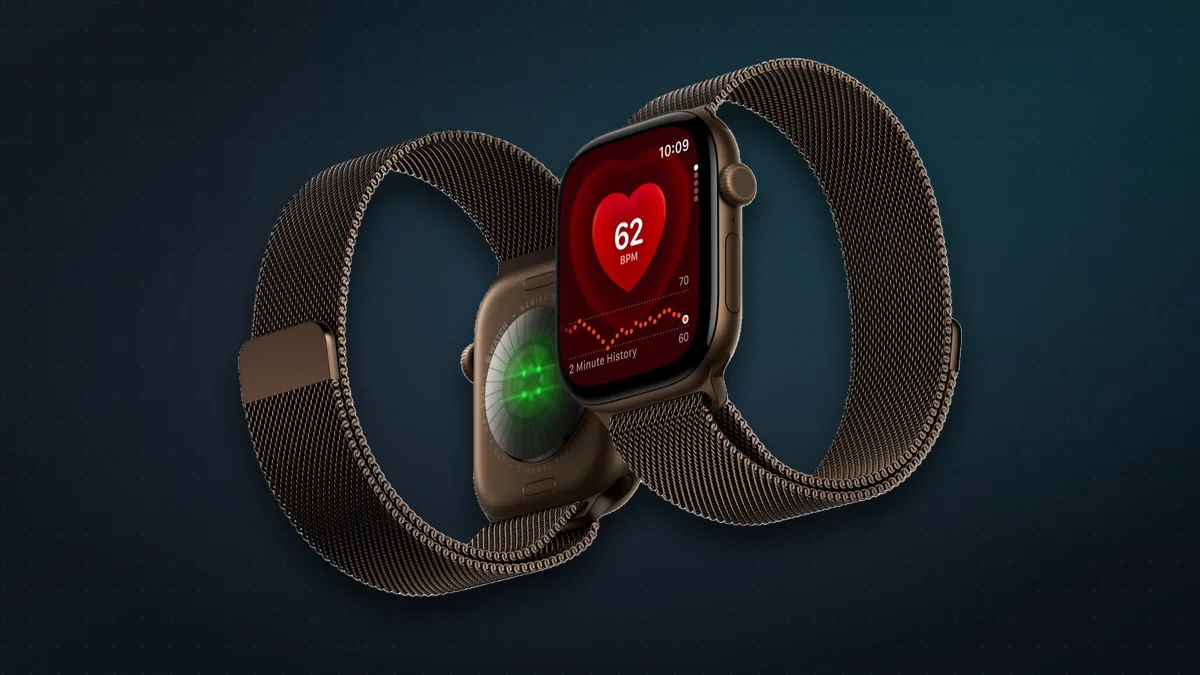
When you lower your wrist, or cover the screen with your hand, the display dims to save power. The time stays visible, along with your watch face and any notifications, Live Activities or active app, such as a workout in progress. Raise your wrist or tap the screen and everything returns to full brightness.
While your wrist is down, the screen updates less often:
- The time and complications update once a minute.
- Timer and Stopwatch round to the minute, so raise your wrist when you need the exact seconds.
- Live-data complications such as Compass and Noise pause.
- Weather, Calendar and third-party complications refresh once a minute or as needed.
Series 10 and later, and Ultra 3 and later, update more often with your wrist down. When it launched the Series 10, Apple said its more efficient screen lets the always-on mode refresh once a second instead of once a minute, which is why some faces can show a ticking seconds hand.
How to turn Always On on or off
- Open the Settings app on your Apple Watch.
- Tap Display & Brightness.
- Scroll down and tap Always On.
- Tap the Always On switch to turn it on or off.
Choose what shows when your wrist is down
This is the setting worth changing. In the same Always On menu, you’ll find four options:
- Show Complication Data
- Show Live Activities
- Show Notifications
- Show Apps
Tap any of them to switch that whole category off, or choose which apps are allowed to appear.
Keep private things private
A dimmed watch is still readable by the person sitting next to you. A few changes worth making:
- Messages: under Show Notifications, turn off messaging apps so previews don’t sit on your wrist in a meeting or on the metro.
- Calendar and health data: under Show Complication Data, turn off any complication you’d rather not display, such as the name of your next appointment or your heart rate.
- Sensitive apps: under Show Apps, turn off any app you don’t want left on screen when you lower your wrist.
Using your watch while it’s dimmed
To stop accidental taps, a dimmed Apple Watch ignores most swipes. You can still:
- Tap a complication to open its app.
- Swipe down from the top to see your notifications.
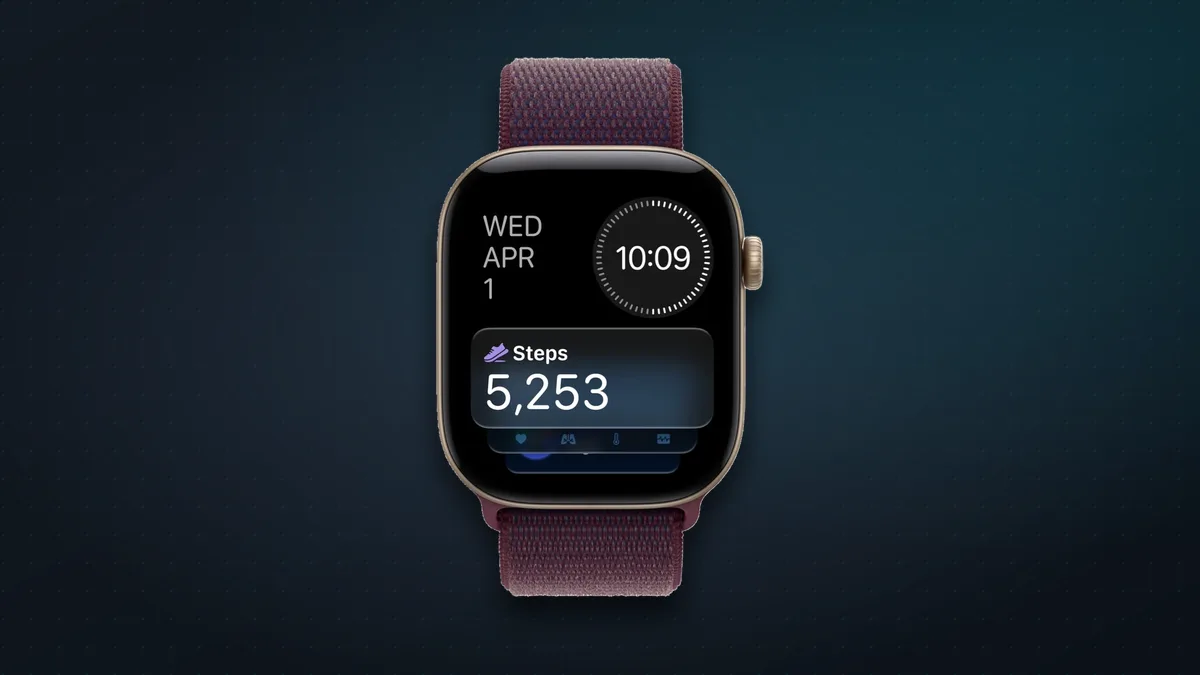
- Turn the Digital Crown to open the Smart Stack.
- Press the side button to open Control Center.
To bring the screen back to full brightness, raise your wrist, tap the screen, or press the Digital Crown or side button.
Does Always On drain the battery?
Yes, a little. Apple says turning Always On off can increase battery life, but it doesn’t put a number on it, and it limits the cost by dimming the screen and updating it less often. How much you’ll notice depends on your model, the age of its battery and how you use it.
If your watch struggles to last the day, try these before giving up on Always On entirely:
- Turn on Low Power Mode in Control Center on days you need more battery. Always On switches off automatically while it’s on.
- Use Theater Mode at the cinema, a concert or in bed. It turns Always On off and stops the screen from lighting up when you move your wrist, until you tap it or press a button.
- Turn Always On off if your watch’s battery is ageing. It’s the simplest way to win back some battery life.
Always On not working? Quick fixes
- Check your model. The SE (first and second generation) and Series 4 and earlier don’t have it.
- Check Control Center. Always On doesn’t work in Low Power Mode or Theater Mode.
- Check the switch in Settings > Display & Brightness > Always On.
- An app vanishes when you lower your wrist? It’s probably turned off under Show Apps.
- The screen goes dark when you cover it? That’s deliberate: covering the display dims it, just like lowering your wrist.
- Still stuck? Restart your Apple Watch and try again.
When Always On is most useful
- Meetings and lectures: check the time without an obvious wrist flick.
- Workouts: the Workout app stays on screen, so you can see your pace or heart rate without breaking your stride.
- Cooking: keep an eye on a timer without washing your hands first. Just remember the Timer complication rounds to the minute while your wrist is down.
- Live Activities: follow a ride or a delivery from your iPhone at a glance.
Buying an Apple Watch for Always On?
The cheapest Apple Watch Apple sells, the SE 3, now has Always On, so you no longer have to pay for a Series model to get it. If you want the smoother, once-a-second updates and a ticking seconds hand, choose a Series 10 or later or an Ultra 3 or later.
The bottom line
Always On is one of the Apple Watch’s best everyday features, and it’s worth keeping on for most people. Spend two minutes in Settings > Display & Brightness > Always On to hide notifications and apps you don’t want on show, and use Low Power Mode or Theater Mode when you need the battery or the darkness, rather than switching it off for good.
More Apple tips: see our iPhone tips and tricks.
Sources & further reading
Keep reading
iOS 27.2: the two new CarPlay features, and everything else that's new
iOS 27.2 brings a smarter Siri AI and a redesigned Podcasts screen to CarPlay, plus Excluded Apps, Messages suggestions and more. What's new and how to update.
Read more →
12 iPhone tips and tricks worth knowing in 2026
A dozen genuinely useful iPhone features Apple buries a menu too deep, from a physical camera shutter to disposable email. Most take a minute to set up.
Read more →
MacBook Pro with PROLED XDR: Apple's first OLED touchscreen Mac. Should you buy it?
Apple's first OLED touchscreen MacBook Pro, from $2,899 (₹3,49,900) with M5 Pro or M5 Max: what's new, how it compares with the regular Pro and who should buy.
Read more →